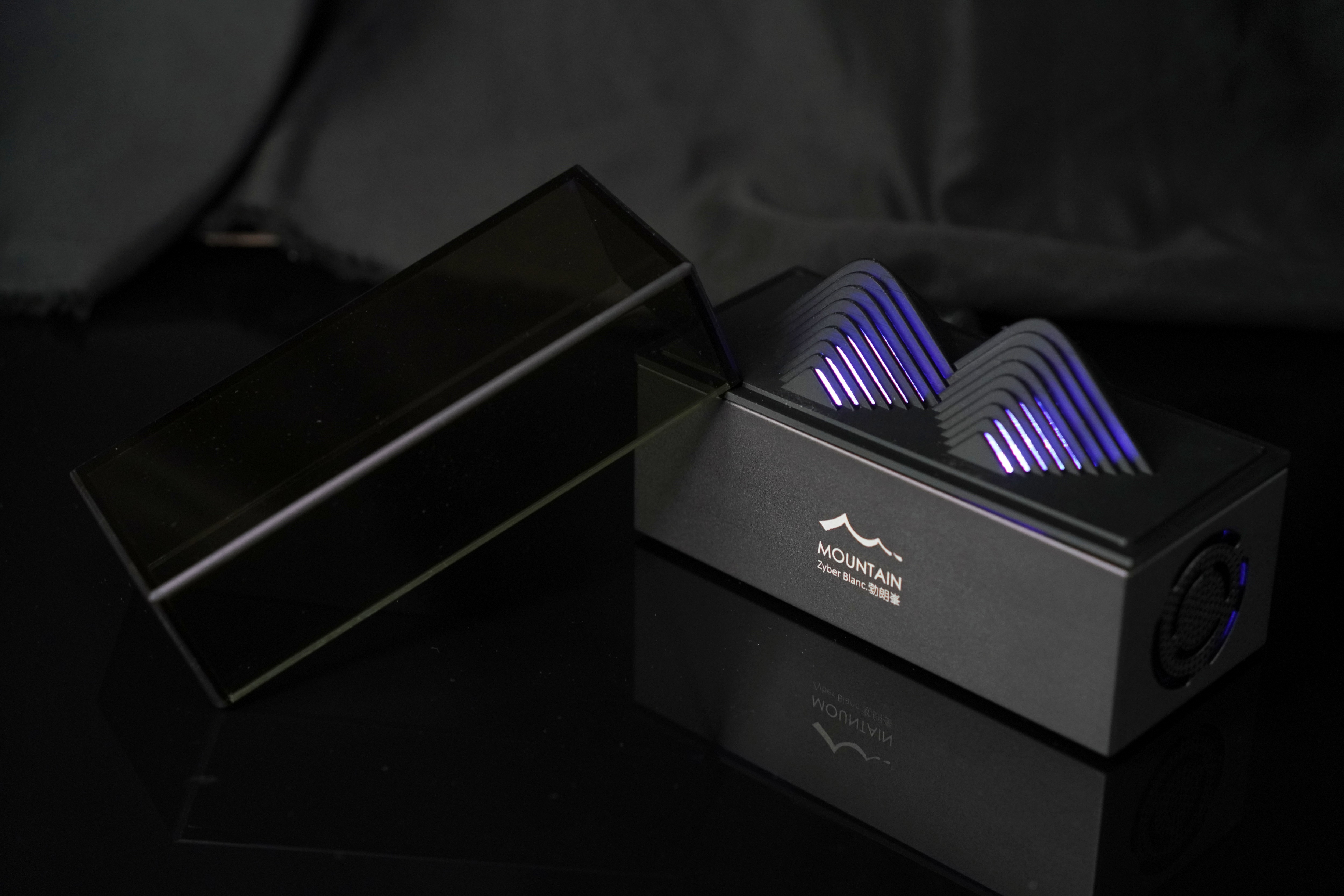
If your Zyber Blanc Standard has just arrived, take a few minutes to read through this setup guide—from unboxing, network configuration, Zyber OS backend to the tri-color LED status quick reference, helping you get started with this Bitcoin Solo Miner quickly.
Before we begin, here are some of the Zyber Blanc Standard's achievements:
- The world's first consumer-grade BTC Solo miner powered by a single-core BM1373 3nm chip
- One of the few BTC home miners on the market that achieves an energy efficiency ratio of 8–10 J/TH
- The 3rd new product in the TinyChipHub Zyber series (Zyber 8S -> Zyber 8G -> Zyber Blanc)
- The 1st desktop artwork driven by TCH's full-stack self-developed appearance/hardware design + software platform
- A TCH miner fully adapted to the Zyber OS ecosystem, compatible with WatchDog for desktop interaction, with ongoing development...
✅ Reminder: This guide focuses on network setup and Zyber OS configuration, and does not include detailed data reviews. TinyChipHub will release a separate data review guide for this miner soon, so stay tuned.
1. Zyber Blanc Standard Unboxing📦
Step 1: Check the Package
Upon receiving the package, please verify that all items are included. If anything is missing or damaged, contact TinyChipHub after-sales support at: tch.info@tinychiphub.com.
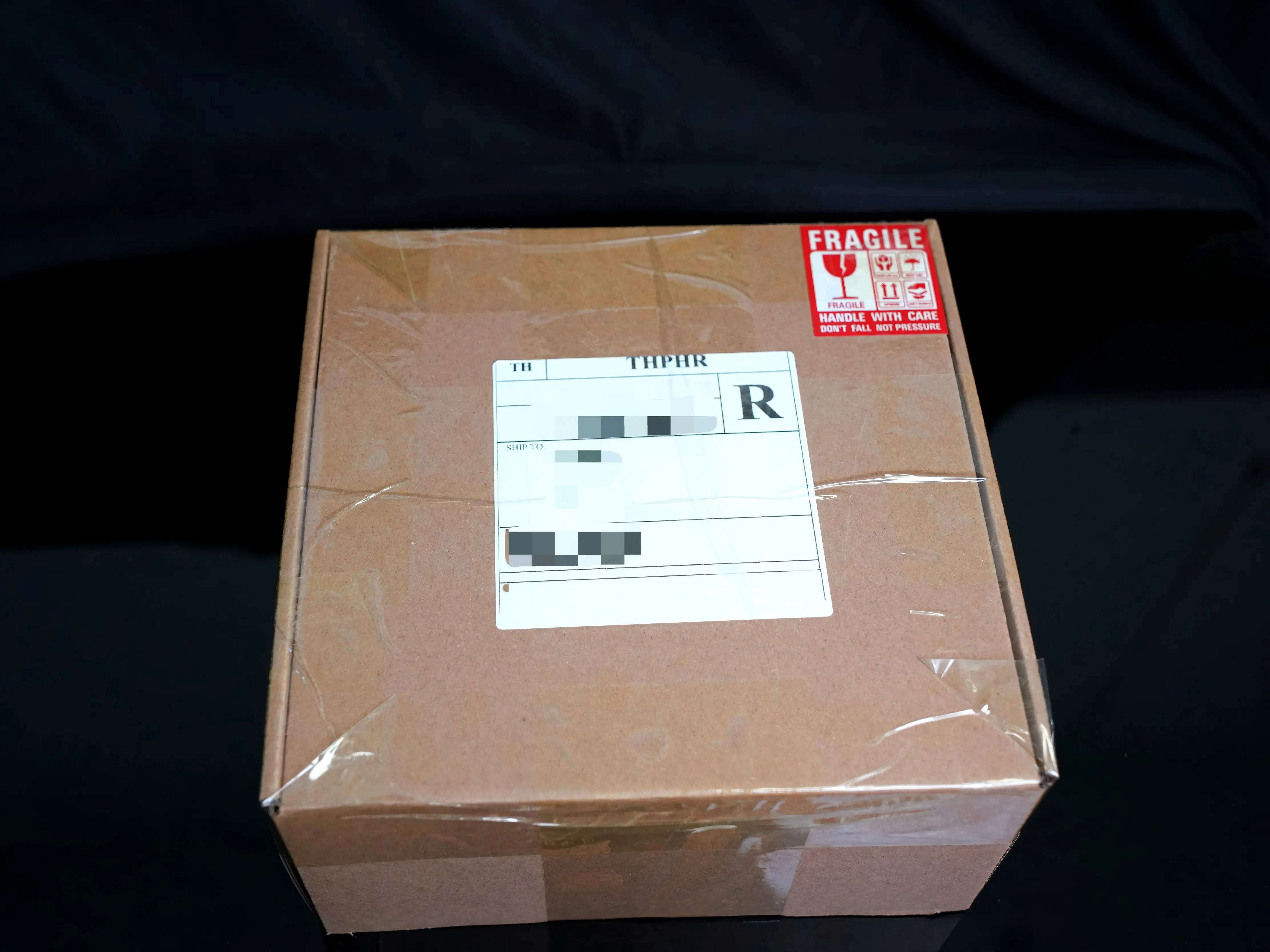

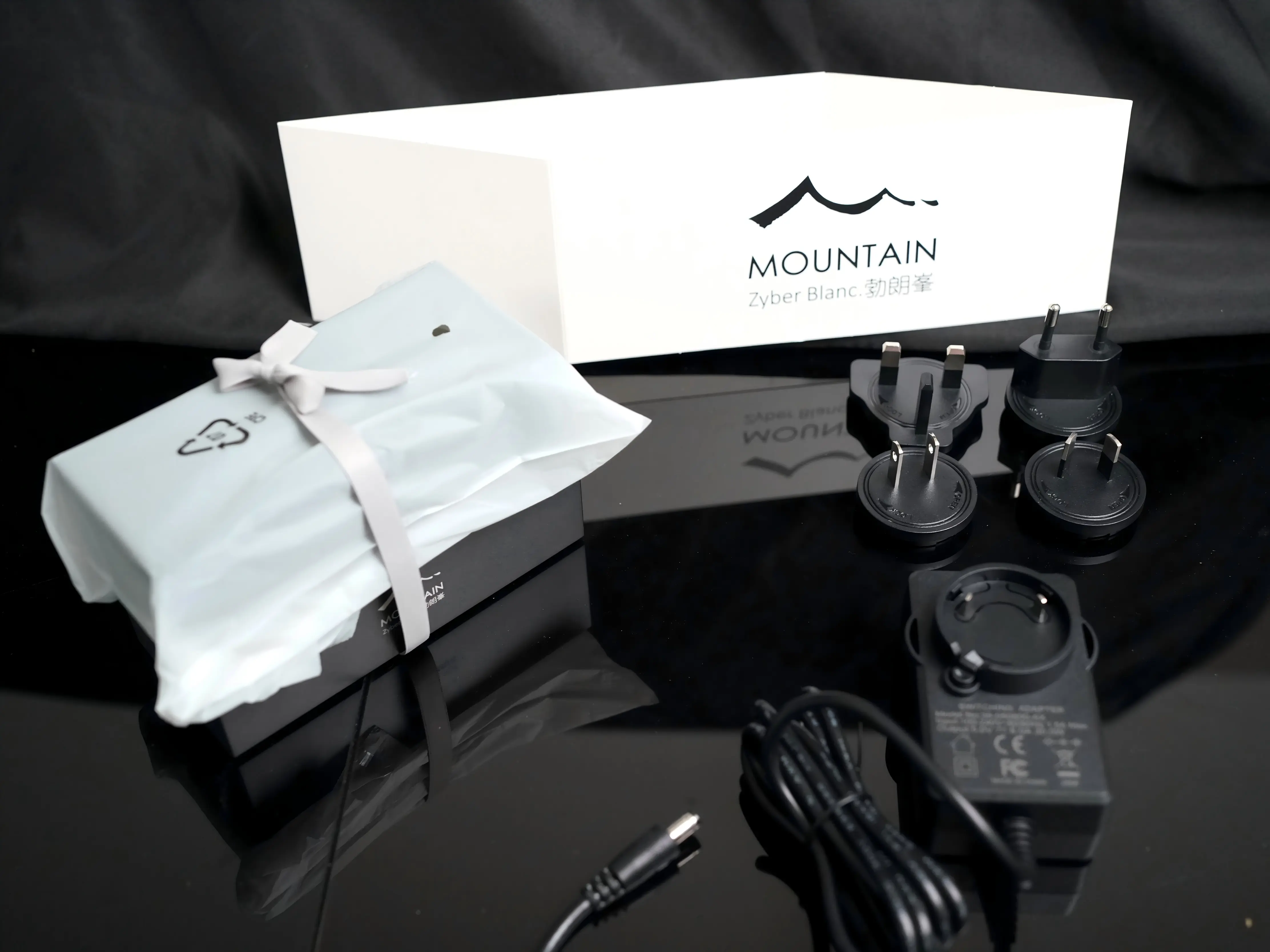
The Zyber Blanc Standard package includes:
- Outer box
- Inner packaging waistband (for easy removal of the inner honeycomb box)
- Inner honeycomb box (remove the waistband, open the side of the honeycomb box; crush-resistant, eco-friendly paper box)
- Zyber Blanc Standard (Dimensions: 135×60×81mm, including full aluminum base, detachable top cover, acrylic shell)
- 5V-6A Laboratory Optimized Power Supply + Adapter Plugs (US, EU, UK, CN standards)
Step 2: Open the Package / Remove the Product
Open the outer box, and you'll see the inner honeycomb box with a waistband. Lift the waistband directly to remove the entire honeycomb box, then take off the waistband. Like opening a book, open the honeycomb box from the side.
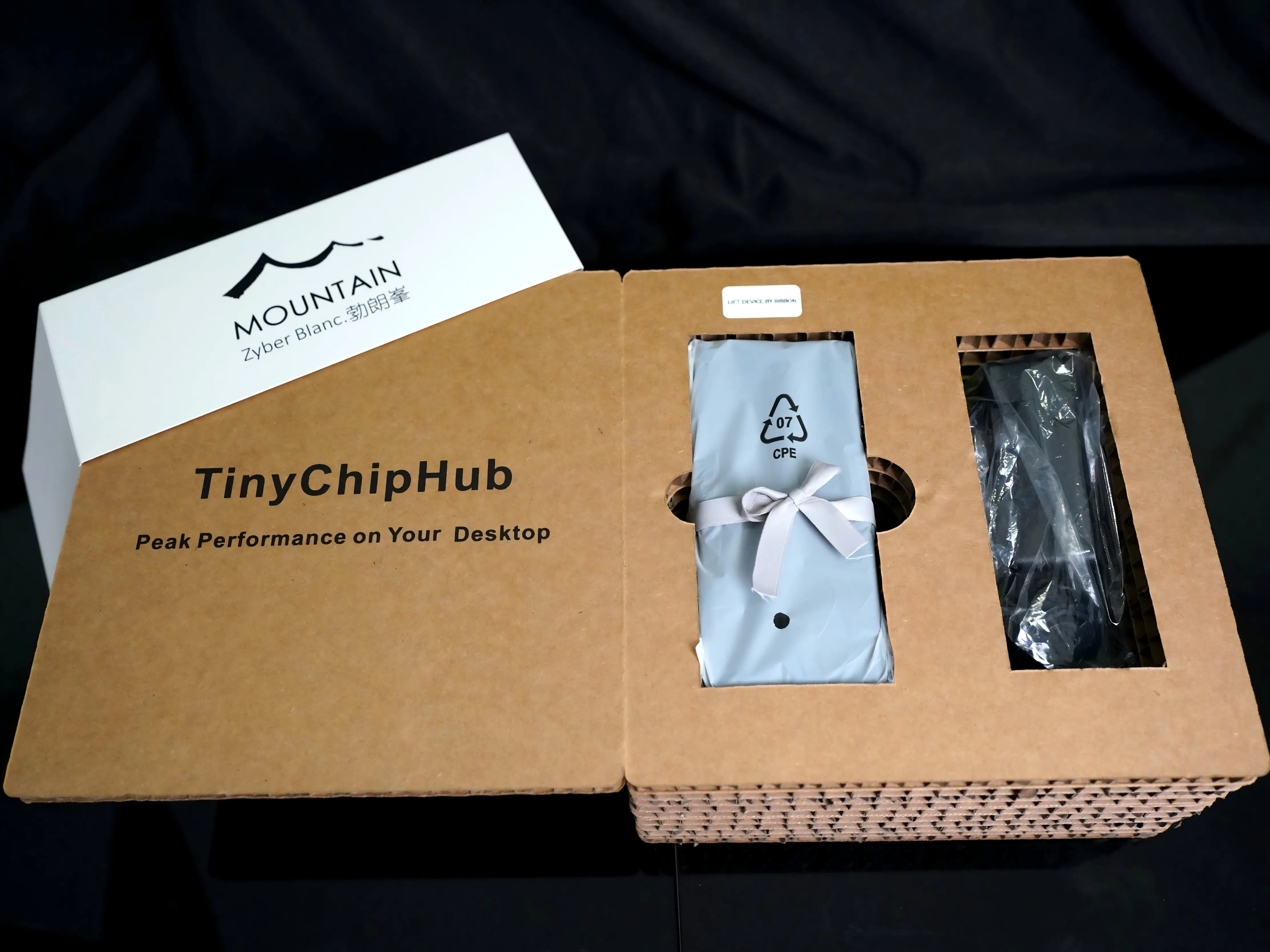
Inside the honeycomb box, the left side of the top cover bears the miner's slogan: "Peak Performance on Your Desktop."
On the right side of the honeycomb box, you'll find the following items. Later batches may also include a sticker saying "LIFT DEVICE BY RIBBON" reminding you to lift the product first.
- 5V-6A laboratory optimized power supply, along with the plug adapter for your region;
- Zyber Blanc Standard (top cover and shell wrapped in a dust bag, full aluminum base, i.e., the miner body located below, tied with a ribbon bow for easy removal.)
🎁 Unboxing Tip: Remember not to untie the ribbon directly. Lift the ribbon slowly and firmly to pull out the base along with the top cover/shell together. In early batches, due to packaging design, the ribbon might get caught when lifting. Try pulling from different directions patiently. This will not damage the miner itself, so feel free to follow the procedure to lift the miner.
Step 3: Assembly & Operation
1. Install the Top Cover
Open the detachable ⛰️ mountain-shaped top cover and acrylic shell, and simply place them onto the full aluminum base. Once the top cover is in place, the complete Zyber Blanc Standard is ready for power-on operation.
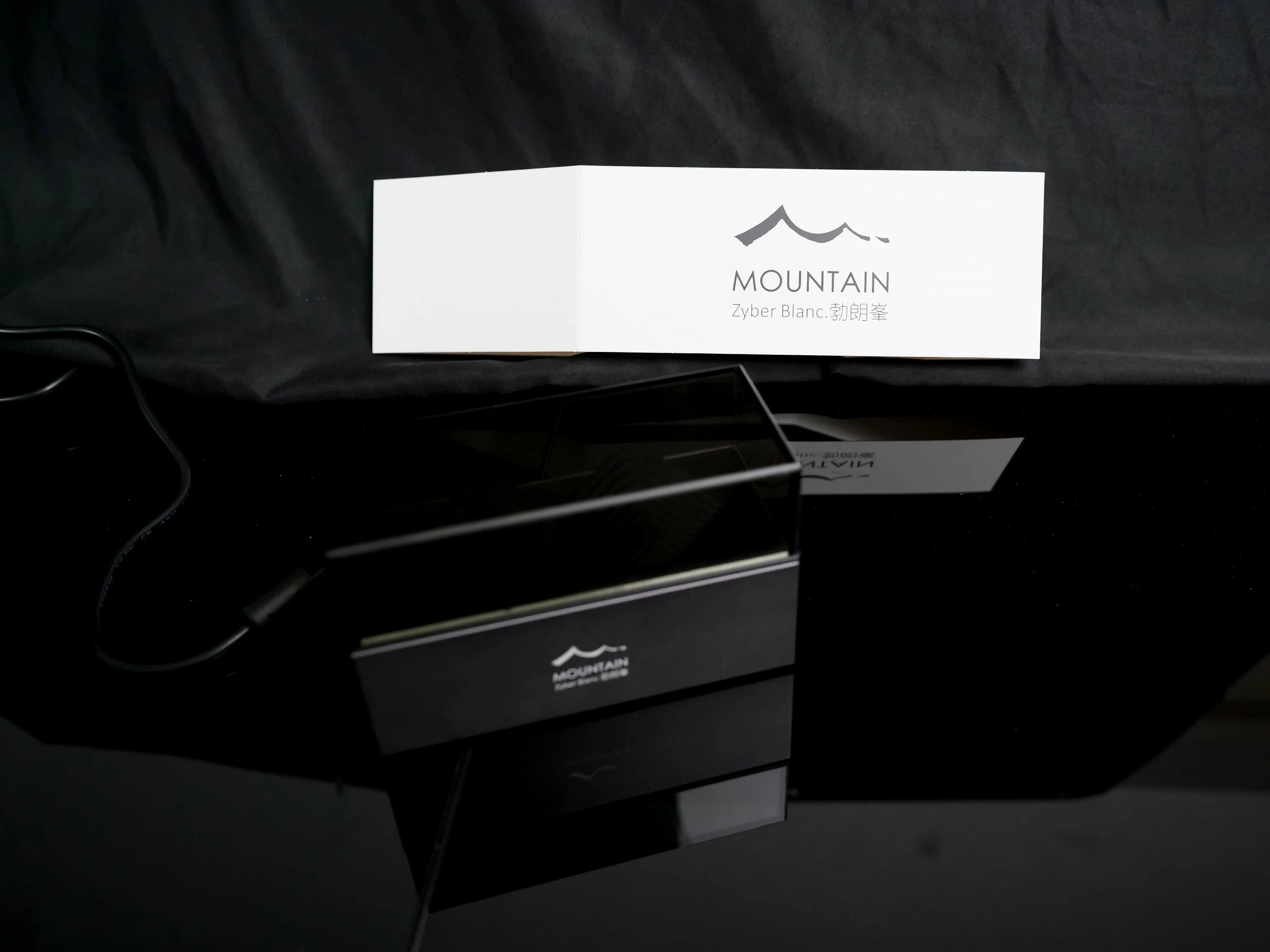
⚠️ Important Notes:
- The acrylic shell is purely decorative and does not affect functionality.
- This unit features a closed air duct + dual intake/exhaust fans. Failure to install the mountain-shaped top cover may result in slightly higher power consumption (+1~2W).
- For DIY modifications, refer to the design of the Bitaxe Supra Hex . However, compatibility and data performance with the chip may vary, mainly depending on the chip's potential. Other components have minimal impact, and minor fluctuations in hashrate data are normal.
2. Connect Power
Power the miner using the included 5V‑6A Laboratory Optimized Power Supply and the appropriate plug. For potentially higher hashrate, you may replace it with a better-performing 5V power supply (e.g., 5V‑10A), but pay attention to heat dissipation and safety.
3. LED Indicator Status Description
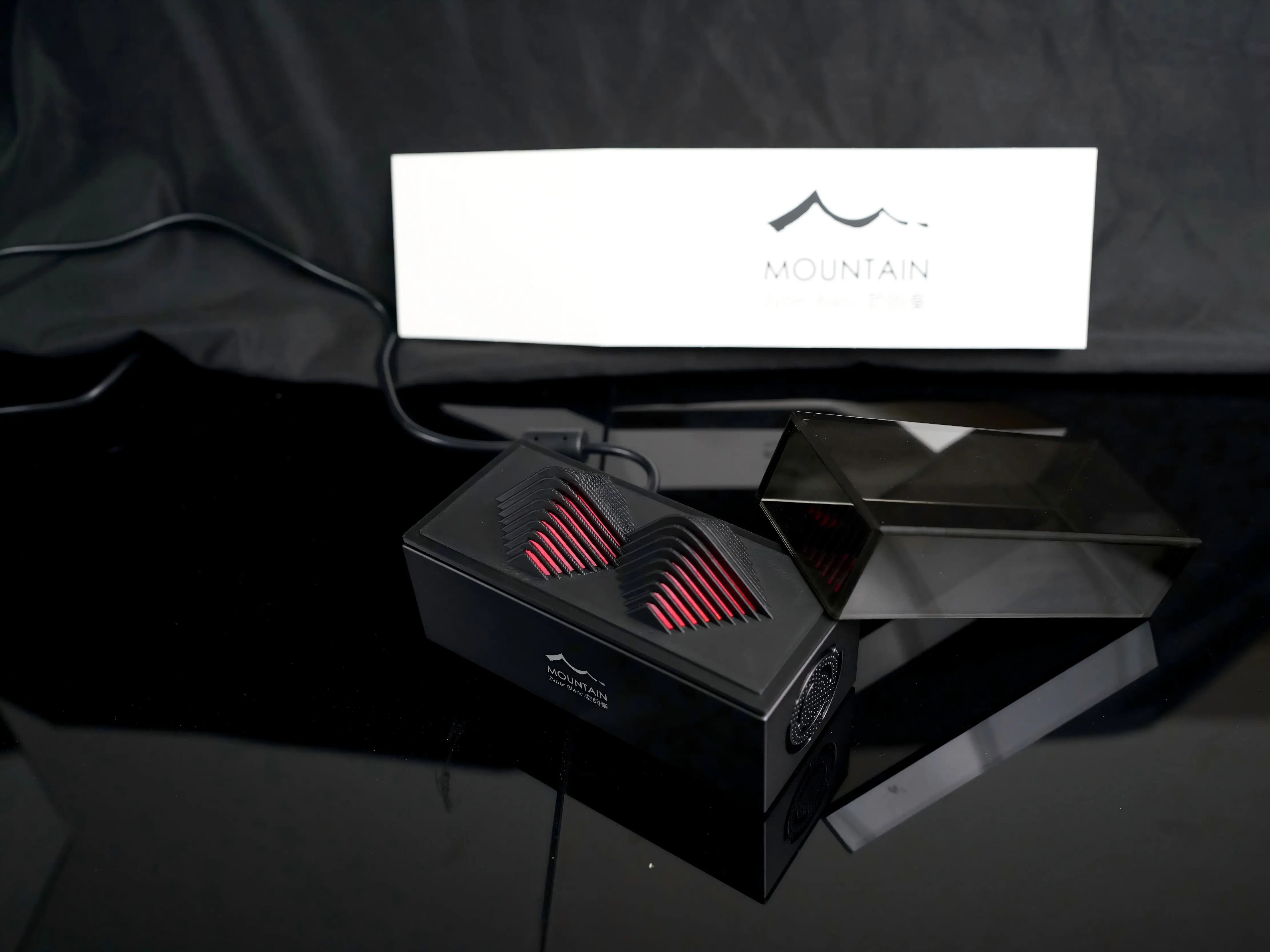
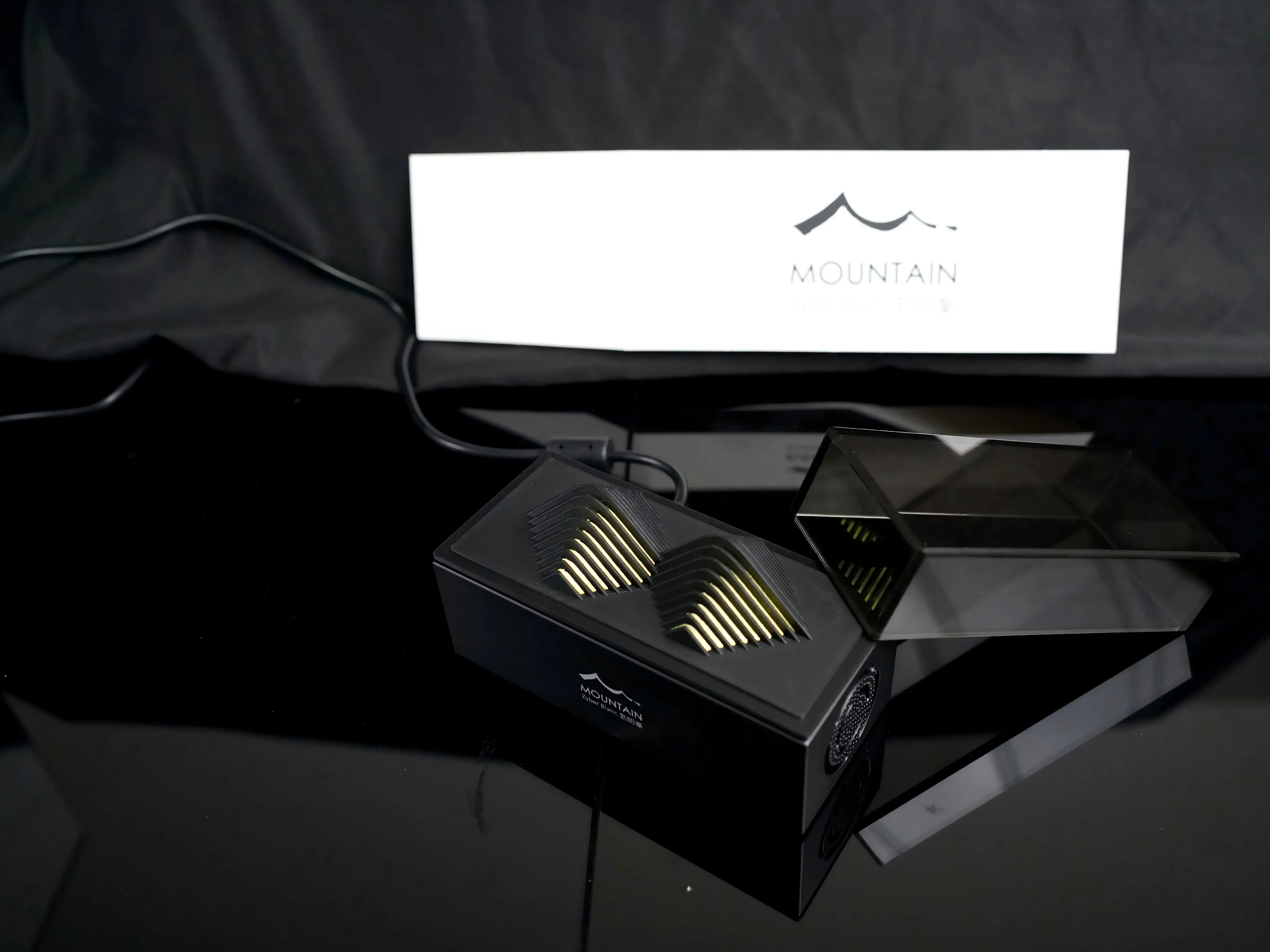
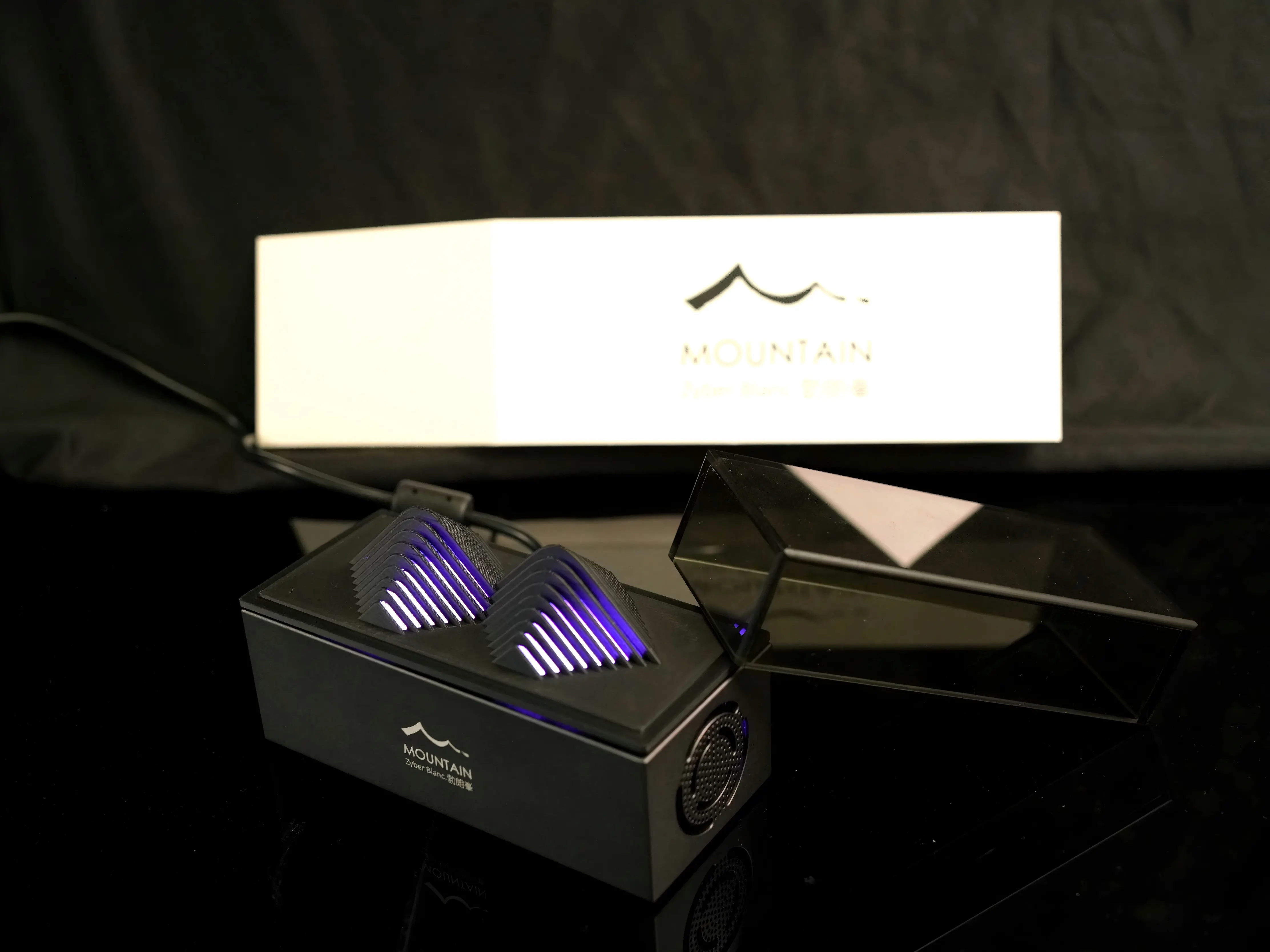
There are two rows of LEDs on the front and back of the heatsink on the miner's PCB board to indicate operational status. You can determine the running status of the Zyber Blanc Standard by the color shining through the mountain-shaped top cover, referencing the table below:
|
LED Color
|
Meaning
|
Solution
|
|---|---|---|
|
🔴 Red
|
Starting hardware detection/Switching operation Mode
|
If the light remains red for an extended period, check if the power connector is firmly plugged in and try reconnecting the power. If the red light persists for more than 2 minutes, the power adapter may be faulty.
|
|
🟡 Yellow
|
Connecting to Wi-Fi or searching for network
|
Wait for 30 seconds. If it doesn't turn purple, the Wi-Fi configuration is incorrect. Check the SSID and password (Does not support 5GHz Wi-Fi). Or the Wi-Fi distance might be too far to detect.
|
|
🟣 Purple
|
Normal operation, connected to mining pool
|
Congratulations, everything is normal! If the hashrate shows 0, log into the Zyber OS backend to check the pool logs.
|
⚠️ Important Note: Please be aware beforehand that unlike BM1370 miners which switch operation modes directly, the BM1373 chip restarts when changing operation modes, causing the hashrate to reset to zero before increasing frequency or core voltage.
4. Environmental Requirements: It is recommended to place the miner in an environment with a room temperature of 26°C and good ventilation. 🔥 During summer high temperatures, ensure adequate ventilation to avoid overheating leading to throttling or damage.
2. 🌐 Network Configuration (Required)
Network configuration is often the most frustrating part of the entire setup, but once you understand two key points: WiFi network setup + Dual-channel access to the backend (a characteristic of the Zyber OS ecosystem). The entire WiFi configuration process takes about 3 minutes.
When the Zyber Blanc Standard enters an unfamiliar environment or cannot connect due to an incorrect WiFi password, it will enter AP mode upon power-up, broadcasting an open hotspot from the PCB. Connecting to this hotspot allows you to access the network configuration page. This process is essentially the same as configuring the WatchDog's network configuration page, except this time it's Zyber OS, not ZCube OS. If you're interested in ZCube OS, check out the WatchDog User Guide: Full Step-by-Step Tutorial.
a. Wi-Fi Setup
🔌 Step 1: Start Power Supply ⚡️
Use the 5V power supply (use the included 5V-6A laboratory optimized power supply) and the appropriate regional plug to power the Zyber Blanc Standard. The LED indicator on the miner's PCB lights up red. On first startup, it begins identifying hardware and configuring WiFi, failing to find a previously configured WiFi network. At this point, the Zyber Blanc Standard will broadcast an open Wi-Fi hotspot with a name similar to Zyber_XXX.
📱 Step 2: Connect to Hotspot → Enter Configuration Page
Use any phone or computer to scan for Wi-Fi networks, find and connect to the open Wi-Fi hotspot starting with Zyber_XXX. The system will automatically bring up the Network Configuration page (via Captive Portal, popping up automatically after connection, no need to manually enter a URL).
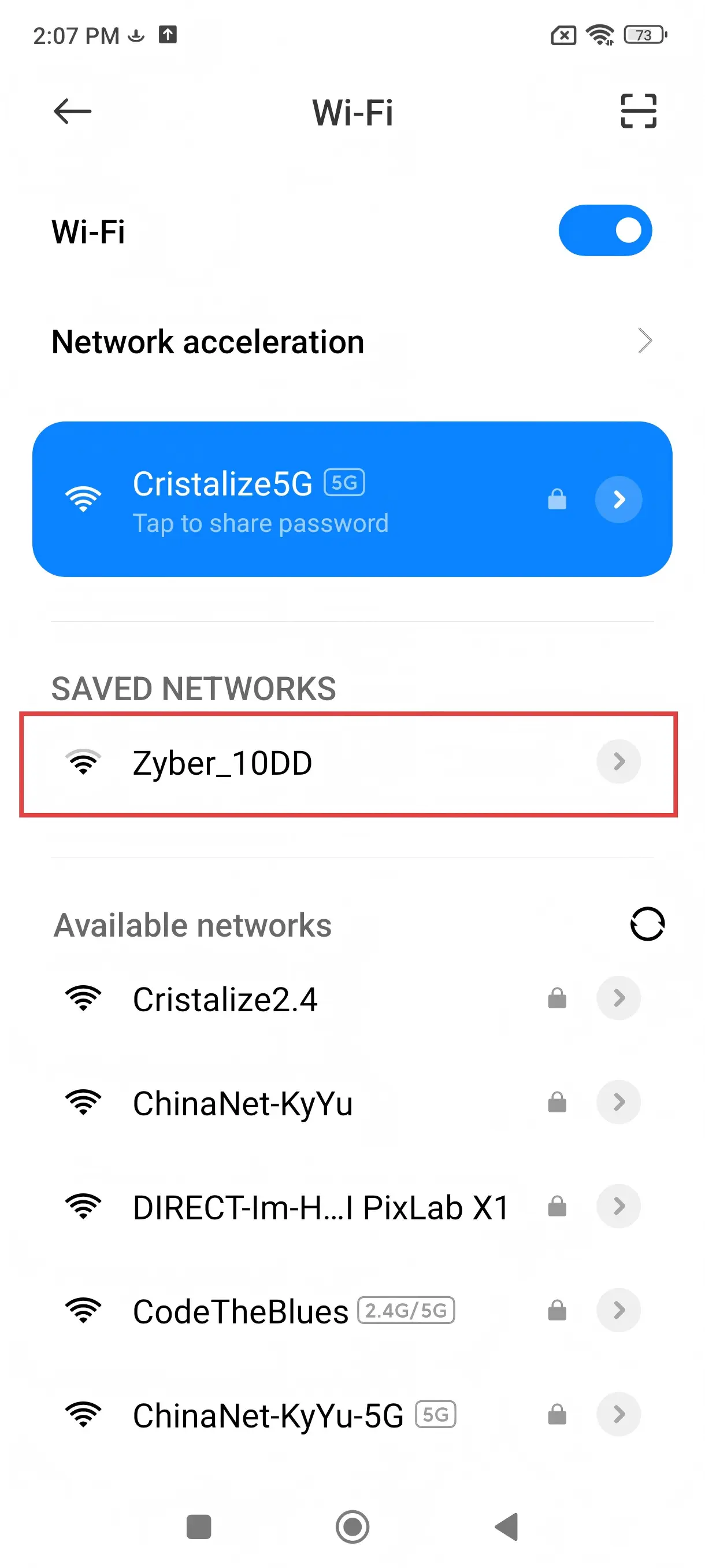
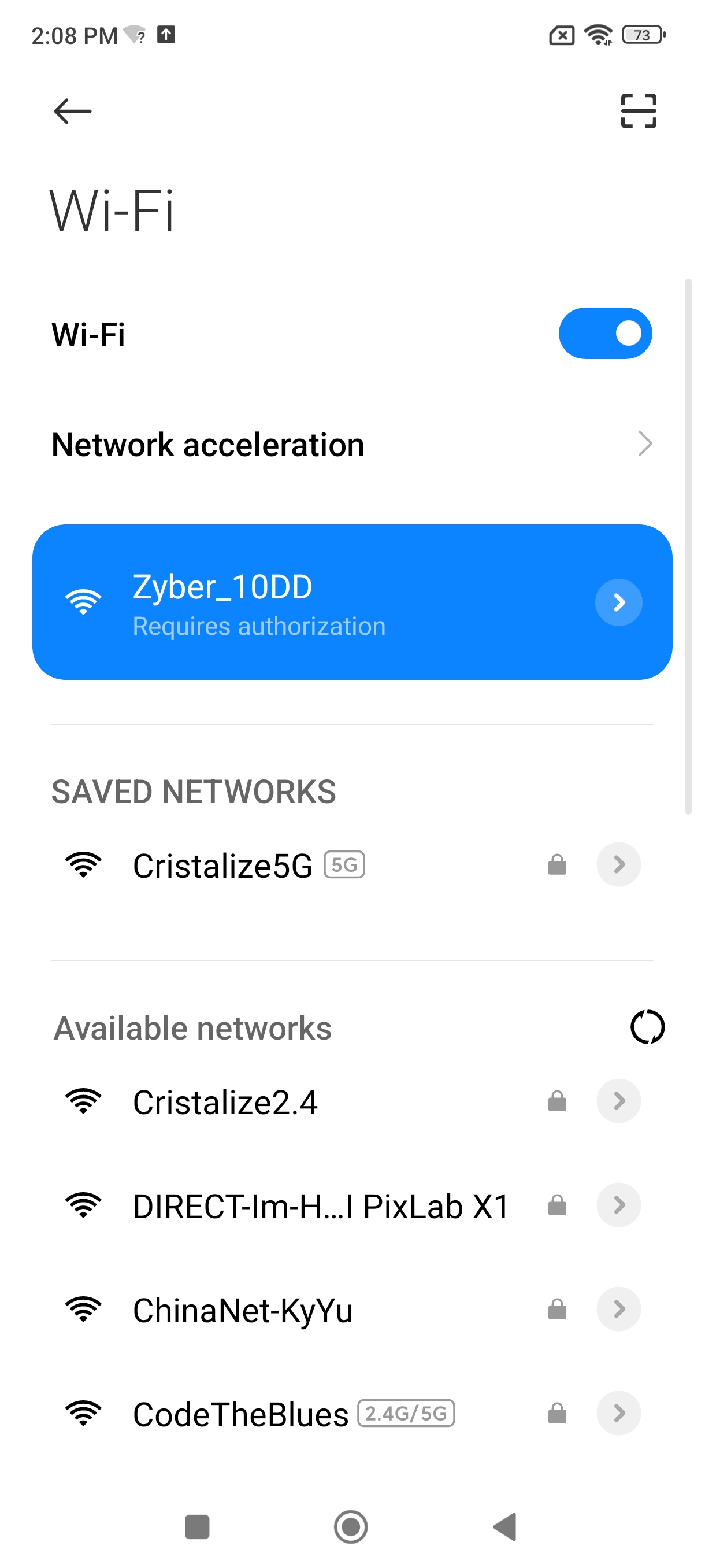
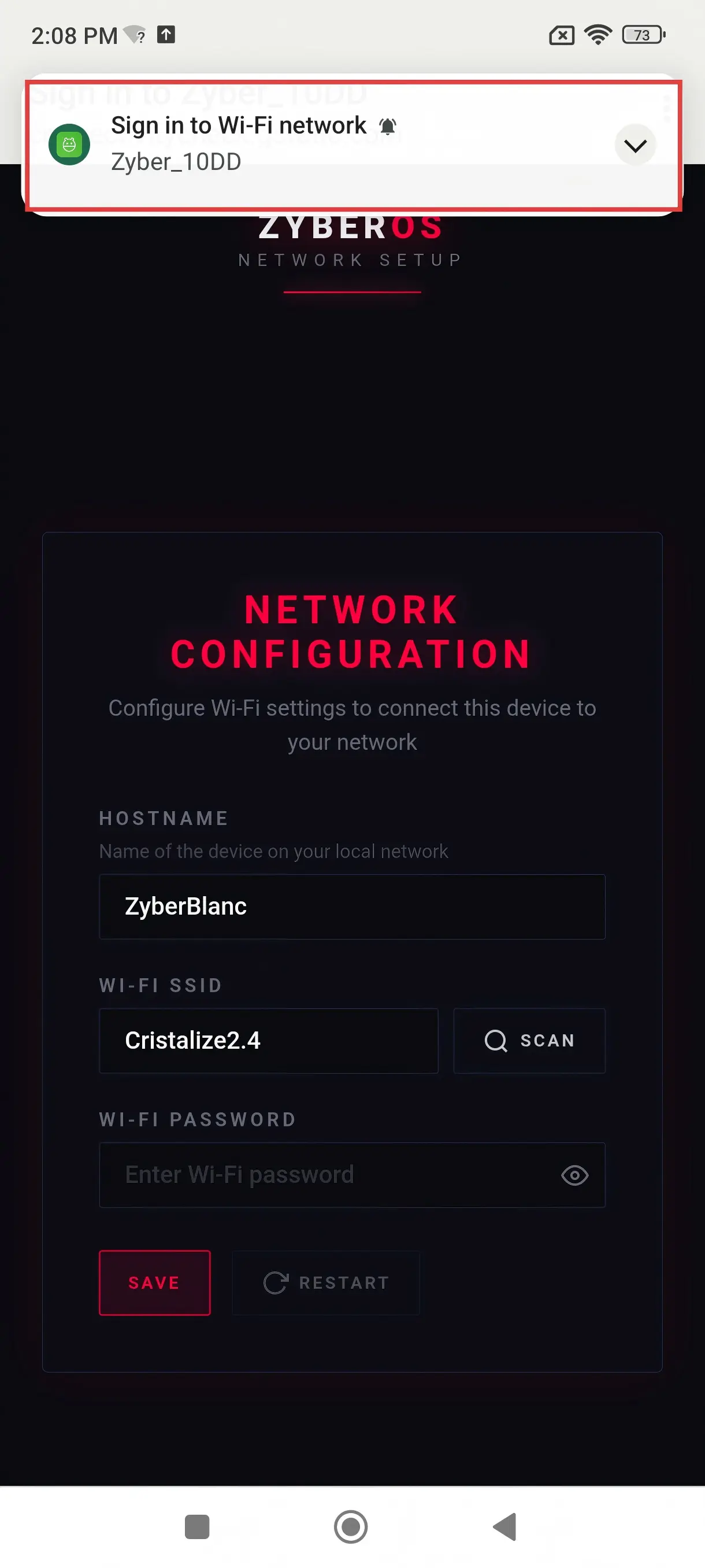
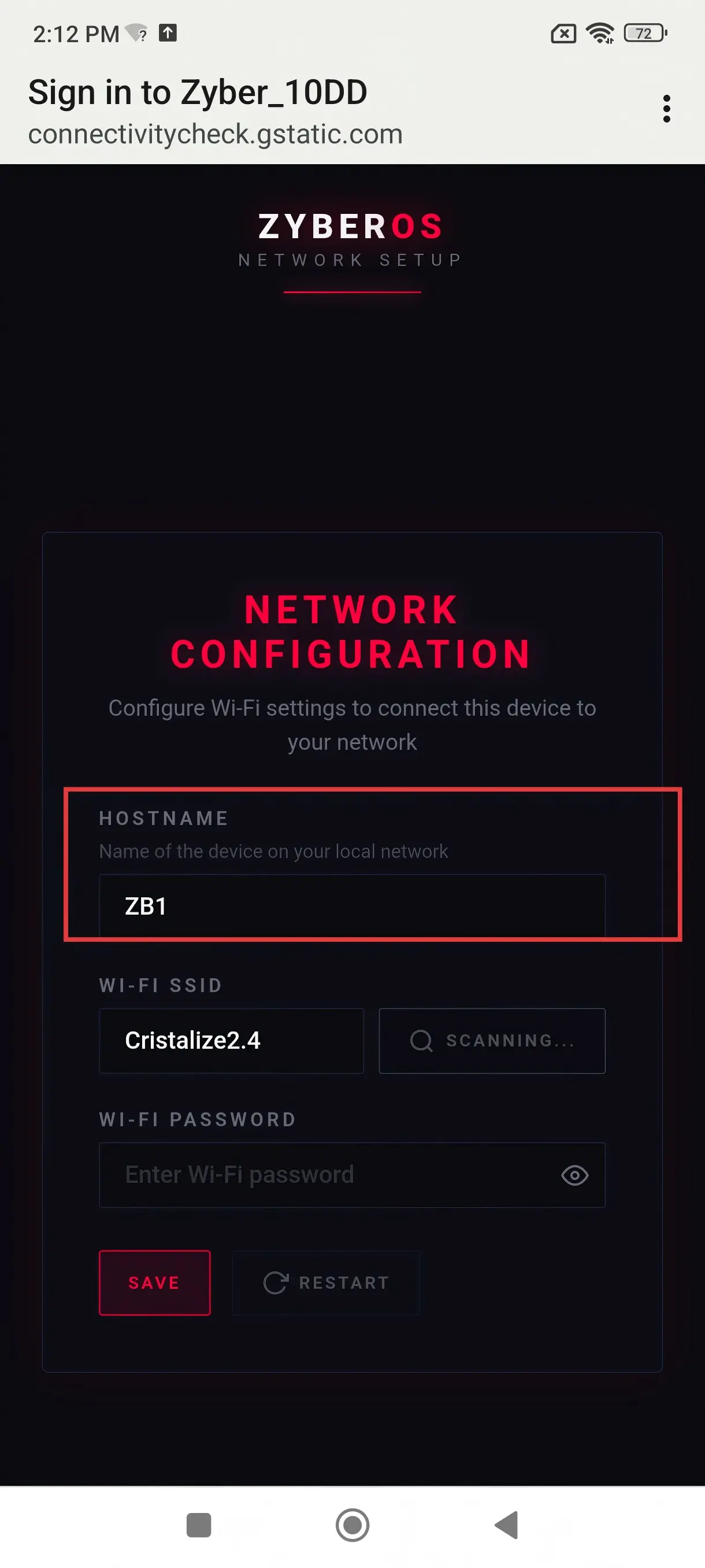
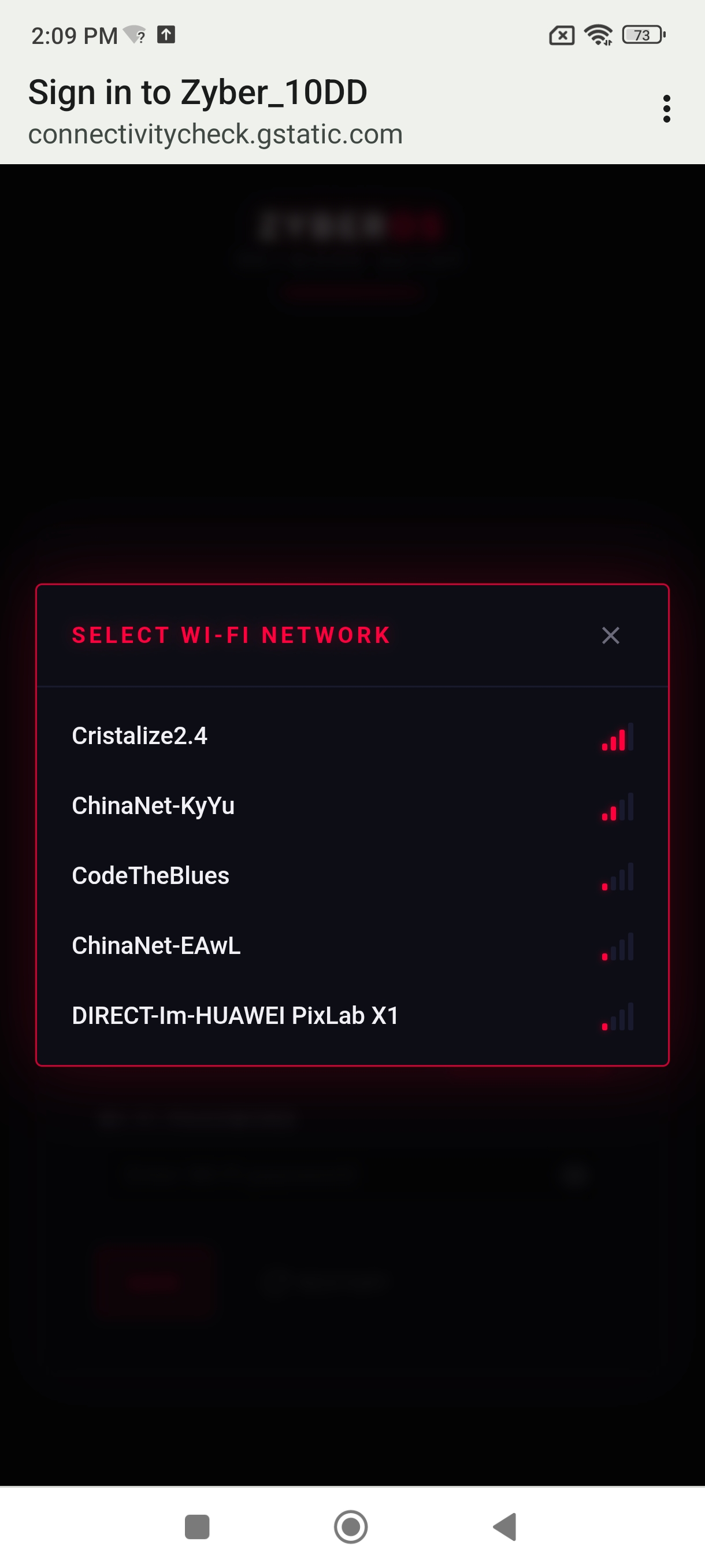
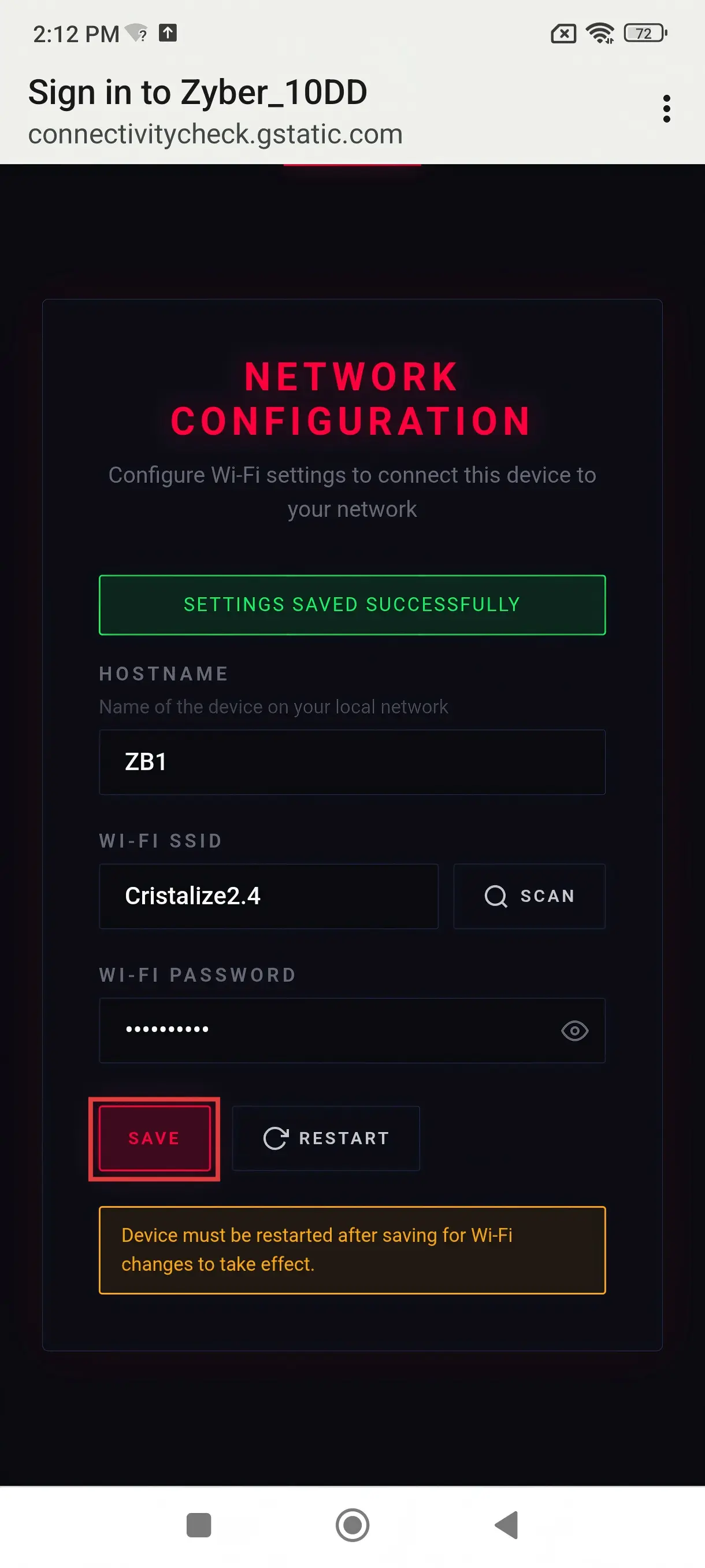
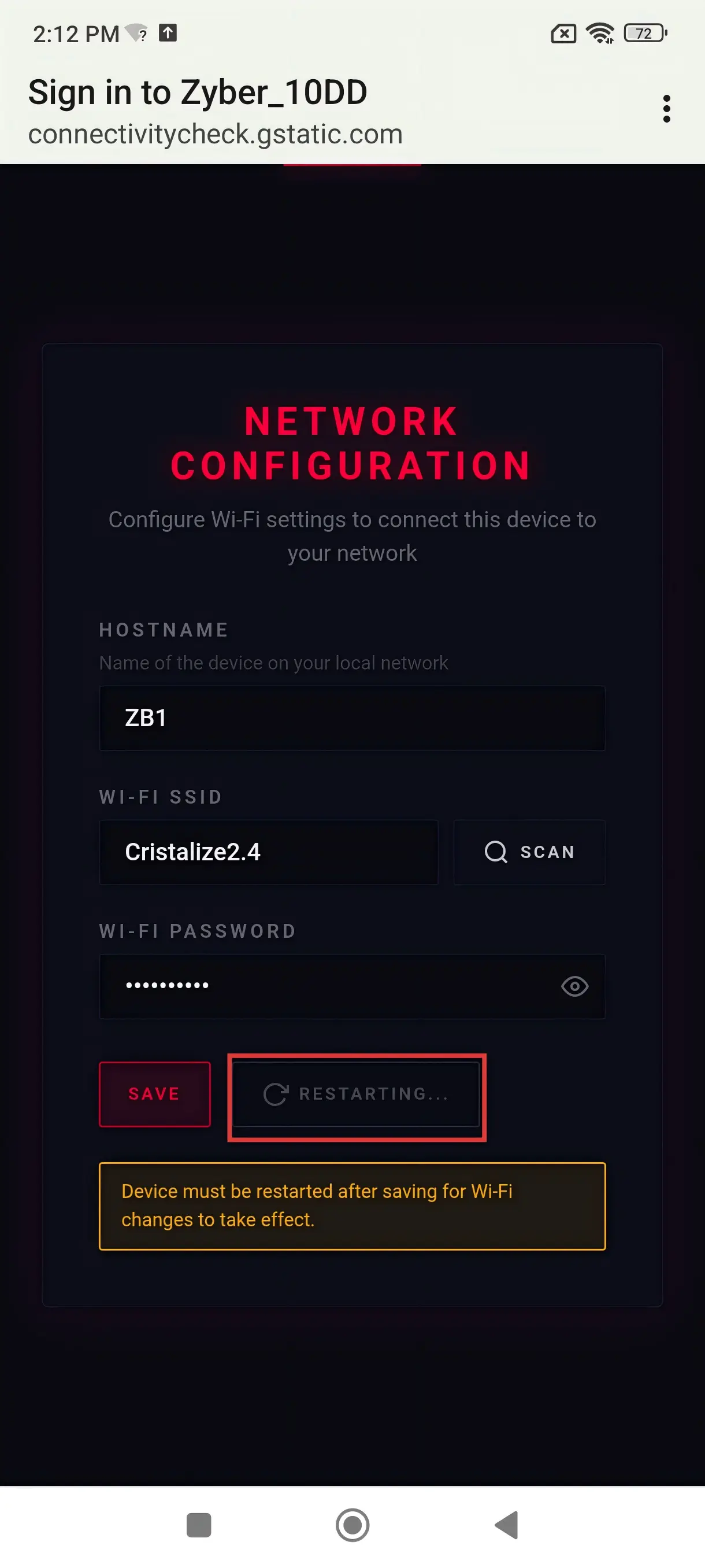
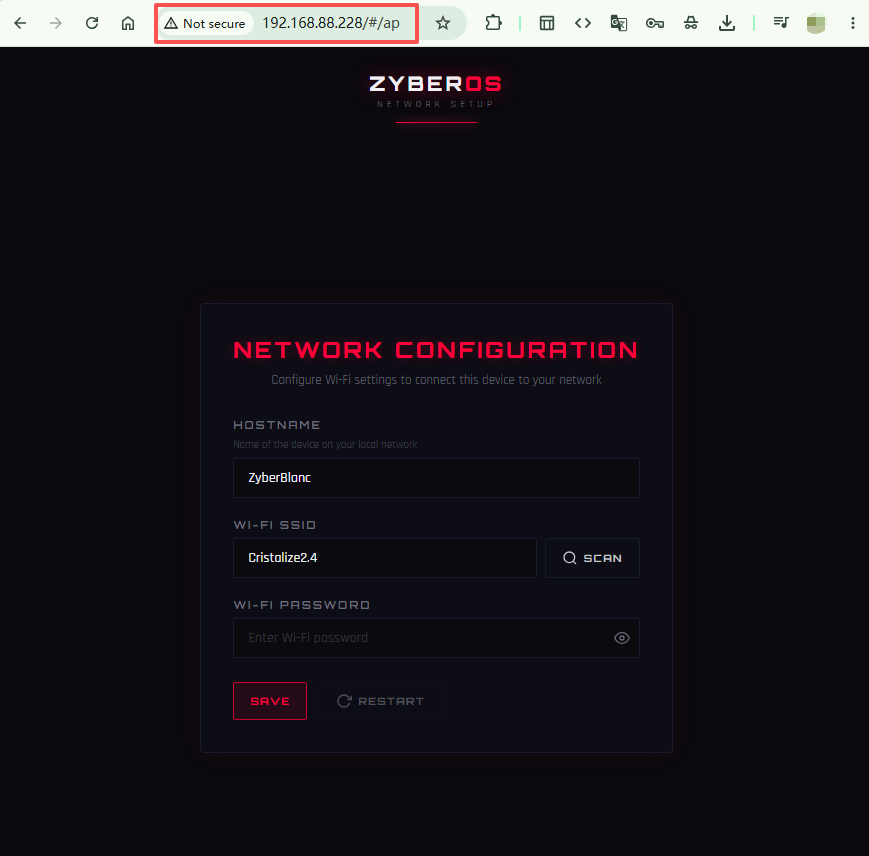
- ➡️ Hostname: Customize your device name (default: ZyberBlanc). Give it a memorable alias—you can later access the backend via
http://hostname/or IP, e.g., zb1; - ➡️ Wi-Fi SSID: Click SCAN to list networks, select your home router's Wi-Fi name; (Note: scanned networks are all available—this feature currently detects the 2.4 GHz band)
- ➡️ Wi-Fi Password: Enter the password → Click SAVE → Then click RESTART;
🔄 Step 3: Configuration Complete & Dual-Channel Access to Zyber OS
After saving, click restart. The Zyber Blanc Standard successfully joins your home LAN, the LED changes from red to yellow, then from yellow to purple, indicating normal operation.
After configuring Wi-Fi, the Zyber Blanc Standard will automatically restart and connect to your local network. Now you have two ways to access the backend: The 1st is universal, using the static IP assigned by the router. The 2nd is via the Hostname entered during WiFi configuration. That is, on any device on the same network, enter the IP assigned to the Zyber Blanc Standard (e.g., 192.168.88.XXX) or your custom hostname (e.g., http://zb1/) to directly open the Zyber OS Web UI.
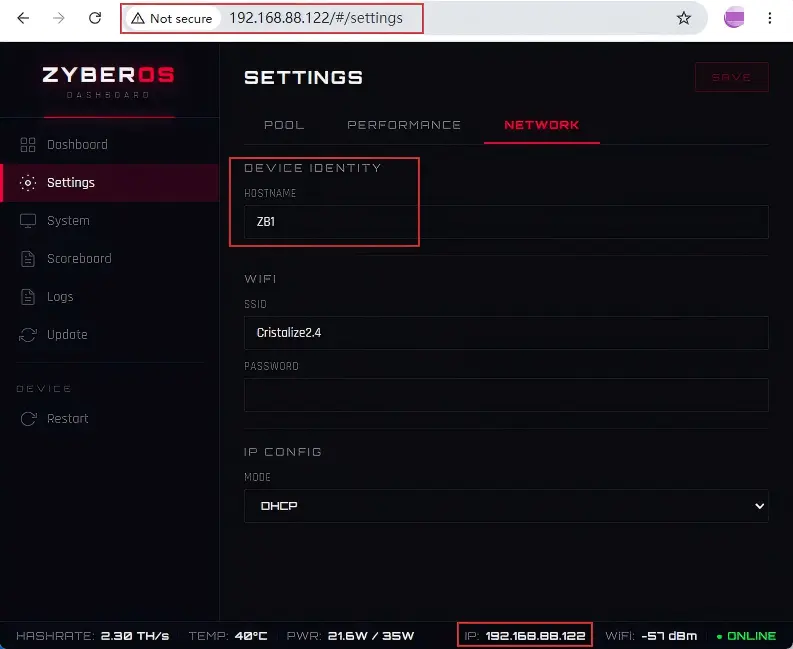
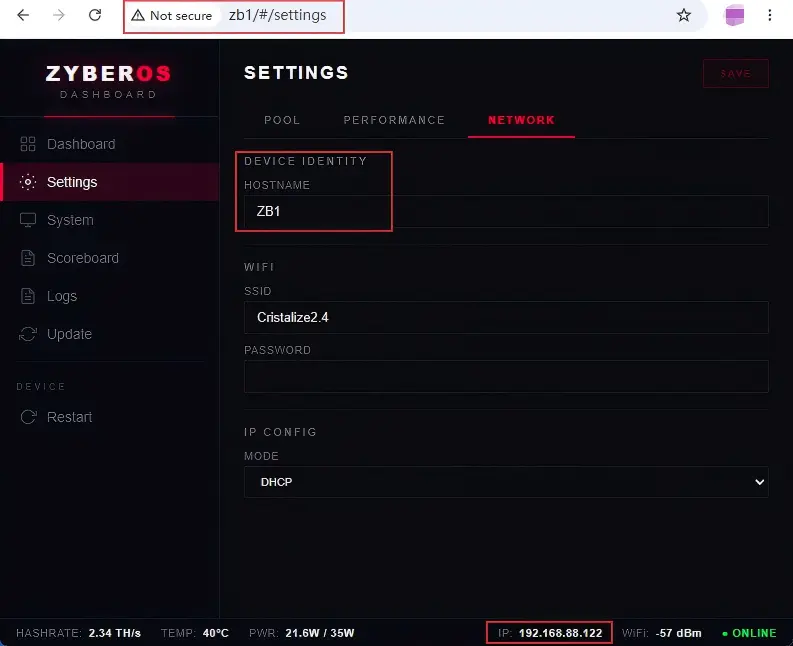
| Configuration Item | Description | Example |
|---|---|---|
| Hostname | LAN identity name (customizable, saves you from remembering the IP) | zb1 |
| Wi-Fi SSID | Your router/Wi-Fi name | Network_2.4 (Detects 2.4GHz networks) |
| IP Address | Automatically assigned by the router; primary backend access entry point | 192.168.88.XXX (example only) |
b. Quick IP Lookup: ESP-IDF Tool Scan
If you happen to forget the IP address and hostname, and because this is a minimalist design without a screen, you can't see the IP, but you still want to find it out quickly. No worries, here's how to solve this problem.
You can directly use the ESP-IDF command-line tool to scan the product's operation logs and quickly obtain the device's IP address. Of course, you need to have the ESP-IDF command-line tool installed on your computer beforehand (other tools with similar log capture capabilities work similarly). The method of scanning operation logs works for Windows/Linux/macOS. Below, we use the Windows system as an example for demonstration (the logic for other systems is consistent, refer to the actual test).
Step 1: Prepare the ESP-IDF Command-Line Tool
Ensure the ESP-IDF command-line tool (or a tool capable of log capture, such as idf.py monitor) is installed on your computer. For installation tutorials, refer to .
Step 2: Navigate to the Project Directory (or the project path where the device runs)
Open the ESP-IDF command-line tool (e.g., ESP-IDF 5.4 CMD), and use the cd command to navigate to the ESP-IDF project directory where the device runs (or the project path containing idf.py).
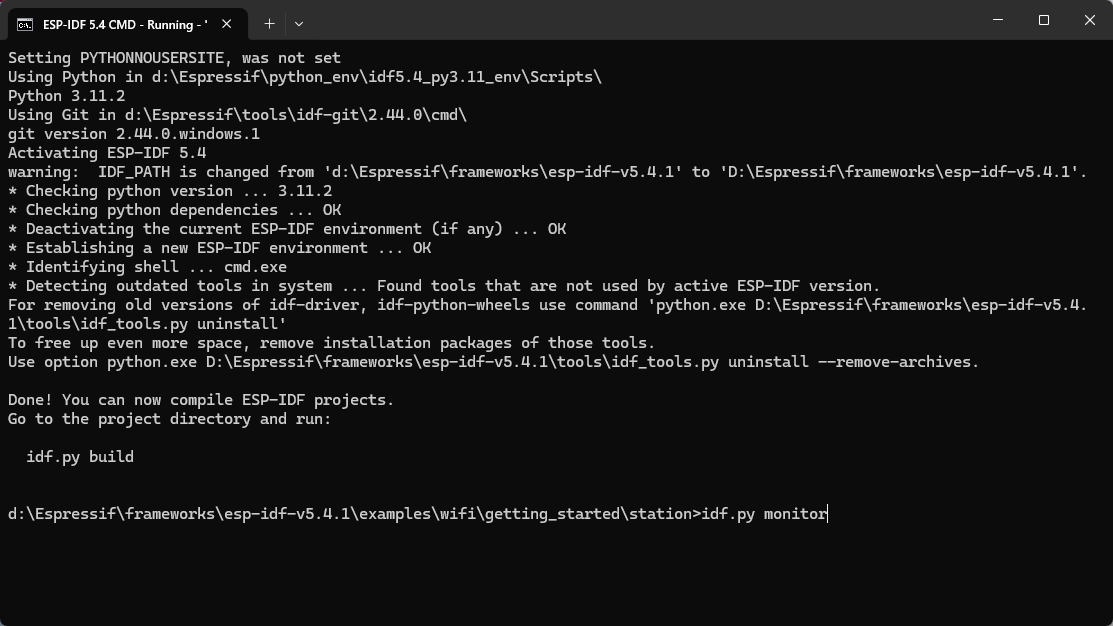
For example, if the device runs in the sample project \examples\wifi\getting_started\station, execute:
Step 3: Connect the Powered Miner to the Computer via USB Cable
Simply use a Type-C USB charging cable to connect the running miner to the computer with the ESP-IDF command-line tool installed.
Step 4: Start Log Monitoring (Capture Device Operation Logs)
Back in the ESP-IDF command-line tool, execute the following command to start the ESP-IDF log monitoring tool (it will automatically connect to the device and output operation logs):
After execution, the command line will print the device's operation logs in real-time (similar to the output in the image below).
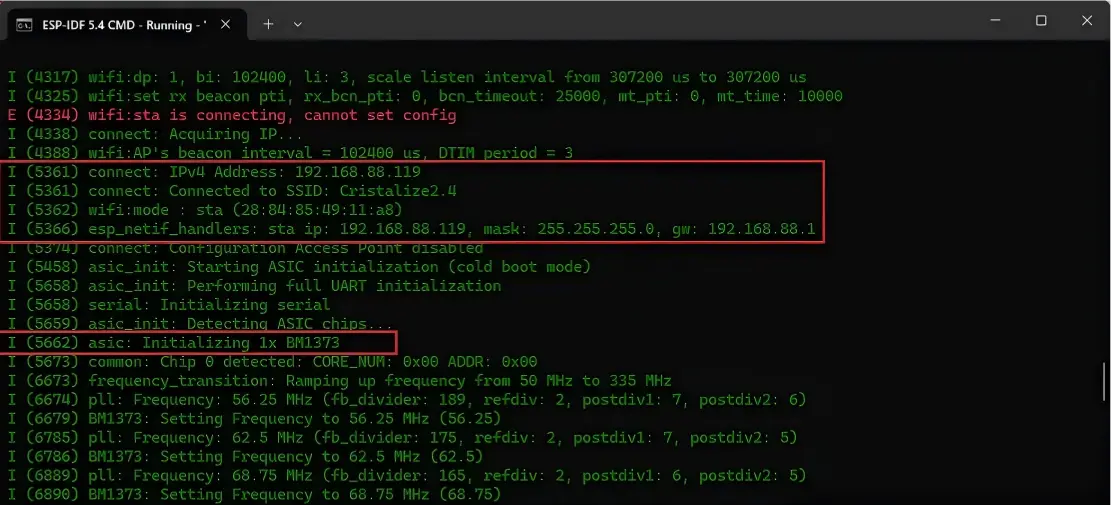
From the logs, you can see:
-
The Wi-Fi name the device is connected to (
SSID: Cristilize2.4) -
The device's IPv4 address (
192.168.88.119) -
Subnet mask (
255.255.255.0) and gateway (192.168.88.1)
(Optional) Exit Log Monitoring
To stop log monitoring, press Ctrl + ] in the command line to exit idf.py monitor mode and return to the command prompt.
Adaptation Notes for Other Systems (Linux/macOS)
On Linux or macOS systems, the operation steps are identical to Windows:
-
Open a terminal and navigate to the ESP-IDF project directory;
- Connect the device and the Zyber Blanc Standard using a Type-C USB charging cable;
-
Execute
idf.py monitor(ensure the ESP-IDF environment is properly loaded, e.g., by sourcing the environment viasource $IDF_PATH/export.sh); -
Extract the IP address from the logs, and press
Ctrl + ]to exit when done.
By following the steps above, even if the device has no screen, you can quickly obtain its IP address via the log monitoring function of the ESP-IDF tool.
❓ FAQ: No serial output? Check if the USB-C cable is properly connected, if it only supports charging and not data transfer, or if the ESP-IDF project development environment isn't set up correctly.
c. RESET (Hard Reboot) & BOOT (Configure Network)
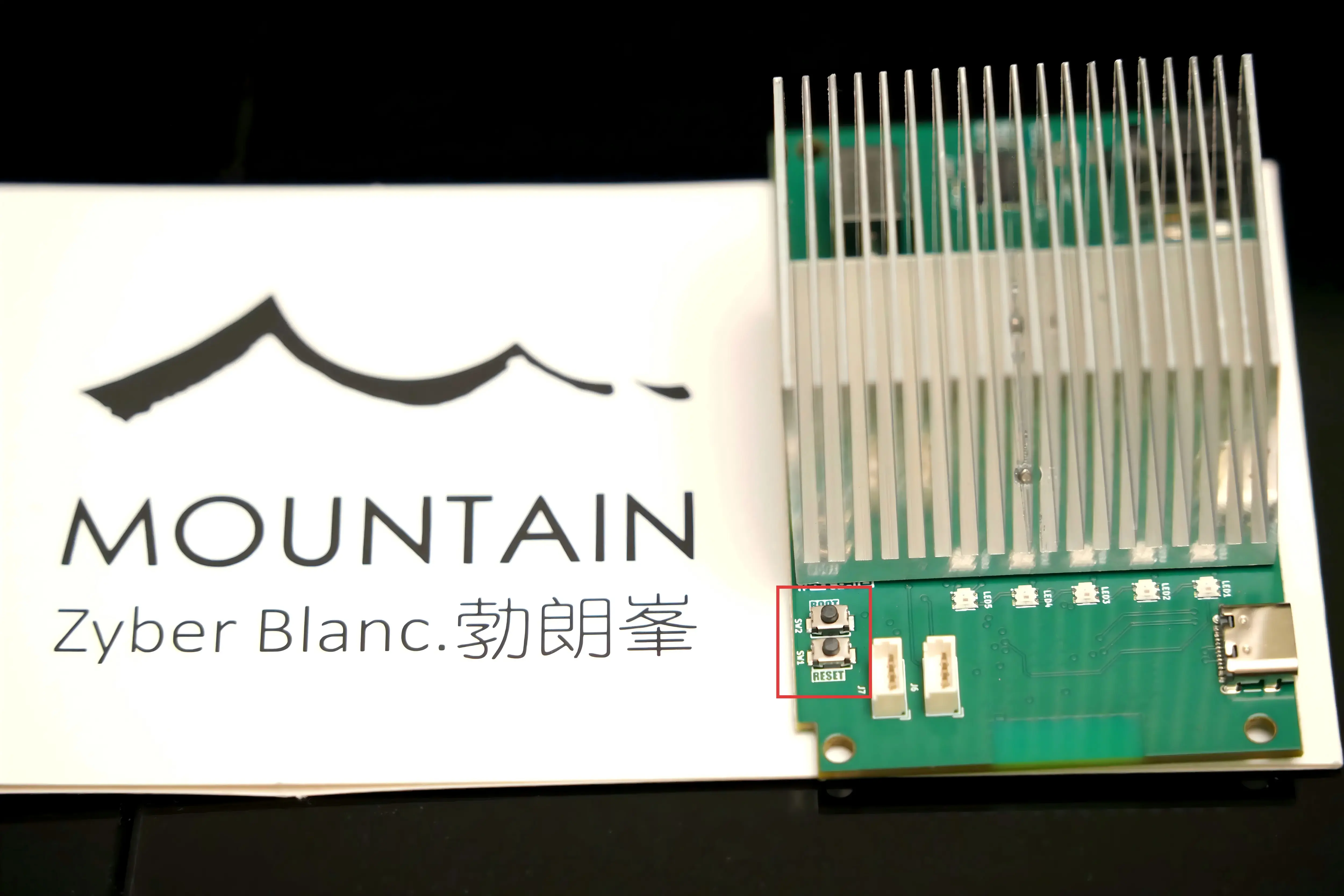
RESET — Hard Reboot
Operation: Press shortly to activate; no need to hold.
Function: Pulls the EN pin of the ESP32-S3 low, causing a full hardware reset of the board. The ASIC chip goes through the entire process again: self-test → recognition → Wi-Fi connection → pool connection (LED cycles Red→Yellow→Purple).
Applicable Scenarios: When Zyber OS freezes, the web page is inaccessible, or fans/hashrate behave abnormally but you don't want to unplug the power, try pressing RESET first or re-plugging the power.
Note: This is a "power-on reset", not a power-off replug. Configuration data (Wi-Fi credentials, mining parameters) will not be lost.
BOOT — Long Press for Provisioning / Restart Hotspot
Operation: Long press for approximately 3–5 seconds, then release.
Behavior: The LED does not change color, it remains purple (normal operation status), but the ESP32-S3 will additionally broadcast an open hotspot named Zyber_XXX.
Function: Temporarily enables the Captive Portal provisioning entry without interrupting mining. Connecting a phone/computer to this hotspot will automatically pop up (or manually accessing any http address) the Zyber OS network configuration page, allowing you to reconfigure Wi-Fi, static IP, etc.
If you want to test this function, just open the IP or corresponding hostname, long press BOOT, and the following interface will appear.
Advantages
- No need to know the miner's current IP or hostname, just physically access the miner to reconfigure the network;
- Does not affect the ongoing mining task, the ASIC chip continues running, hashrate does not drop;
- Can be cancelled anytime: If you long press and then decide not to proceed, simply perform a RESET (short press) or power cycle on the miner. The miner will revert to the previously saved Wi-Fi configuration and continue working. The hotspot disappears, and the original password remains unaffected.
Applicable Scenarios
- Changed routers or Wi-Fi passwords, but don't know the miner's current IP to log into the web backend;
- Want to temporarily switch to another Wi-Fi (e.g., mobile hotspot for debugging), then switch back later;
- Provisioning page stuck, Captive Portal not appearing, use this method to reload the configuration page.
Note: In the ESP32 architecture, BOOT was formerly GPIO0, responsible for "download mode/Flash boot selection". The Zyber Blanc Standard firmware repurposes it as a long press for network provisioning reset. Short pressing has virtually no mapping during normal operation, so accidental presses are not a concern.
3. Zyber OS Ecosystem
Zyber OS is the native ecosystem first introduced by TinyChipHub for the Zyber Blanc Standard (BM1373 3nm, 2.4+ TH/s, 8-10 J/TH) generation of desktop Solo Miners. It marks the starting point of TCH's own software-hardware closed loop—a firmware page managed entirely from the underlying drivers to the Web UI control interface.
Zyber OS Vs. ZCube OS
|
System
|
Zyber OS
|
ZCube OS
|
|---|---|---|
|
Carrier
|
Web UI for Zyber Series Miners
|
Web UI accompanying the WatchDog management center
|
|
Positioning
|
Deeply optimized lightweight operations system for Zyber Solo Miners
|
Lightweight centralized control system across Bitaxe / Nerd / Zyber OS (continuously updated...)
|
|
Core Scenario
|
Hashrate/Power/Pool/Firmware management for a single Zyber Miner
|
Multi-model aggregation dashboard + Batch pool changes, etc.
|
|
Ecosystem Ownership
|
TCH Native, exclusive to Zyber series
|
TCH Native, cross-system compatible
|
Simply put: Zyber OS is the miner's own "operations system", while ZCube OS is the WatchDog's "backend monitoring center"—one manages the operation of a single miner, the other manages multiple machines centrally. They will also interact (e.g., after WatchDog scans Bitaxe / Nerd / Zyber OS, it can jump to the Zyber OS backend with one click), but they are independent. Since both Zyber OS and ZCube OS belong to the TCH Zyber ecosystem, more interactive features are expected in the future, so stay tuned...
How to open Zyber OS / ZCube OS:
In any browser on the same local network, enter the IP of the Zyber Blanc Standard/WatchDog (e.g., 192.168.88.XXX) or your custom hostname (e.g., http://zb1/ or http://zcubebb/). And just like that, you're in.
3.1 Zyber OS → Function Quick Reference Table
|
Menu
|
Path
|
Core Functions
|
Common Scenarios
|
|---|---|---|---|
|
Dashboard
|
Homepage Center
|
Hashrate / Efficiency / Power / Real-time Data Curve / Shares / Best Difficulty / Hashrate History...
|
Daily monitoring, detecting hashrate drops and frequency reduction
|
|
Homepage Right Dial
|
Blockchain / Device Status / Temperature / Network / Pool / System Info...
|
Swipe through other info dial without switching pages
|
|
|
Settings
|
Left Menu
|
Divided into three tabs: Pool / Performance / Network
|
Changing mining pools, adjusting operation modes, network configuration
|
|
/
|
Settings → Pool
|
Primary Pool + Backup Pool URL / Worker Name / Password etc.
|
Switching wallets, changing mining pools
|
|
Settings → Performance
|
Four Modes: Normal / ECO / Performance / Custom + Fan Full Speed Target Temp + Min Fan Speed
|
Temperature & Safety Control
|
|
|
Settings → Network
|
Hostname / DHCP or Static IP / WiFi SSID / Password
|
Setting static IP / Hostname for backend access, network configuration
|
|
|
System
|
Left Menu
|
Product System / Resources / Firmware Info
|
Checking current device information
|
|
Scoreboard
|
Left Menu
|
Global Highest Difficulty Leaderboard
|
Comparing machines horizontally, finding your own device
|
|
Logs
|
Left Menu
|
Real-time Log Stream / Accepted / Chip Read Records
|
Disconnection troubleshooting, block found confirmation
|
|
Update
|
Left Menu
|
Firmware Upload OTA Upgrade + Web Interface Update
|
Flashing firmware, version updates
|
|
Restart
|
Bottom of Left Menu
|
Soft Reboot
|
Restart after settings changes / abnormal hashrate
|
3.2 Dashboard: Real-time Monitoring 📊
The Dashboard is the default homepage of Zyber OS and the central hub for users to monitor the real-time status of their miner. The entire interface adopts a dark red/black tech style, displaying key performance indicators, hardware health, and network information in modular sections.
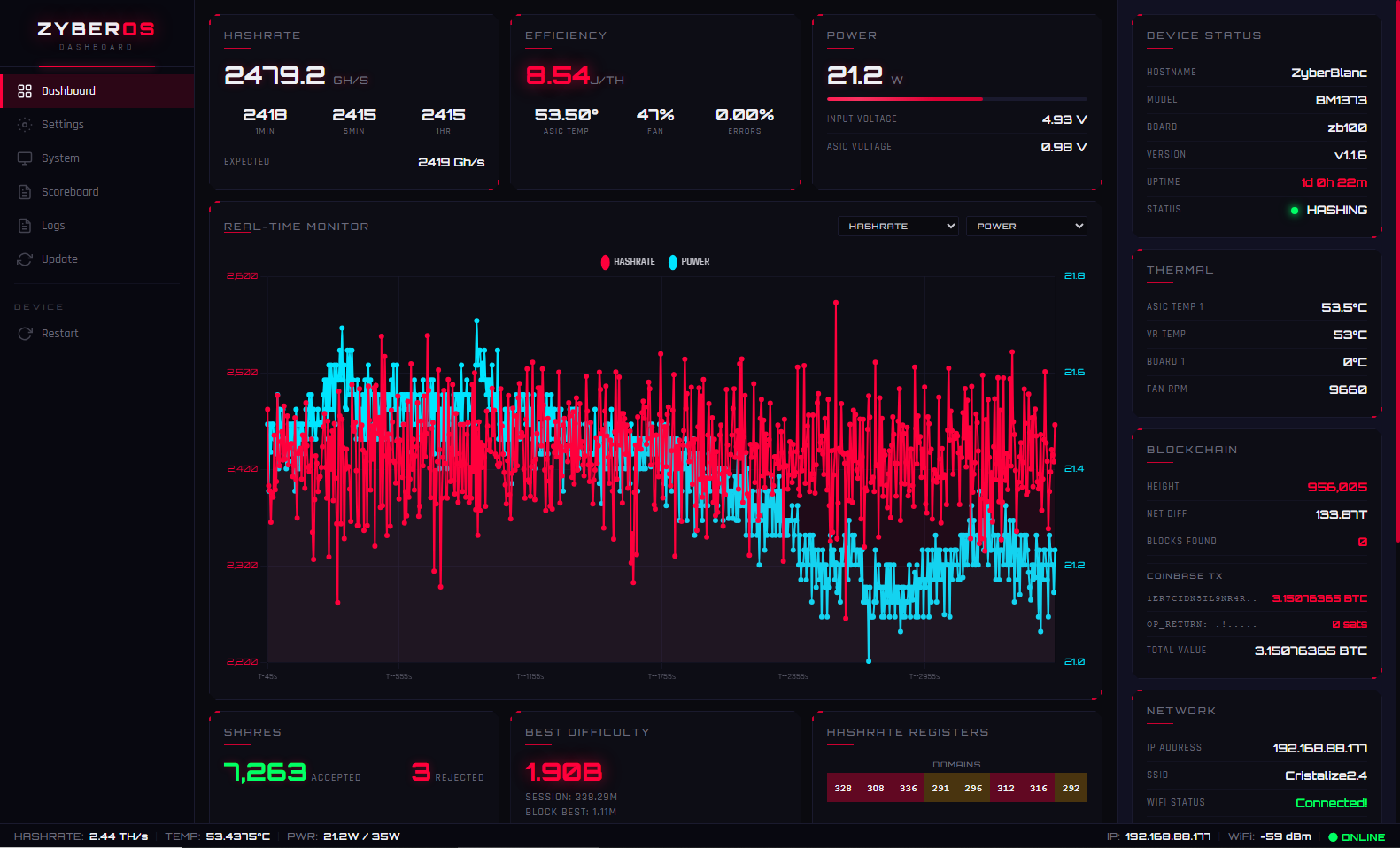
3.2.1 Core Metrics
Located at the very top of the page, displaying the "Golden Three Rates" intuitively in large fonts:
- Hashrate: Displays current real-time hashrate (e.g., 2500.0 GH/s), 1-minute/5-minute/1-hour average hashrate, and expected hashrate, used to determine if the miner is running stably.
- Efficiency: Shows efficiency ratio (e.g., 8-10 J/TH), chip temperature, fan speed, error rate, used to evaluate the energy-saving status and chip health.
- Power: Displays current real-time power consumption (W) and input/chip voltage (V), helping monitor electricity costs.
3.2.2 Real-Time Monitor
-
Interaction: The top right corner supports a dropdown menu to switch between viewing HASHRATE or POWER, along with 9 other data options.
-
Data Interpretation: The X-axis represents time, and the Y-axis represents value. By observing the density and smoothness of the curve, you can judge whether the miner is running stably and if there are frequent hashrate fluctuations (hashrate drops).
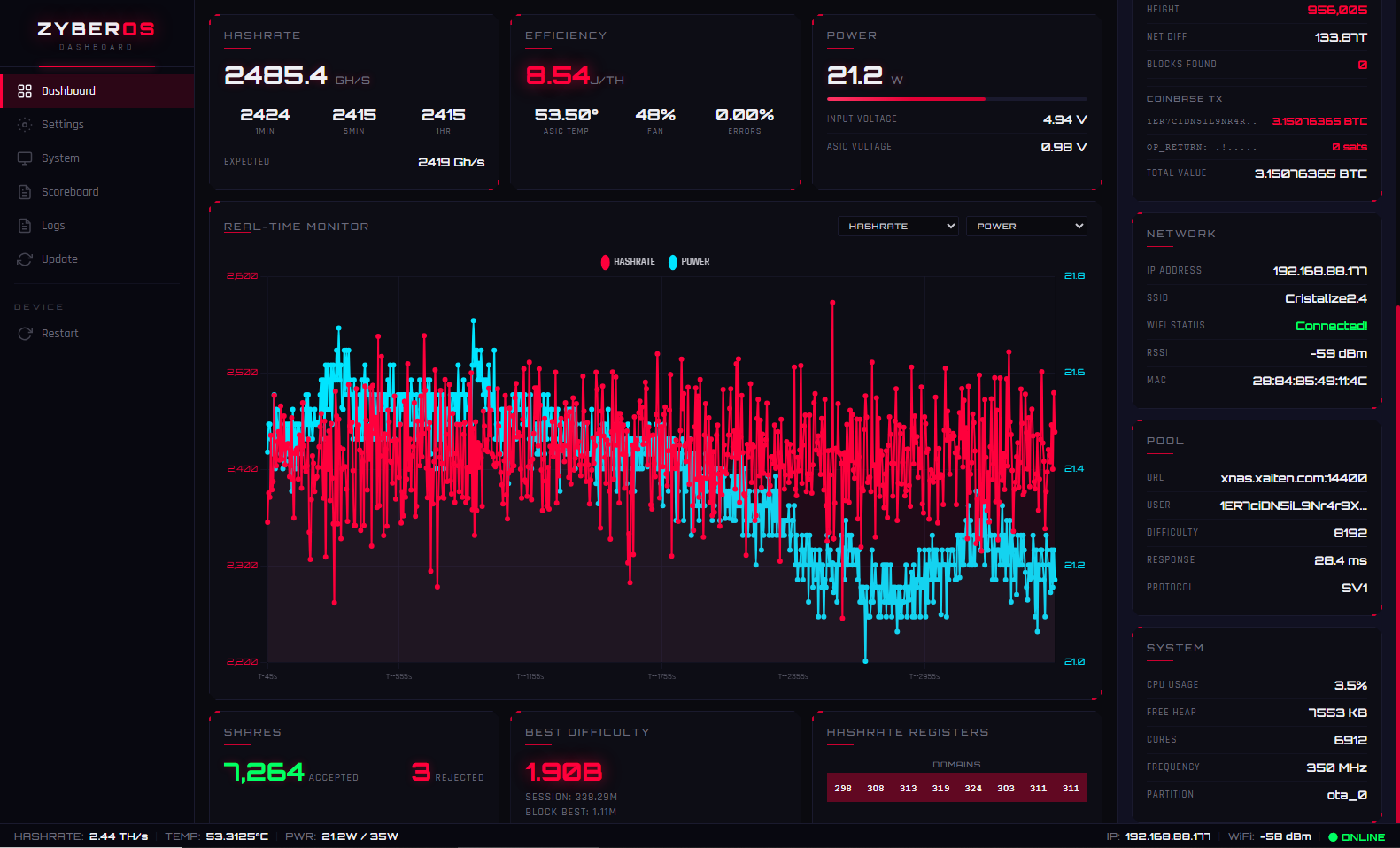
3.2.3 Device & Blockchain Status
-
DEVICE STATUS: Hostname, Model (e.g., BM1373), Board Version, Firmware Version, Uptime, and Current Running Status (STATUS: Green dot for HASHING, Red dot for ERROR).
-
THERMAL: Includes ASIC TEMP 1, VR TEMP, BOARD 1 (usually indicates no sensor attached), and FAN RPM.
-
BLOCKCHAIN: Real-time synchronized Block Height, Network Difficulty, Blocks Found, Coinbase transaction info, and Total Mining Value.
-
NETWORK: LAN IP ADDRESS, Connected WiFi SSID, Signal Strength, Connection Quality (WiFi STATUS: Green Connected).
-
POOL: Connected Pool URL, Worker Username, Current Job Difficulty, Network Latency, and Protocol Version.
-
SYSTEM: System resource usage, including CPU USAGE, FREE HEAP, CORES, FREQUENCY, and PARTITION.
3.2.4 Jobs & Registers
-
SHARES: Successfully submitted valid shares (ACCEPTED) and rejected shares (REJECTED). A very low rejection rate indicates good pool communication and chip status.
-
BEST DIFFICULTY: The highest difficulty value found in the current session (SESSION) and the all-time high record (BLOCK BEST).
-
HASHRATE REGISTERS: A row of colored blocks below shows the hashrate distribution across different DOMAINS (e.g.,
369,384,413), used for diagnosing abnormally low hashrate on a specific channel of a multi-chip board.
3.2.5 Footer
A persistent status bar at the very bottom of the screen, scrolling simplified real-time data: HASHRATE, TEMP, PWR
3.3 Settings: ⚙️ Configuration Management
Click "Settings" in the left menu to enter the configuration page, which is divided into three sub-tabs: Pool, Performance, and Network.
3.3.1 Pool Settings
This is the page for configuring your mining target. Correct configuration ensures that mined coins are sent to your wallet.
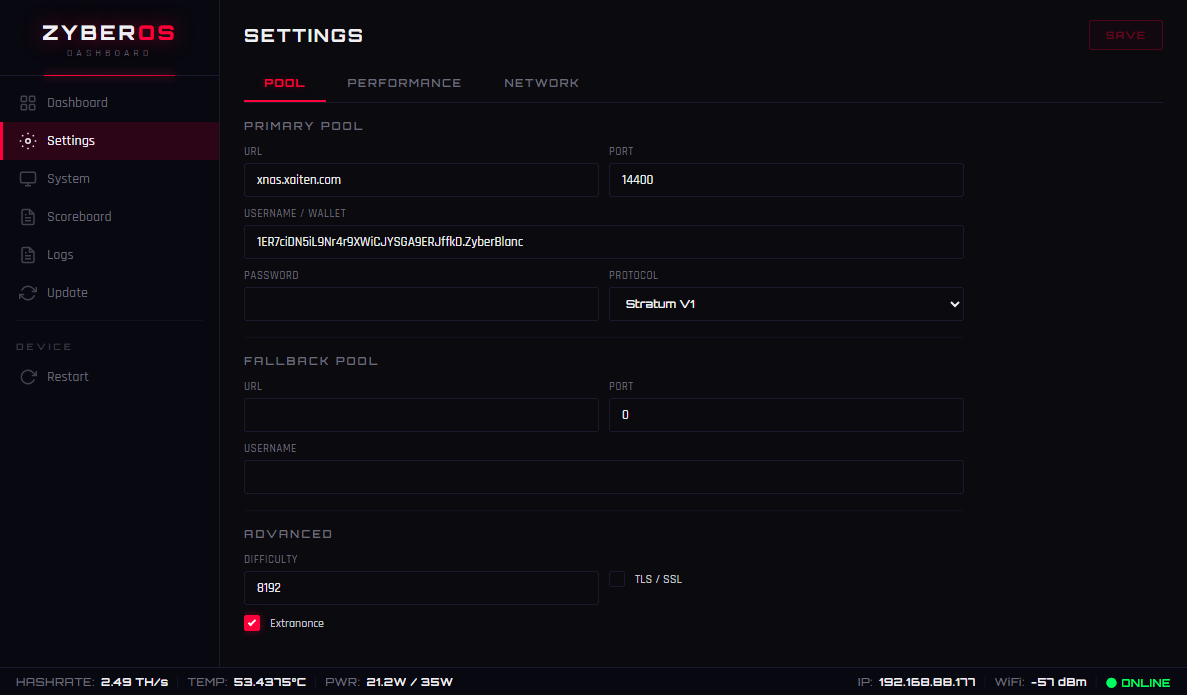
Primary Pool
- URL: Enter the pool's stratum address, e.g., stratum+tcp://public-pool.io:21496 or :3333. Refer to well-known mining pool addresses like Public Pool, CKPool, AtlasPool, etc..
- Username: Enter your worker name, usually formatted as
WalletAddress.MinerName. - Password: Usually enter
xor the password provided by the pool. Some pools allow leaving it blank.
Backup Pool: When the connection to the primary pool is lost, the miner will automatically switch to the backup pool. It is recommended to configure one just in case. You can add a password later for faster automatic switching as needed.
Advanced
- DIFFICULTY: "Difficulty" represents the computational target the miner needs to achieve. The higher the difficulty, the lower the target hash value, and the harder it is to find a valid solution.
- TLS / SSL: This is an encrypted transmission protocol. When enabled, your mining data is encrypted during transmission from the local machine to the remote pool/node.
- Extranonce: This is a mechanism within the Stratum V1 mining protocol. It is a random value controlled by the miner, used to introduce additional randomness space into the mining algorithm, thereby increasing the diversity of mining tasks.
3.3.2 Performance Settings
Adjust the miner's operating mode to balance hashrate and stability.
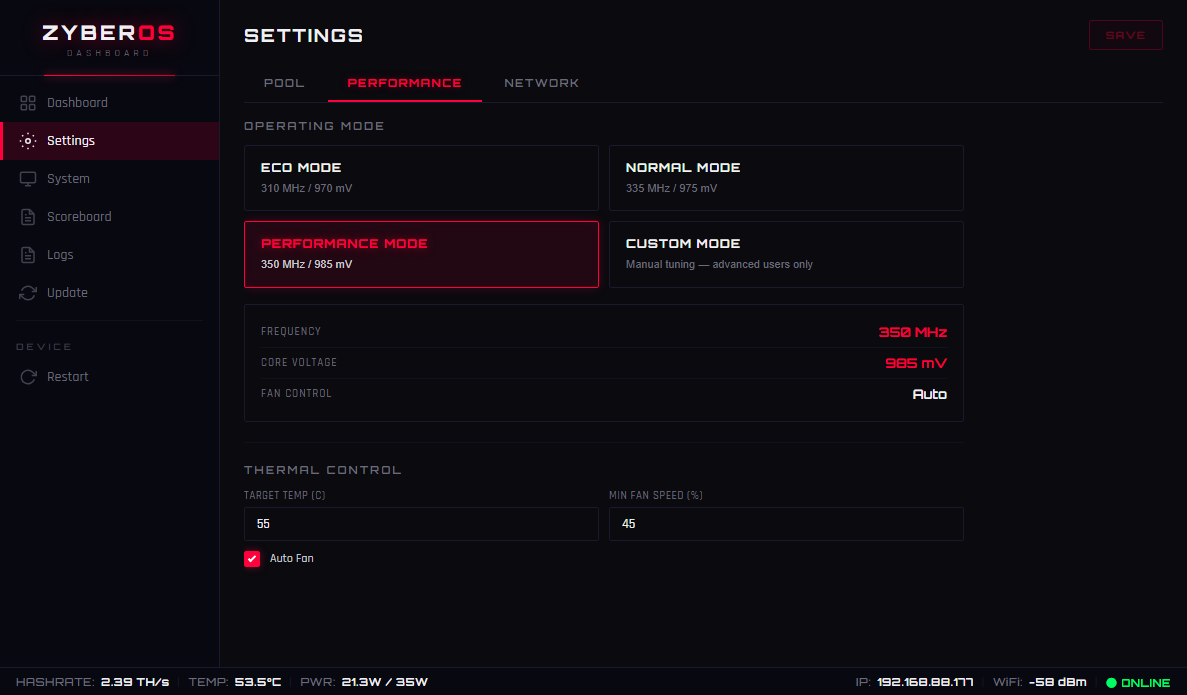
Operating Mode
- Normal Mode: Default balanced state.
- ECO Mode: Reduces power consumption and heat generation, suitable for environments with poor cooling or noise sensitivity.
- Performance Mode: Boosts device performance for higher hashrate, but power consumption and temperature will increase significantly.
- Custom Mode: Primarily intended for DIY and enthusiast users, mainly for overclocking and extreme testing.
Thermal Control
- TARGET TEMP (℃): When the set target temperature is reached, the miner will run fans at full speed to lower the temperature. This option primarily ensures the chip temperature stays within a normal range regardless of the mode.
- MIN FAN SPEED (%): This function sets the minimum fan speed, meaning the fan speed will never drop below this value regardless of automatic adjustments, helping maintain the overall thermal cycle of the miner.
- Auto Fan: When enabled, the fan speed adjusts automatically based on the above settings. When unchecked, a MANUAL Fan slider appears, allowing you to manually control the fan speed.
3.3.3 Network
Used to configure how your miner connects to your local network.
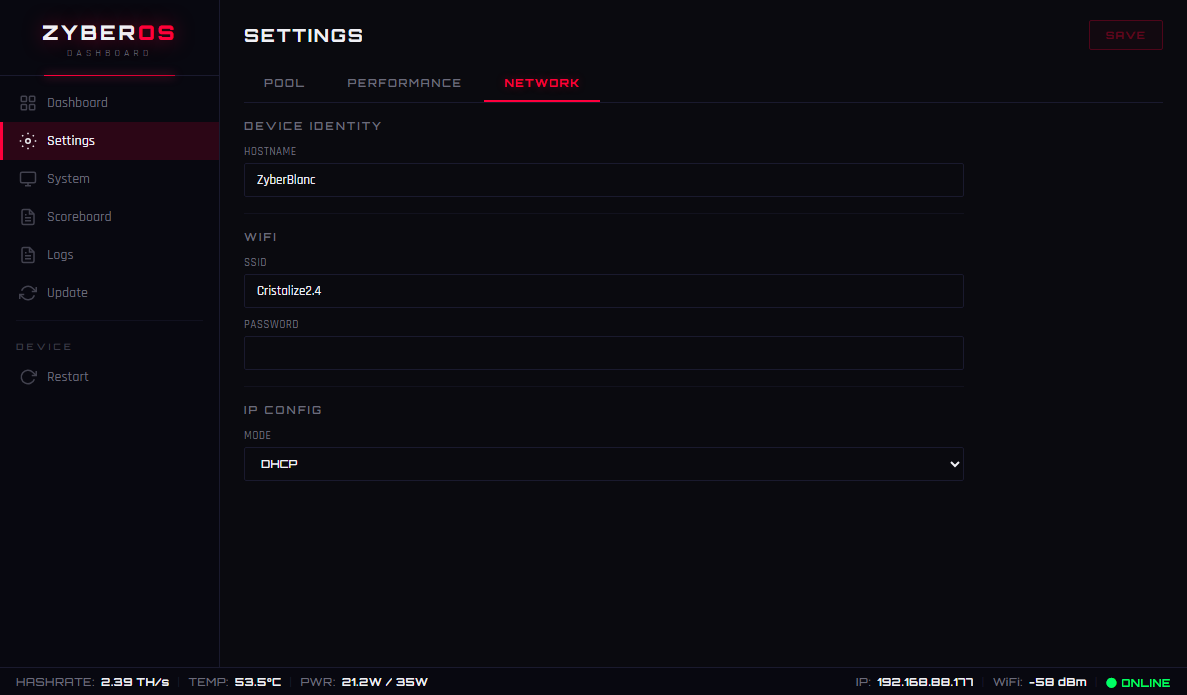
Device Identity
- Hostname: Set the miner's name on the network for easy identification.
- Domain: Domain suffix, typically used with a local DNS server.
- IP Config: Choose DHCP (automatic IP assignment) or manually set a Static IP, including IP Address, Netmask, Gateway, and DNS.
3.4 System: Backend Status 💻
The System page is the core interface for viewing and managing the miner's underlying hardware configuration and real-time operational status. It primarily displays device identity information, network parameters, and current load conditions.
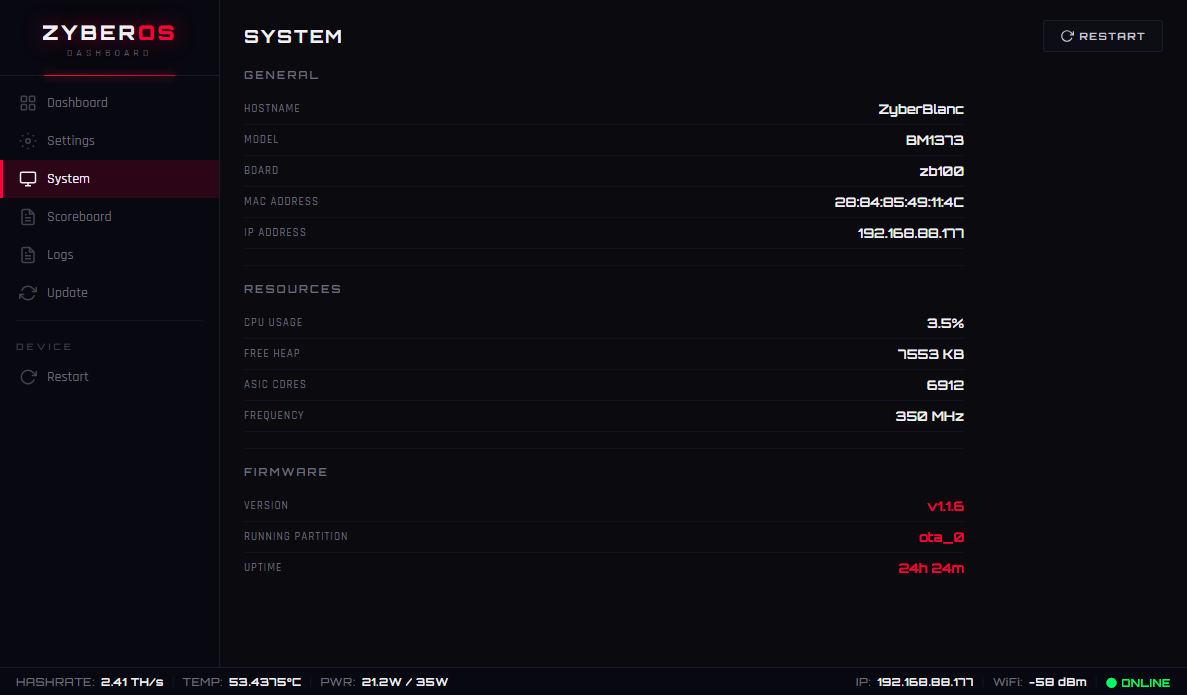
Key Field Descriptions
- General: Shows core device identity information, including HOSTNAME, MODEL, BOARD, and network identifiers (MAC Address and IP Address).
- Resources: Monitors the device's operational load in real-time. Key metrics include CPU USAGE, FREE HEAP, and ASIC CORES, reflecting the system's computational pressure.
- Firmware: Displays the currently running software version and boot partition. The RESTART button in the top right corner can be used to reboot the device to apply changes.
3.5 Scoreboard Leaderboard 🌈
The Scoreboard is the core interface for real-time monitoring of the recent computational task details of the current Zyber Miner node. It records every mining task segment (Job) received by the system and its completion status, making it the primary reference for troubleshooting and analyzing mining behavior.
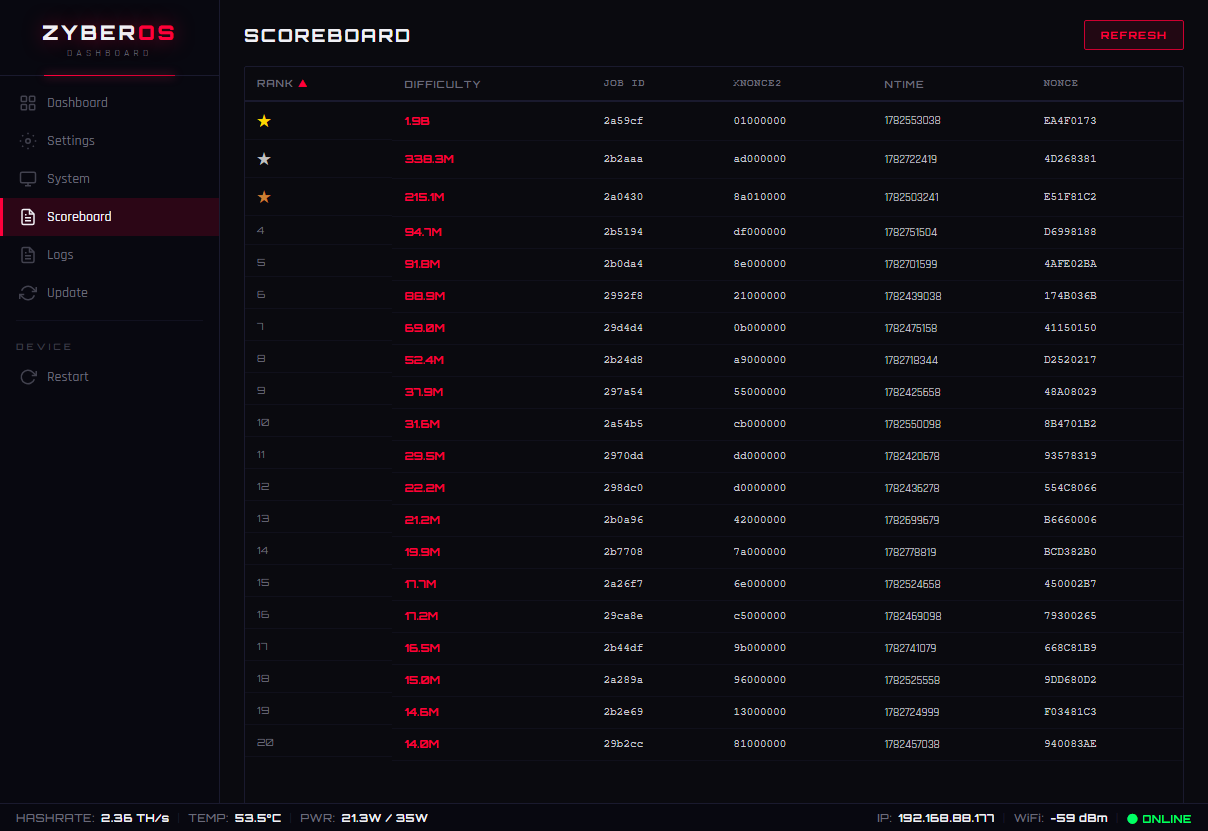
Key Field Descriptions
- RANK: Task sequence number, ordered chronologically or by processing order.
- DIFFICULTY: The specific difficulty value for the task (e.g., 198, 338.3M), reflecting the complexity of a single calculation.
- JOB ID: Unique identifier assigned by the system to the current mining task.
- XNONCE & NONCE: Key random values generated during the mining process, used to find a valid block hash.
- NTIME: Records the timestamp when the task was processed or received.
3.6 Running Logs 📝
The Running Logs are the most effective tool for troubleshooting, recording every detail of the miner's operation.
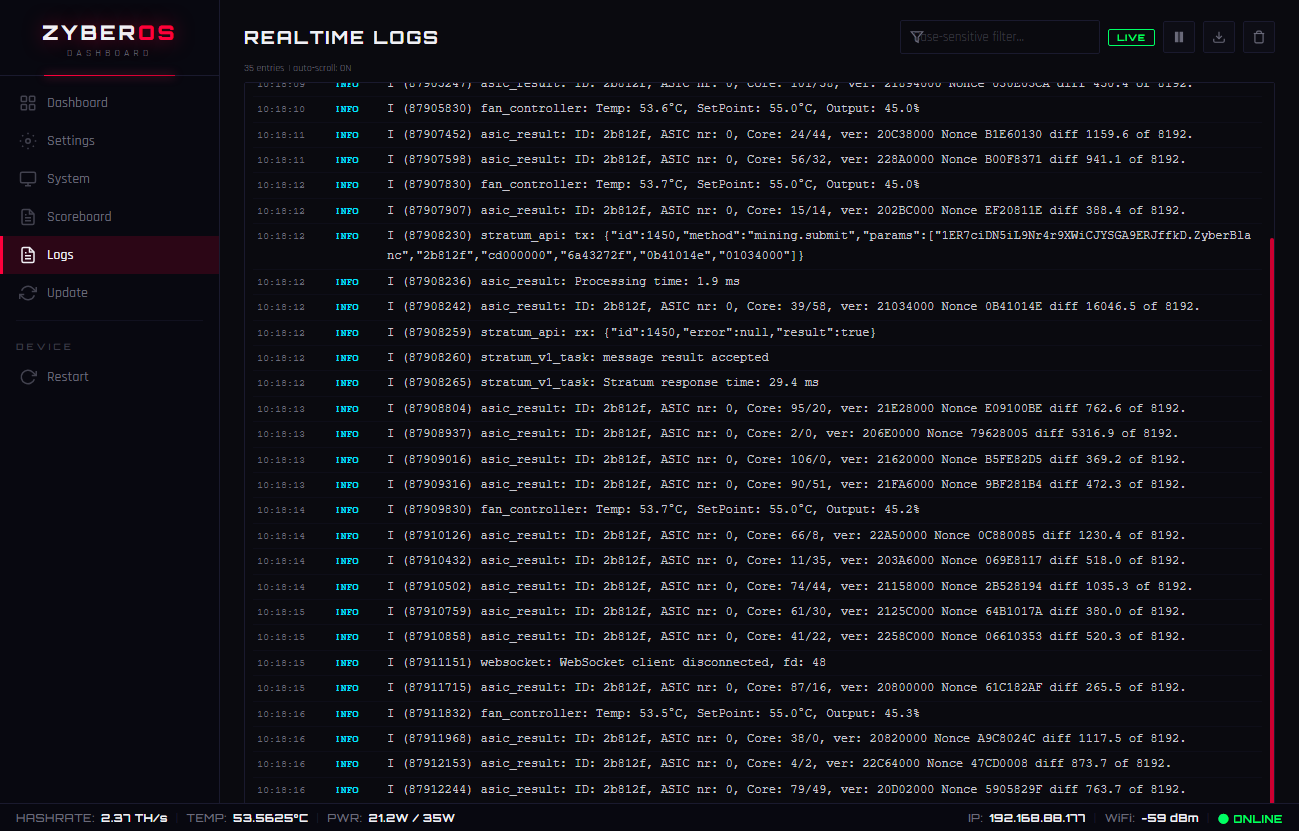
Real-time Log Output: Displays the miner's startup process, network connection status (Stratum), and chip communication records.
Common Log Interpretation:
READ BOARD...: Reading hashing board information.
AVAILABLE...: Statistics of available chips.
Accepted: Indicates the pool successfully received your share (block found!).
And so on...
Action Buttons: Top right corner includes Pause/Run, Download Log, and Clear buttons.
3.7 Update: 🆕 Firmware Upgrade
Used to flash new firmware versions to improve performance or fix bugs. The Zyber Blanc Standard usually comes pre-flashed with the latest firmware at the time of shipment, ready for plug-and-play!
Note: Upon receiving the product, considering potential version updates and bug fixes, some core functions might not be fully unlocked. It is recommended that users visit the GitHub Releases page to download the zyber-os.bin and www.bin files, then flash them via the Zyber OS backend.
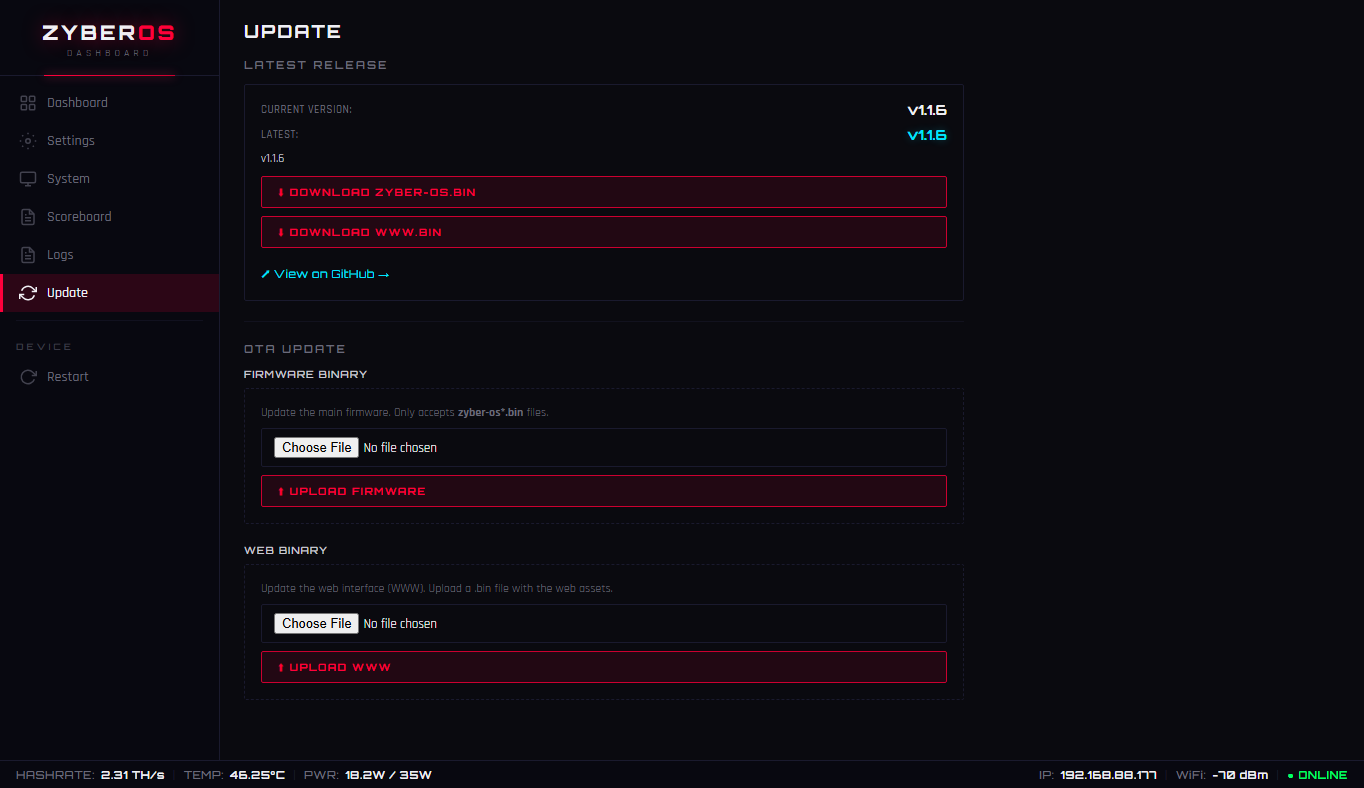
Step 1: Get the Firmware Files 💪
Go to the official GitHub Releases page:
- Latest version here: Github.com/TinyChipHub/ZyberOS-Release/releases
- Download: zyber-os.bin and www.bin
Step 2: Flash via the Update Page 🔥
- Enter the Zyber OS backend, click Update in the left menu.
- First, try clicking the Check for Updates button – it will directly ping GitHub Releases and compare version numbers (current version shown in the top right corner).
- If an update is found, it will prompt you to download – or you can verify on GitHub.
- In the OTA Update section, click Choose File and upload the downloaded zyber-os.bin firmware file.
- Click Upload Firmware and wait for the progress bar to complete.
- To also update the Web UI resources, upload the corresponding file in the Web Binary section and click Upload www.bin.
- Once finished, the device will automatically restart – it should come back online in about 30 seconds.
⚠️ Do NOT disconnect power during the flashing process – interrupting the write could brick the device. The OTA process typically takes about 1 minute. Upon success, the ZCube OS header will display the new version number.
| File | Purpose | Upload Path |
|---|---|---|
| zyber-os.bin | Main functional firmware (recommended for OTA upgrade) | Firmware Binary → Upload Firmware |
| www.bin | Updates Web UI resources | Web Binary → Upload WWW |
3.8 Restart: Soft Reboot 🔄
Located at the bottom of the left menu bar.
Function: Performs a soft reboot of the miner. Use this button to reload the system when experiencing abnormal hashrate drops, network connection stalls, or after modifying certain settings.
When to use this function?
- ✅ Right after completing Wi-Fi configuration, when the page prompts you to restart. A restart helps Zyber OS stabilize faster on the new LAN IP.
- ✅ After OTA updates or general updates are completed, an automatic restart occurs.
- ✅ Whenever you switch any Mode, the BM1373 Solo Miner needs to restart itself. The LED will change from Red to Yellow, then to Purple upon successful operation.
- ✅ If you changed the hostname and want to immediately verify that
http://your-hostname/resolves reliably.
Safety Precautions
- ⚠️ Do not unplug the USB power during a restart. A soft reboot is an orderly software reset; only cutting power mid-process puts it into an undefined state.
- If you are about to flash firmware via the Update page, do not manually restart first. Let the update process handle its own restart sequence.
Restart vs. Unplugging: Which to choose?
|
Action
|
Recommended?
|
Reason
|
|---|---|---|
|
Menu Restart (Soft Reboot)
|
✅ Preferred
|
"Clean restart: services shut down gracefully, then restart – maintaining consistent state."
|
|
Unplugging USB and reconnecting
|
⏱ Last Resort
|
Only use if the soft reboot hangs for more than 2-3 minutes, the page becomes completely inaccessible, and you have confirmed the power adapter/cable itself is not the culprit.
|


comments