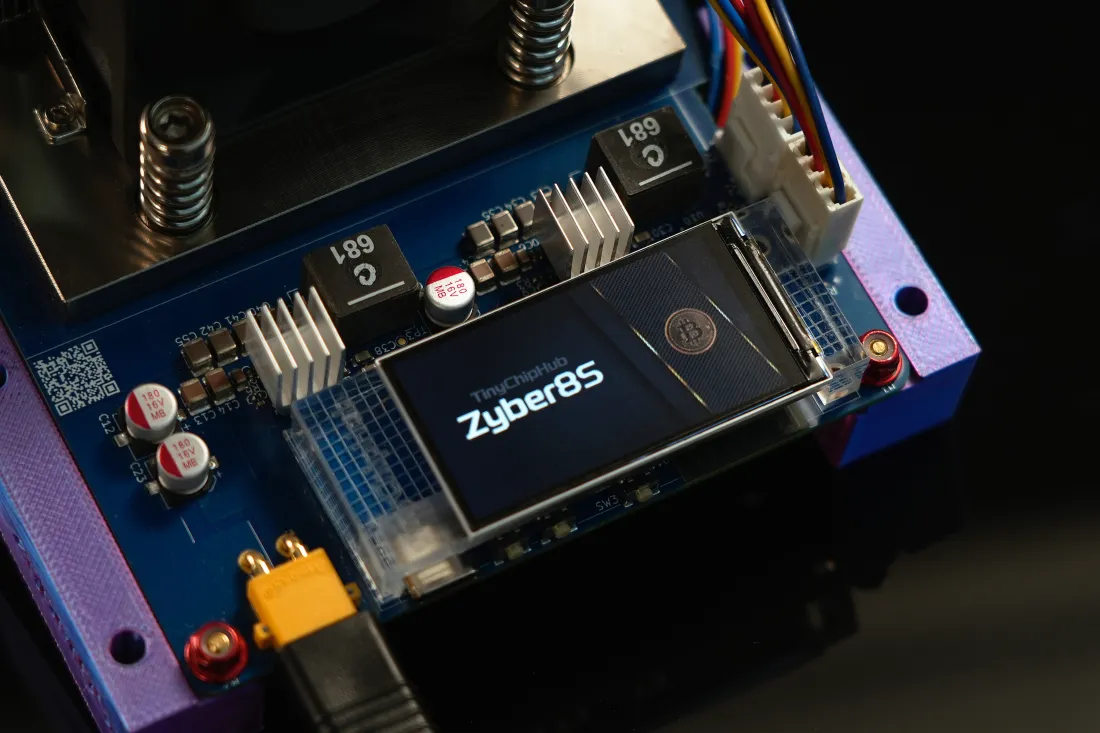
"One Screen, See More Data!"
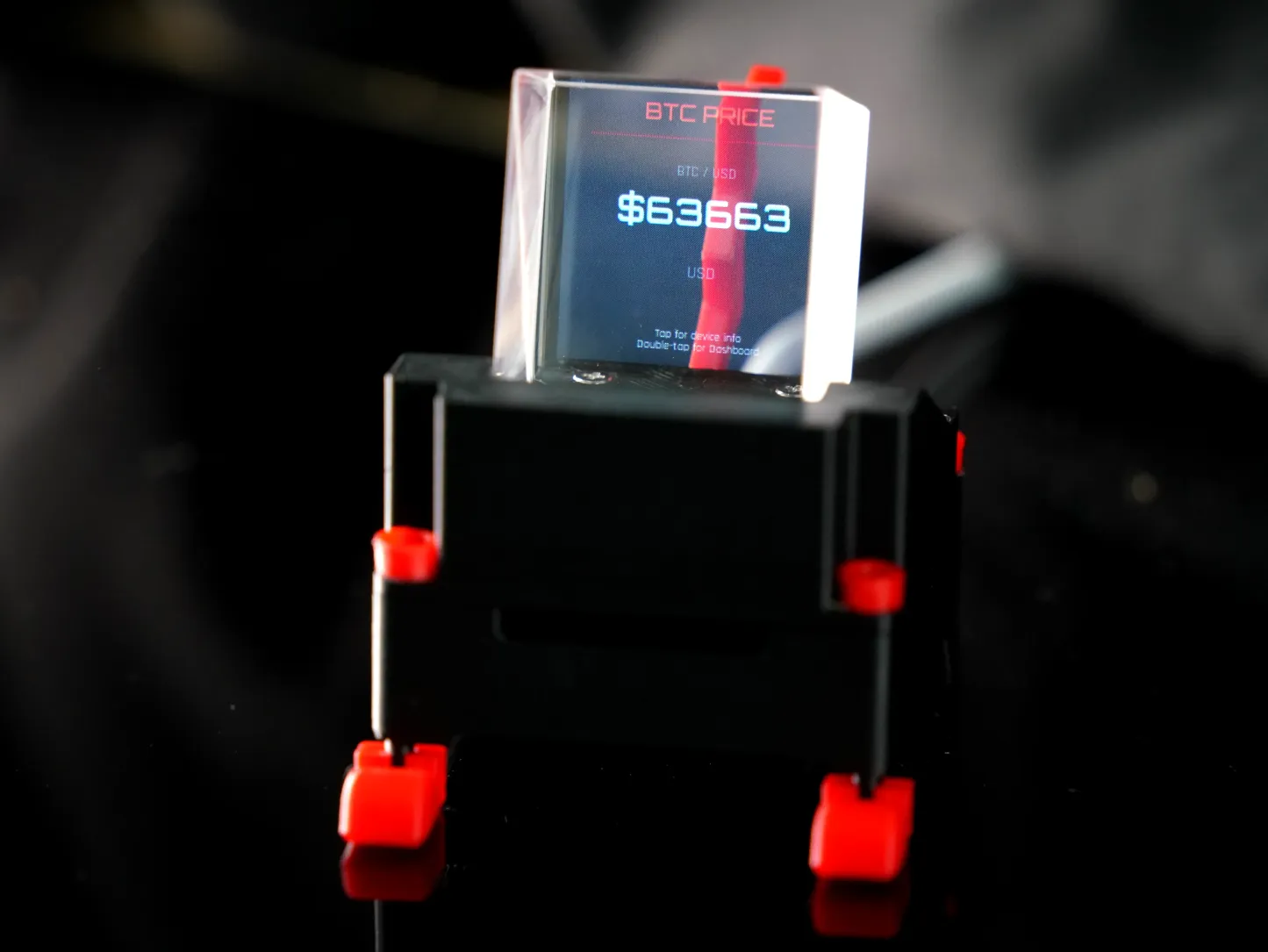
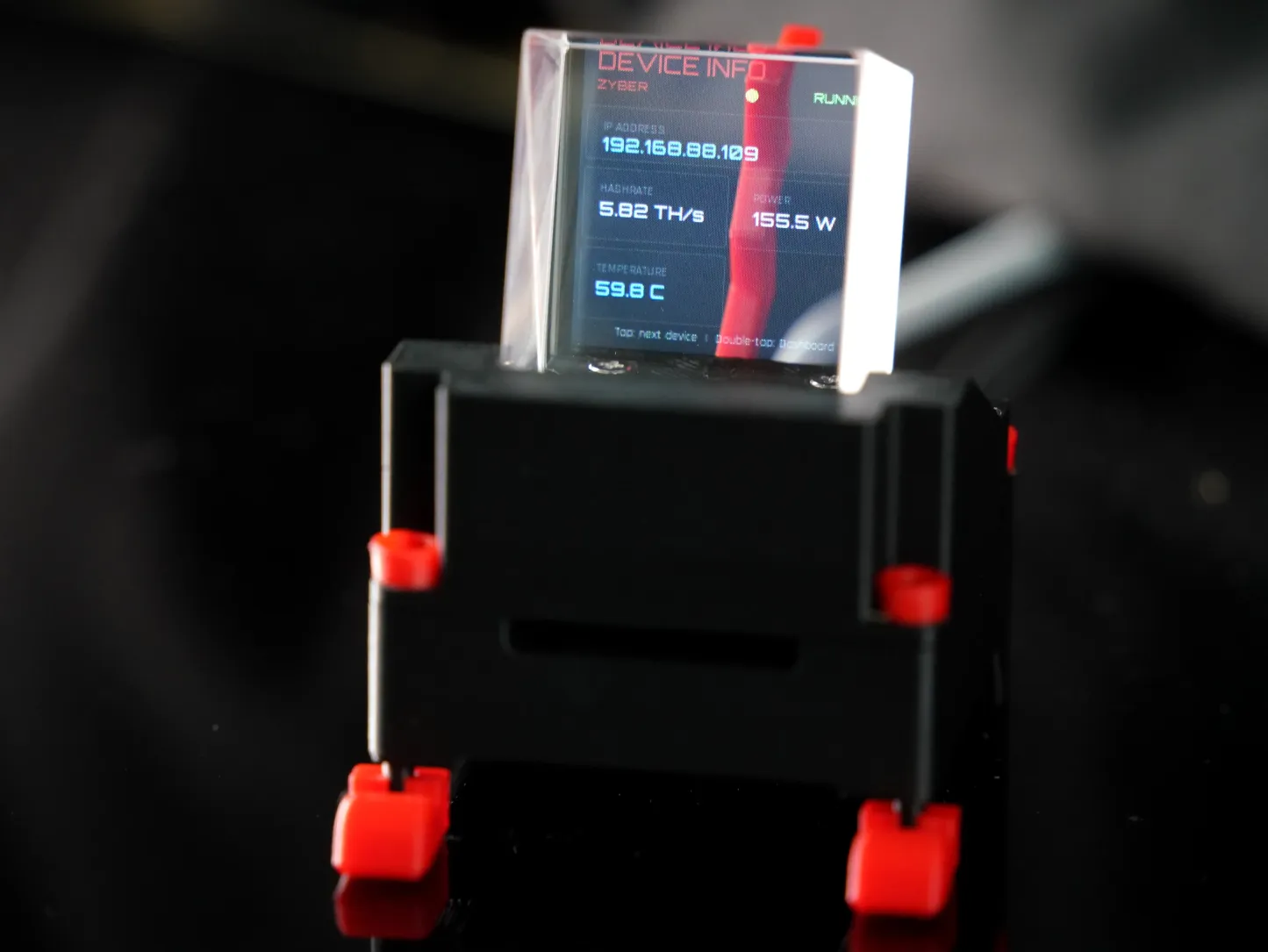
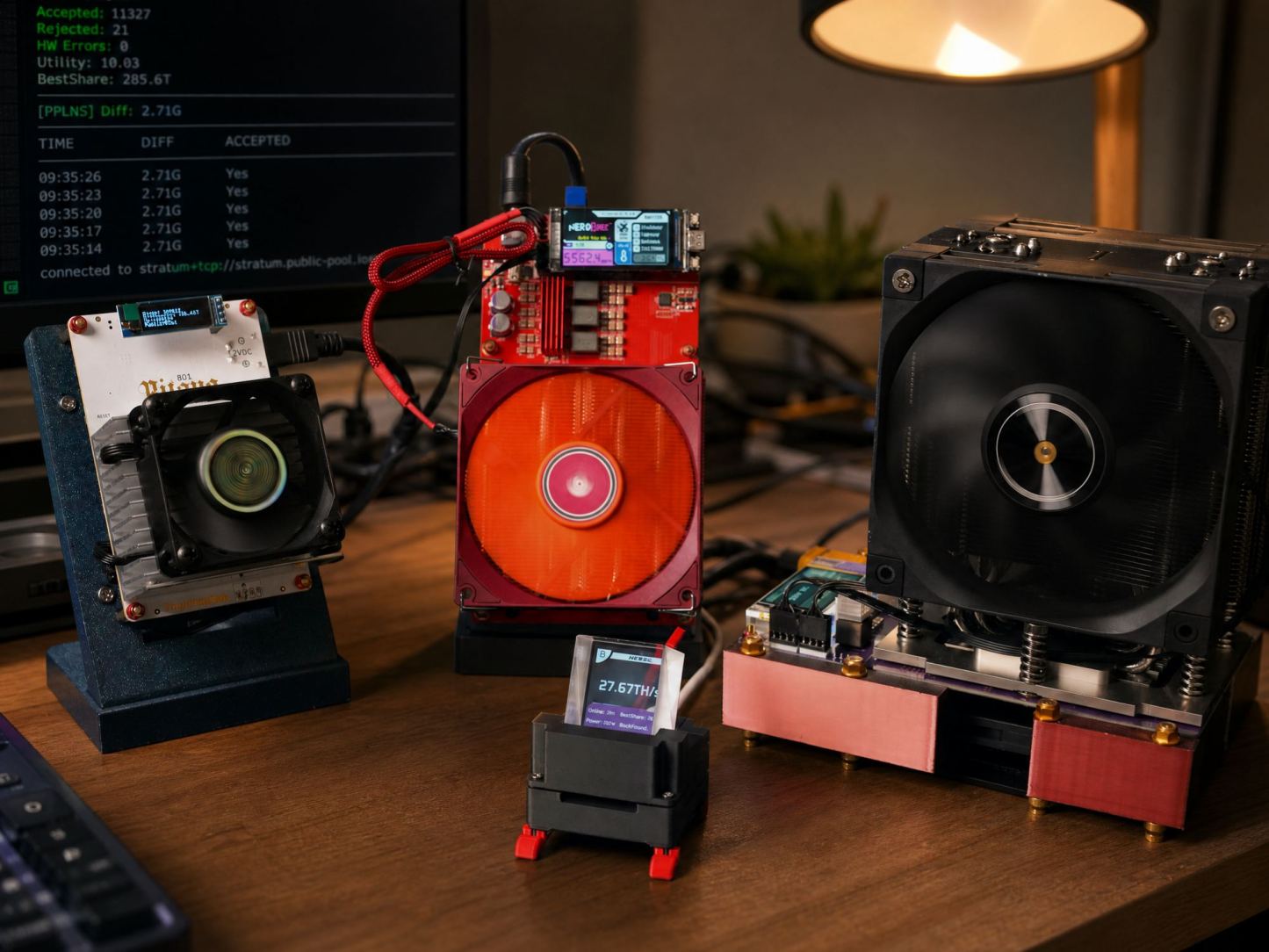
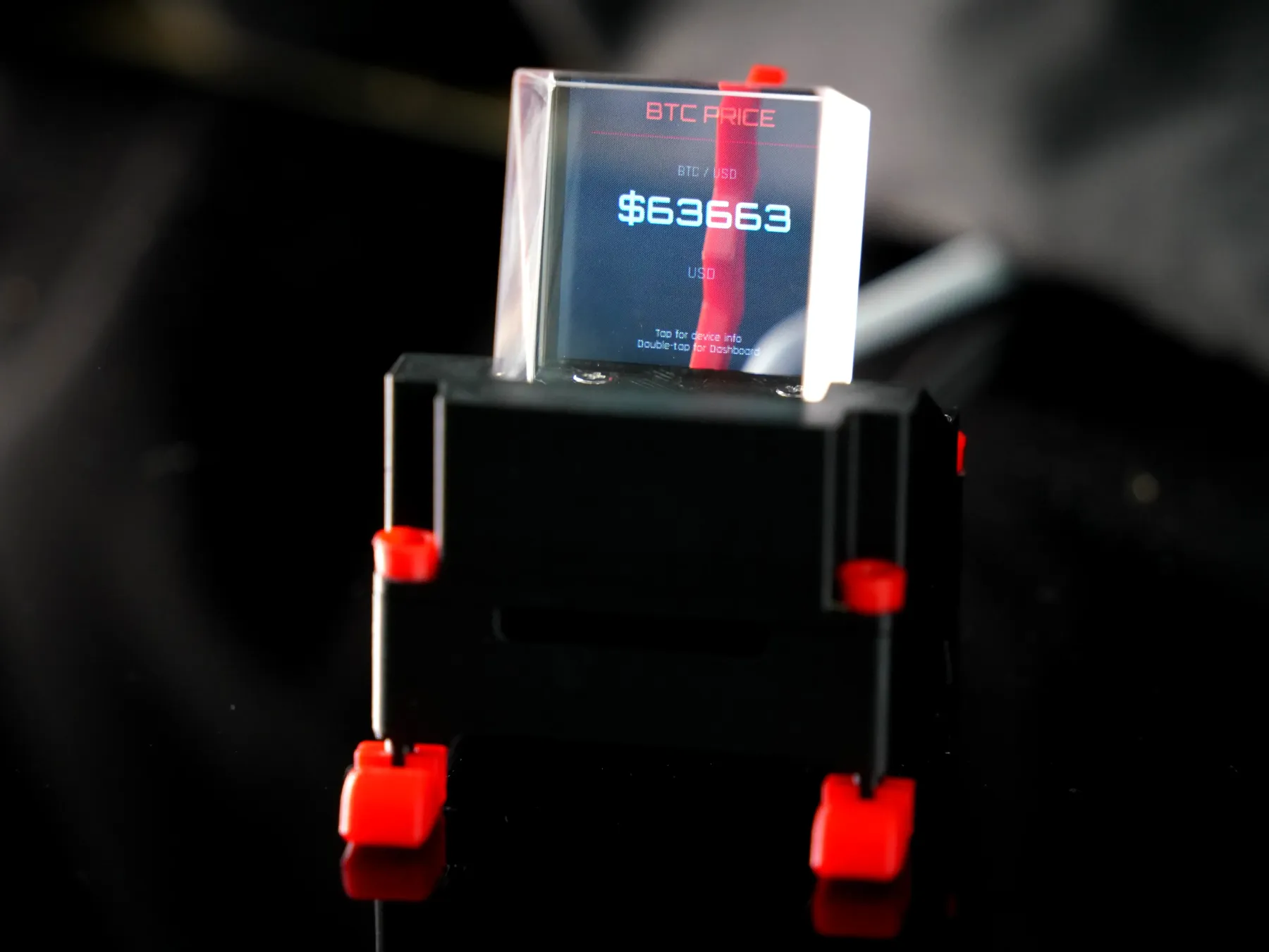
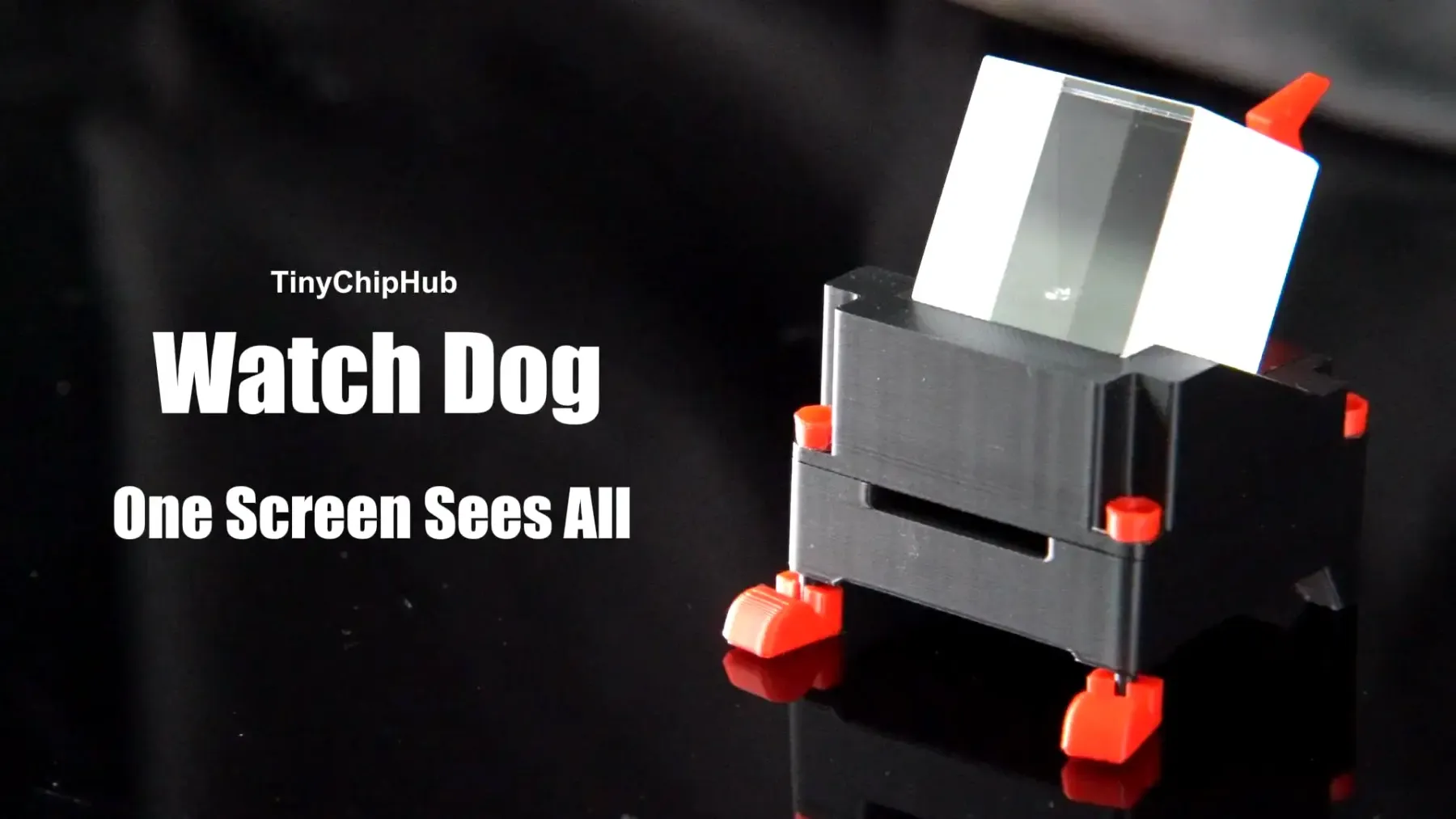
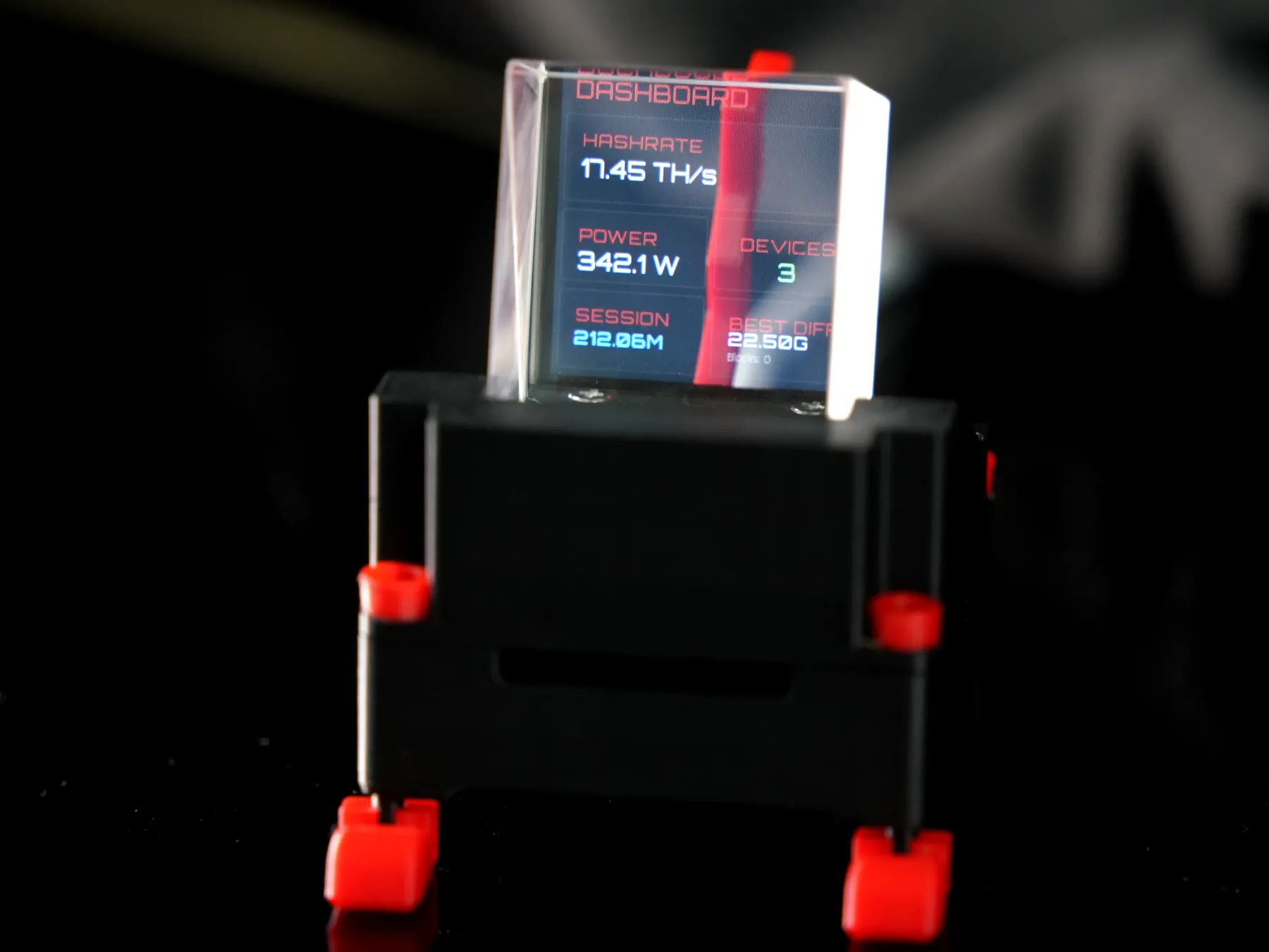
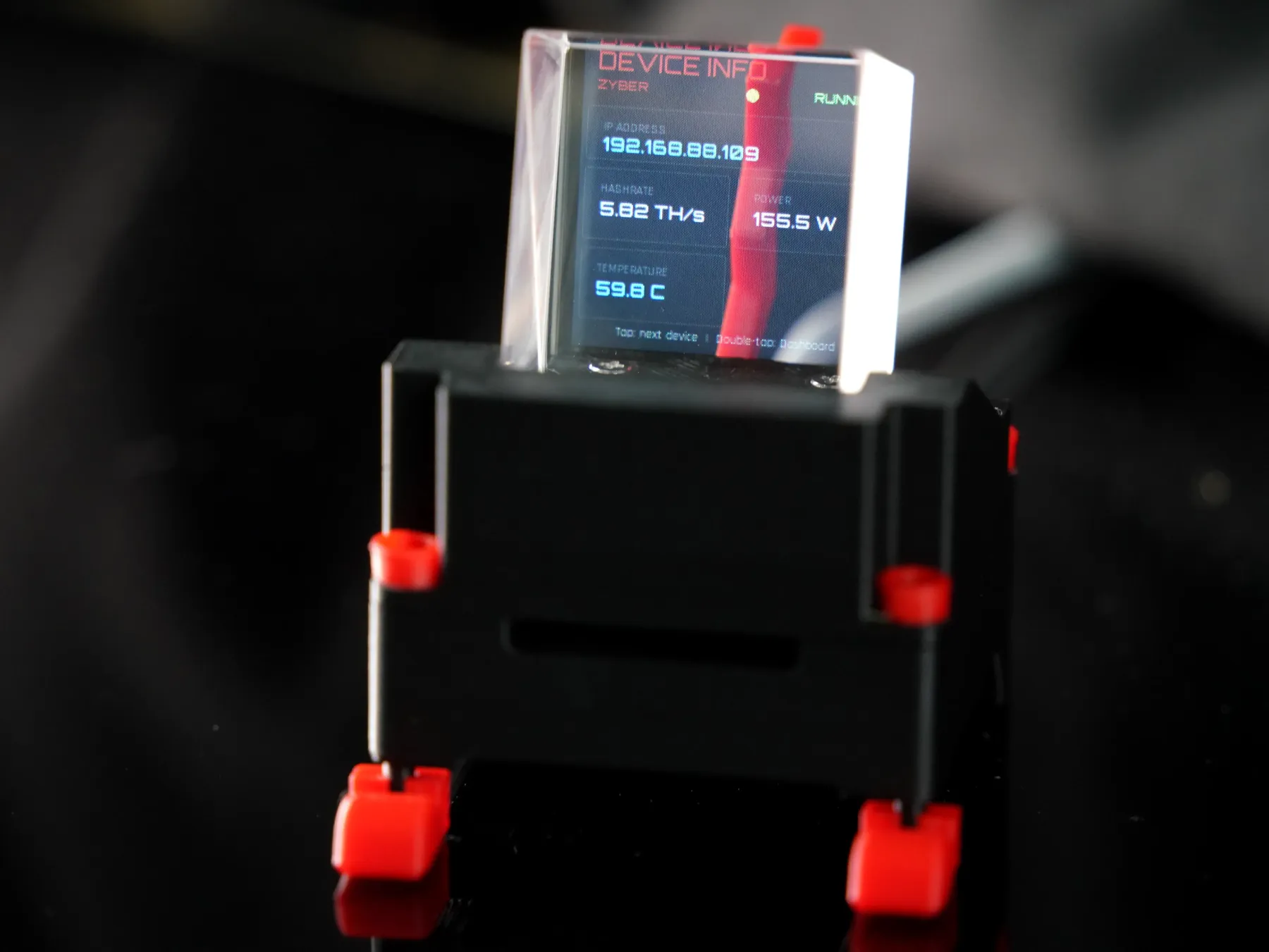
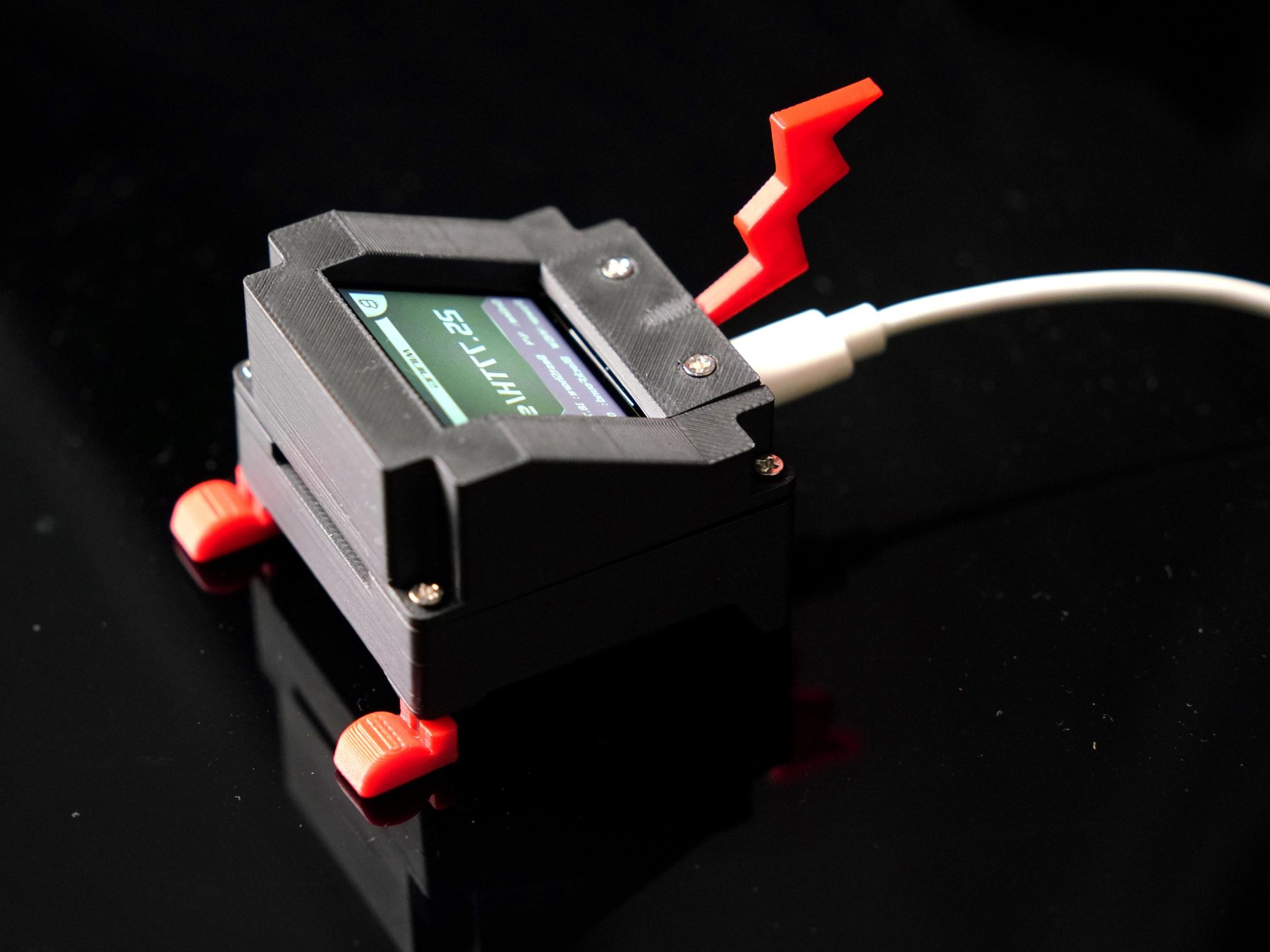
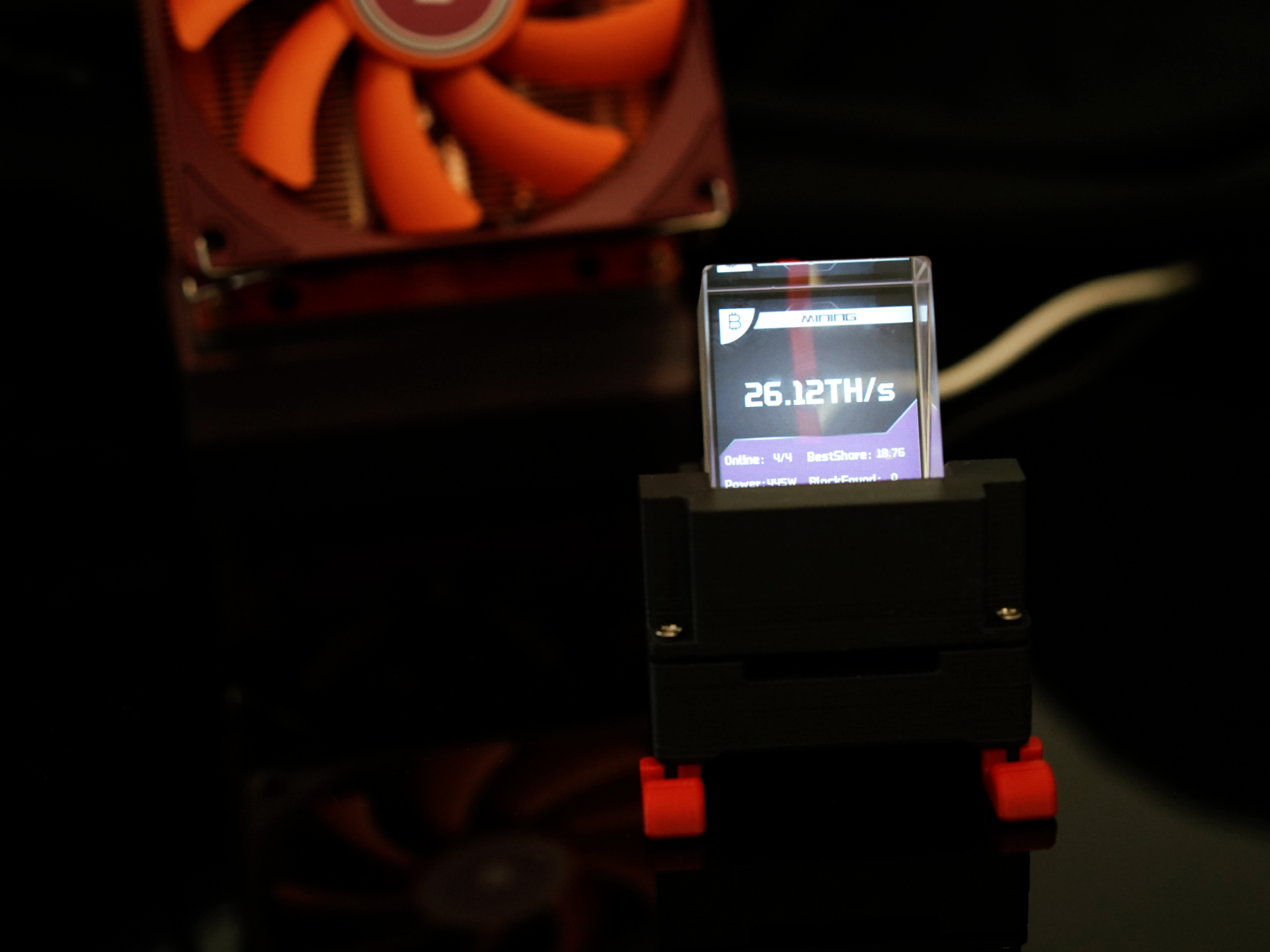
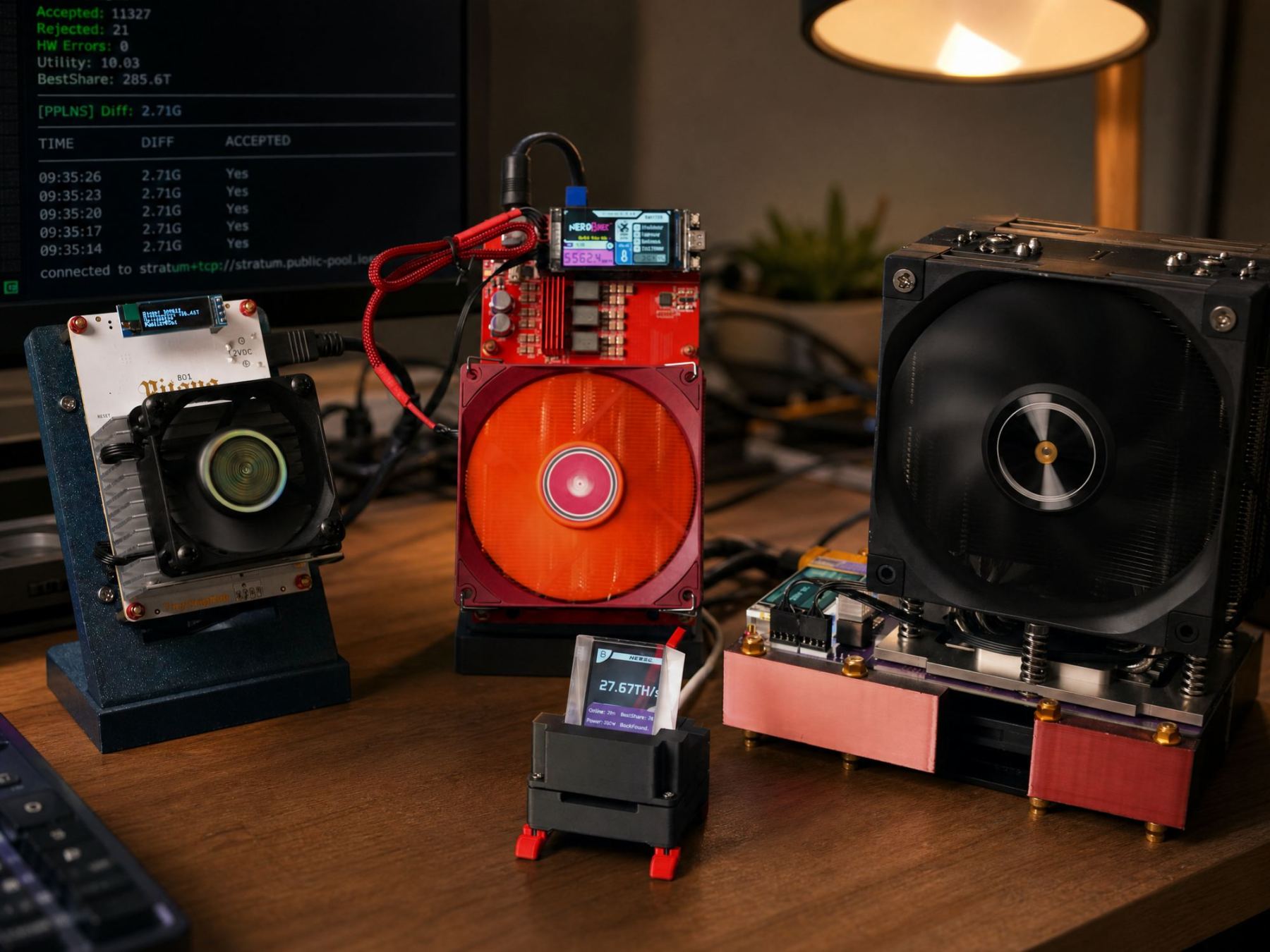
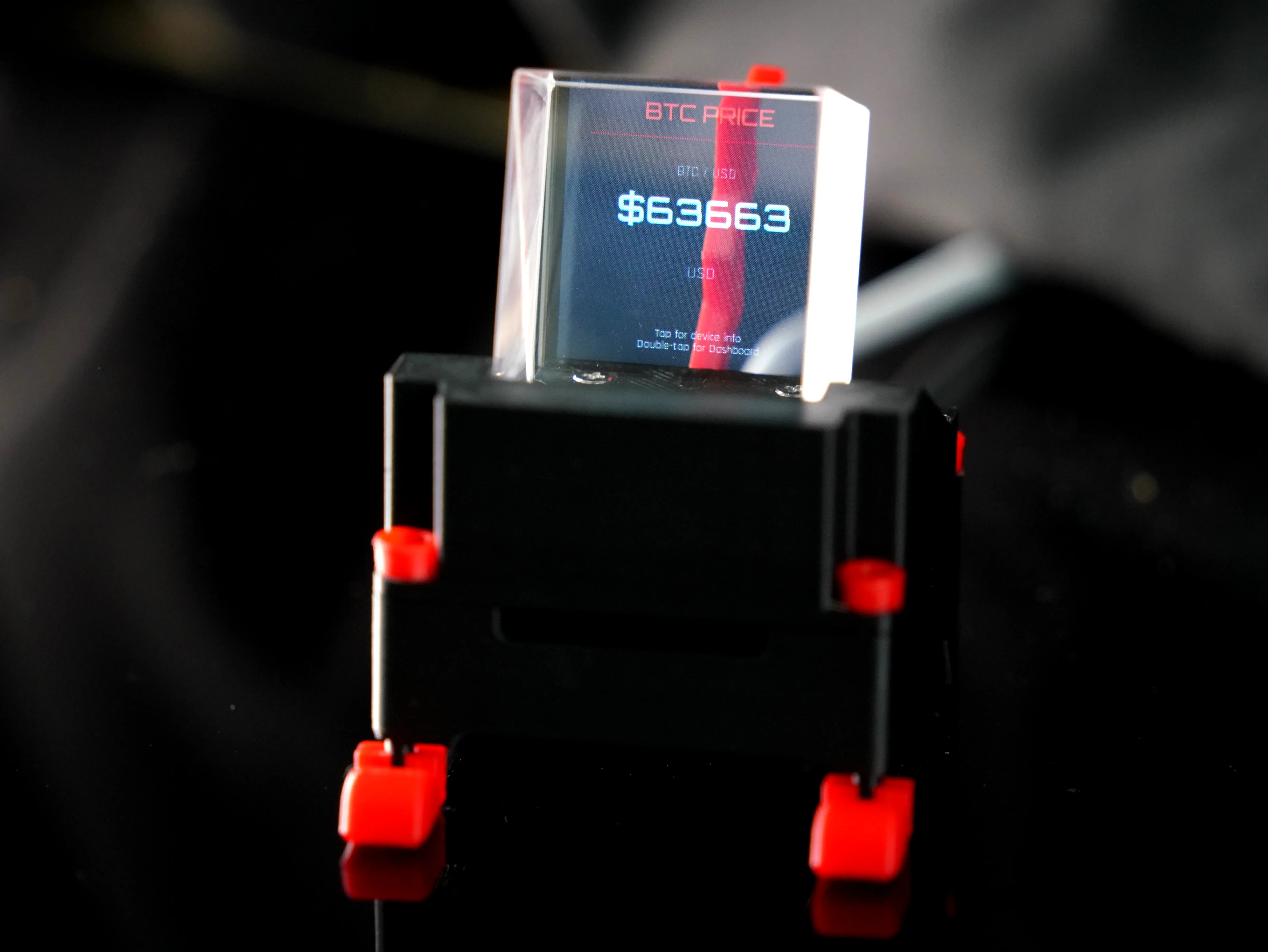
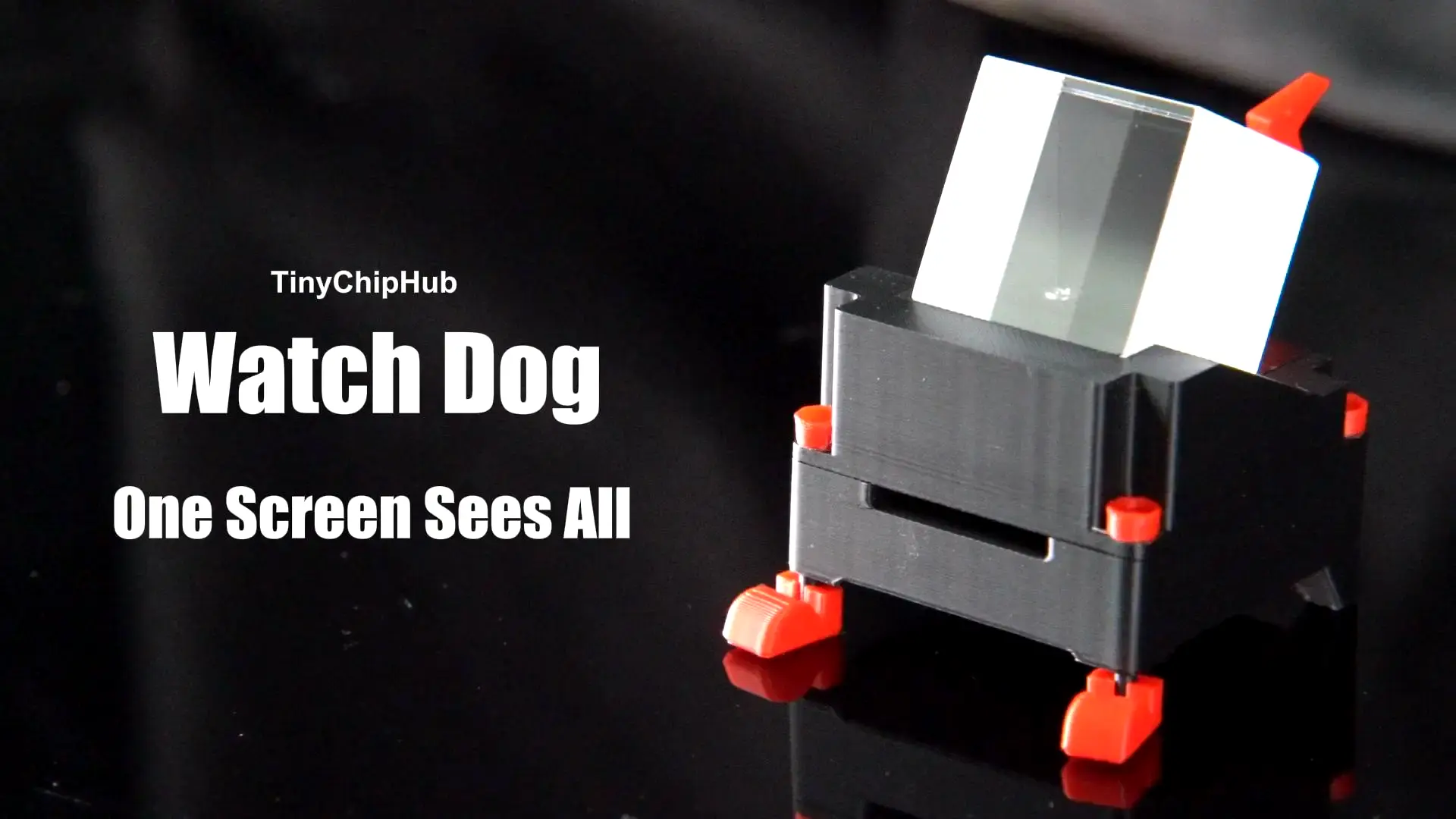
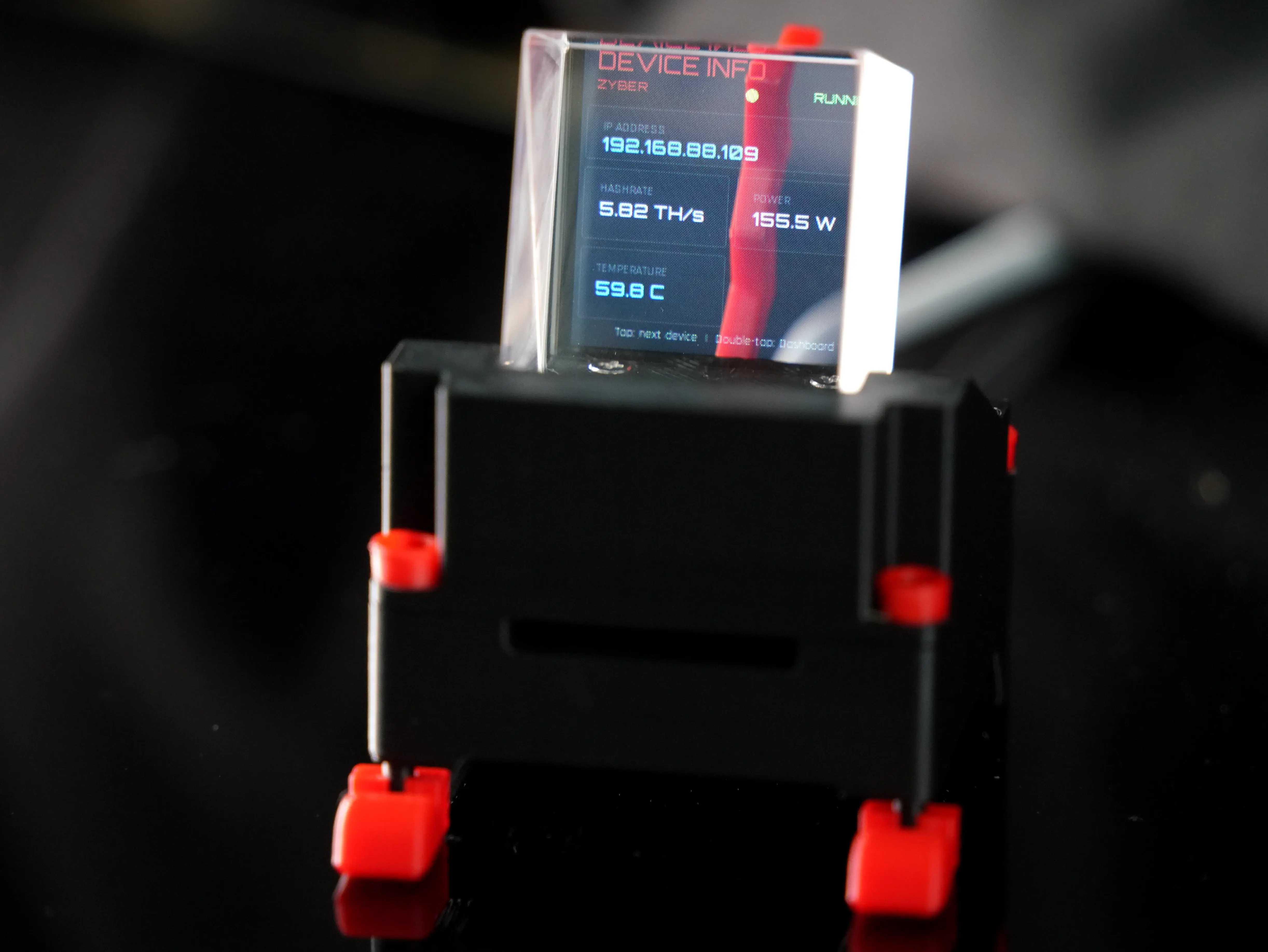
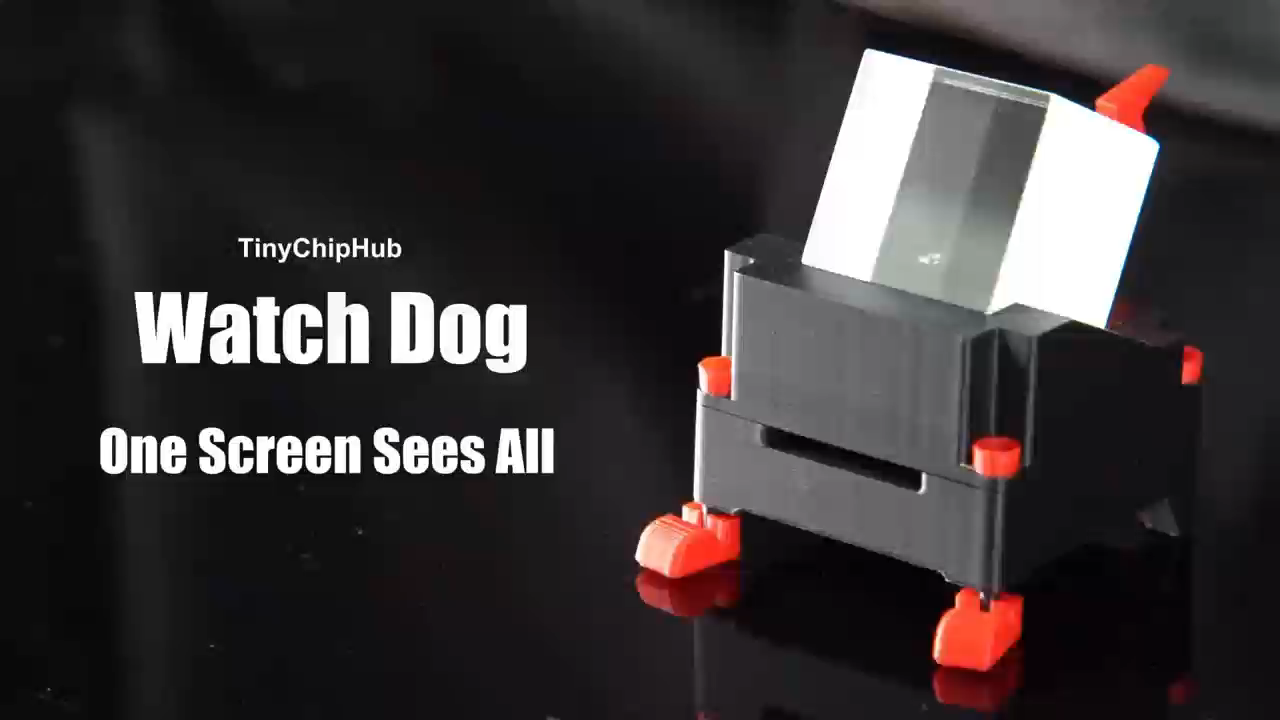
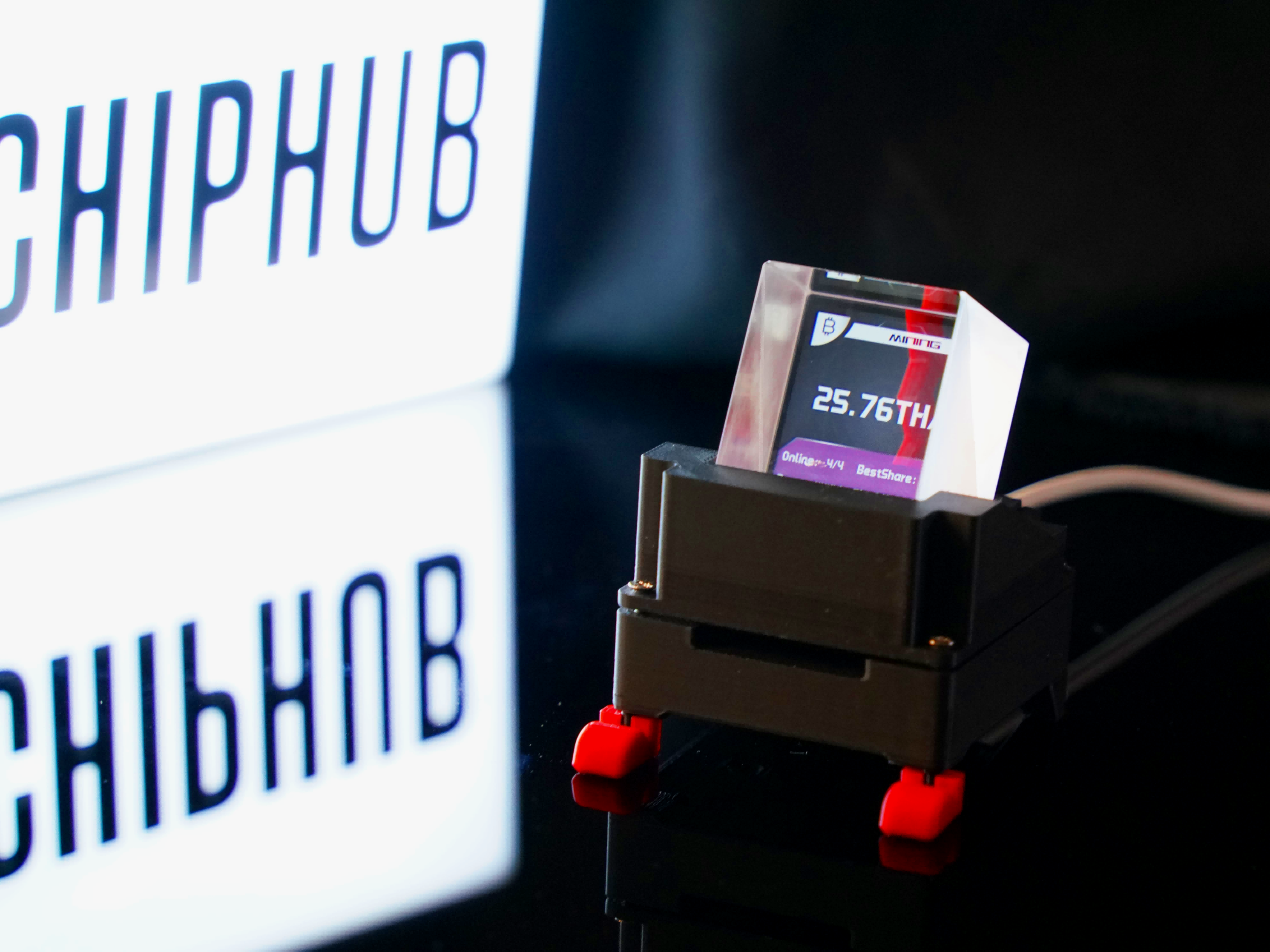
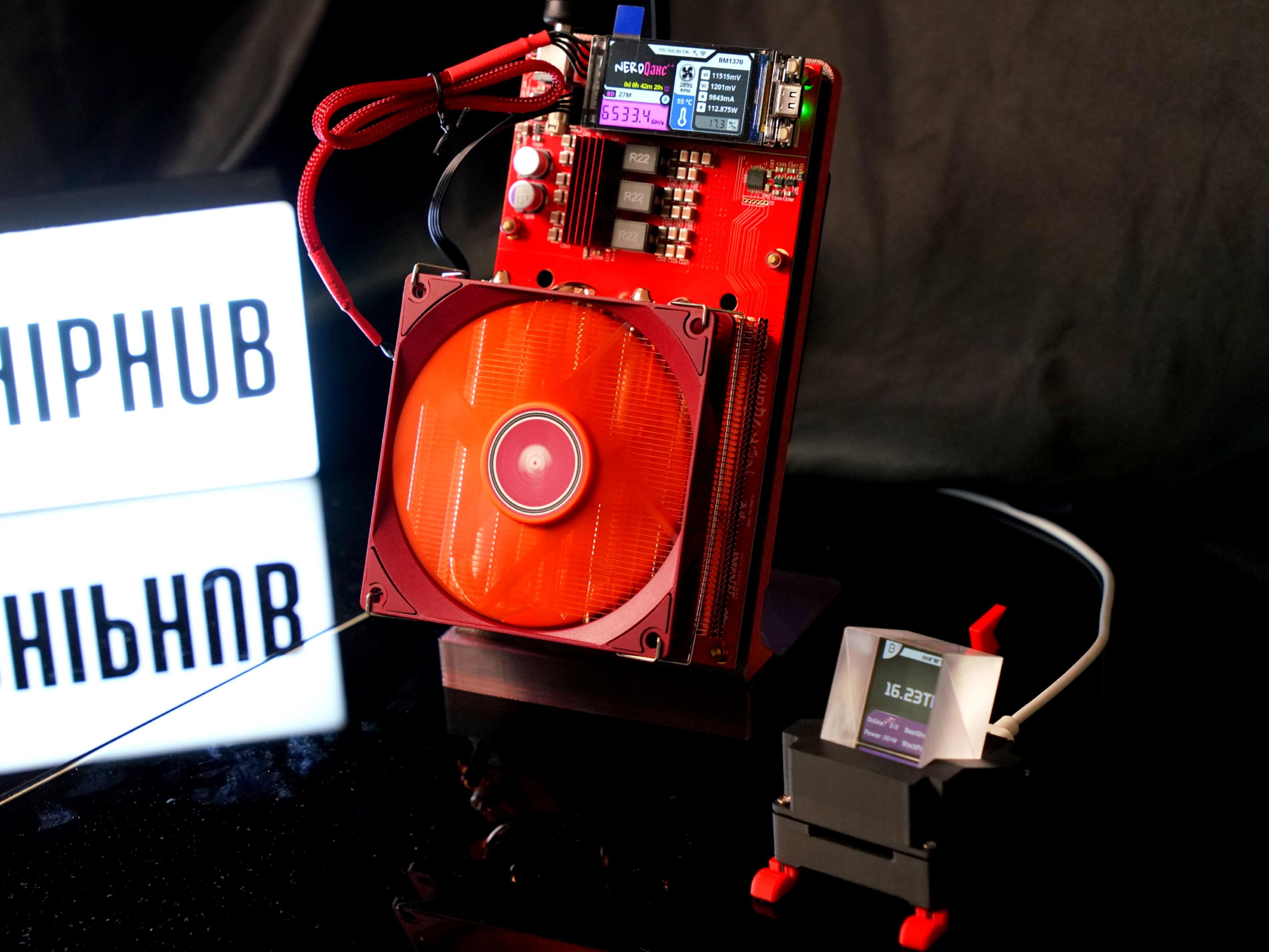
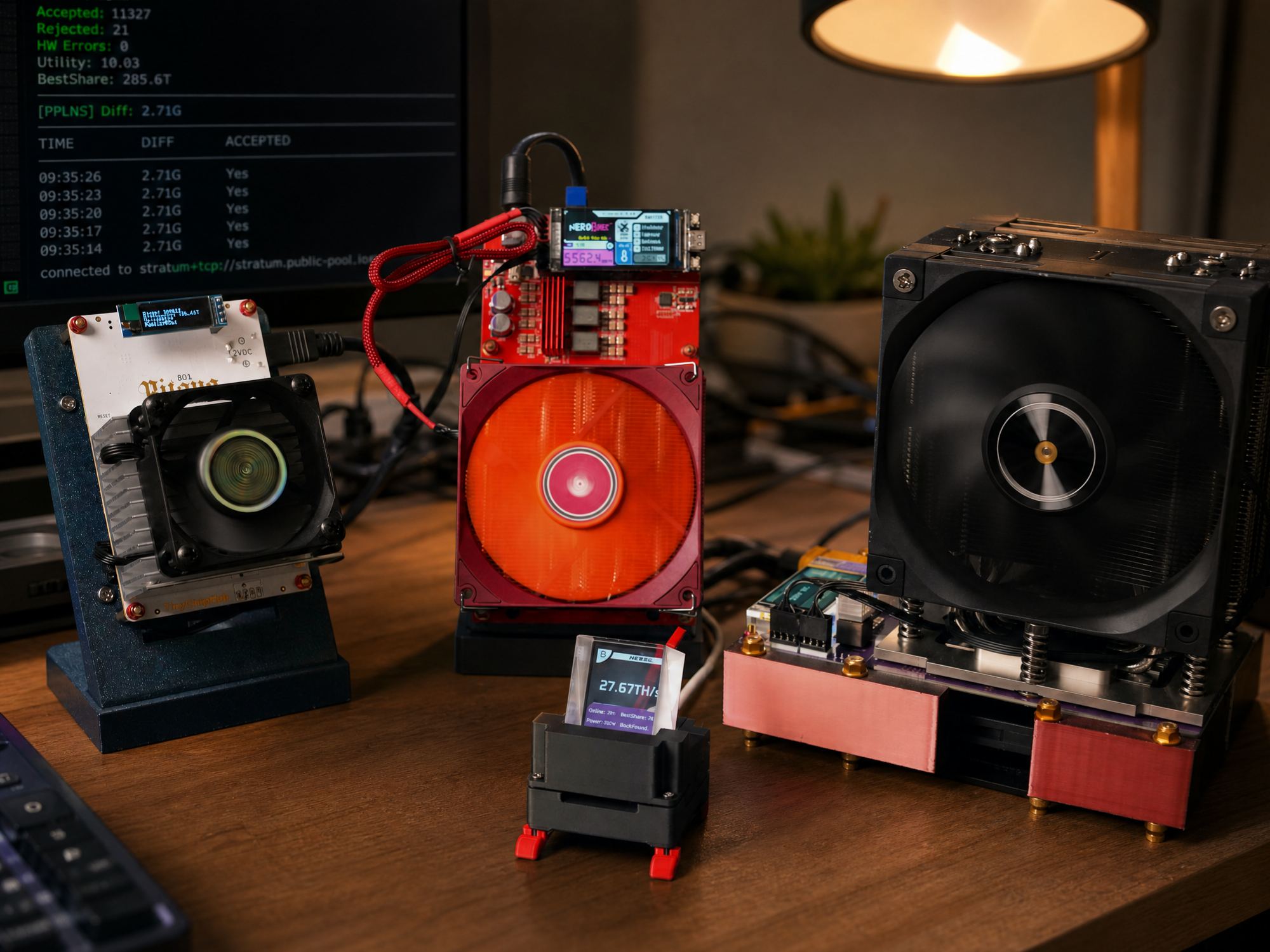
WatchDog is the exclusive control panel for Home Miners launched by TinyChipHub, designed to automatically scan and aggregate operational data from Solo Miners like Bitaxe / Nerdaxe / Zyber into a unified platform (the dedicated backend ZCube OS) for management! Tap once to cycle through mining device information, tap twice to return to the previous page. It also supports batch miner management, real-time BTC price display, time, etc., completely eliminating the hassle of switching between background windows repeatedly.
🎁 Core Features
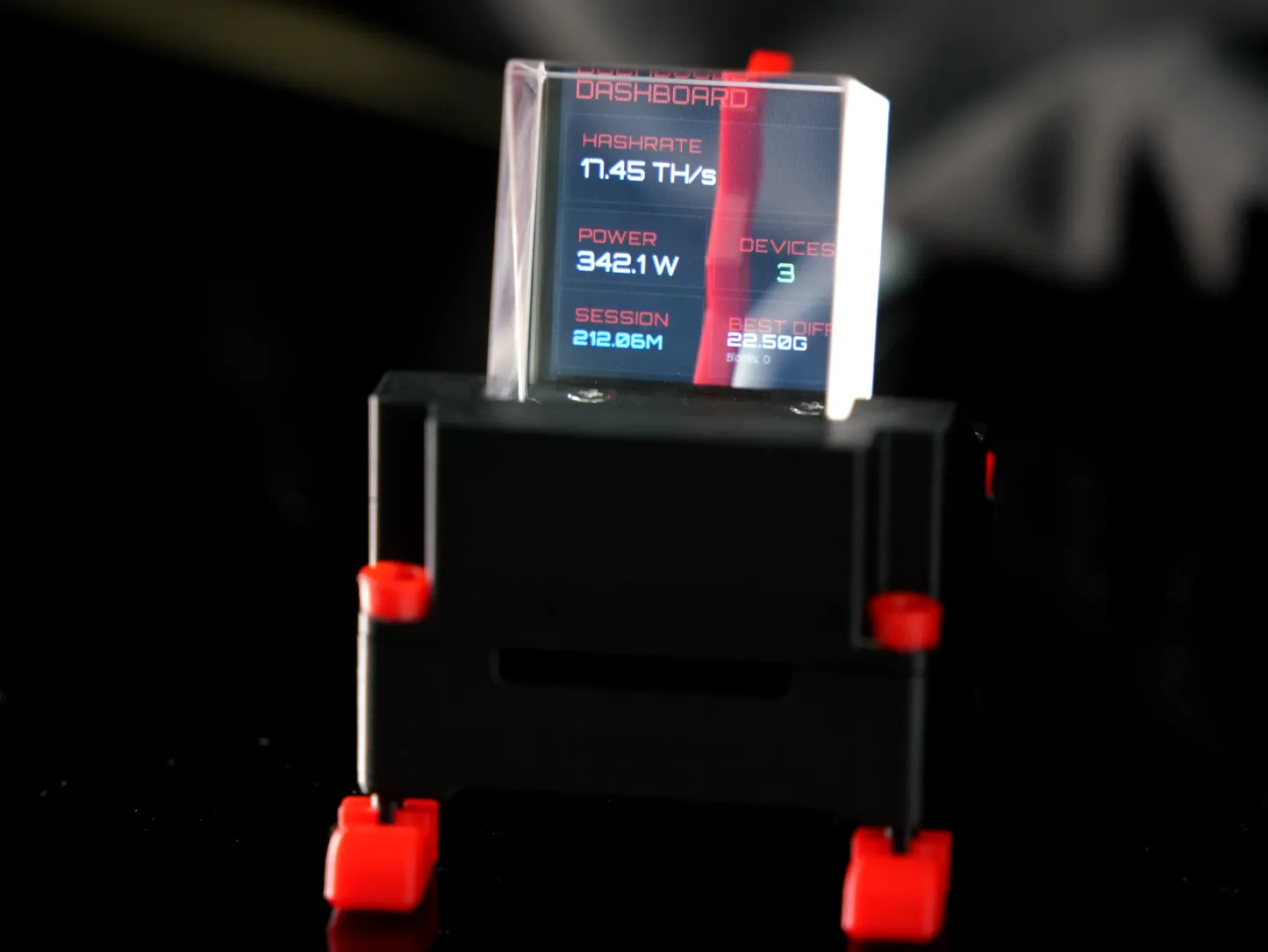
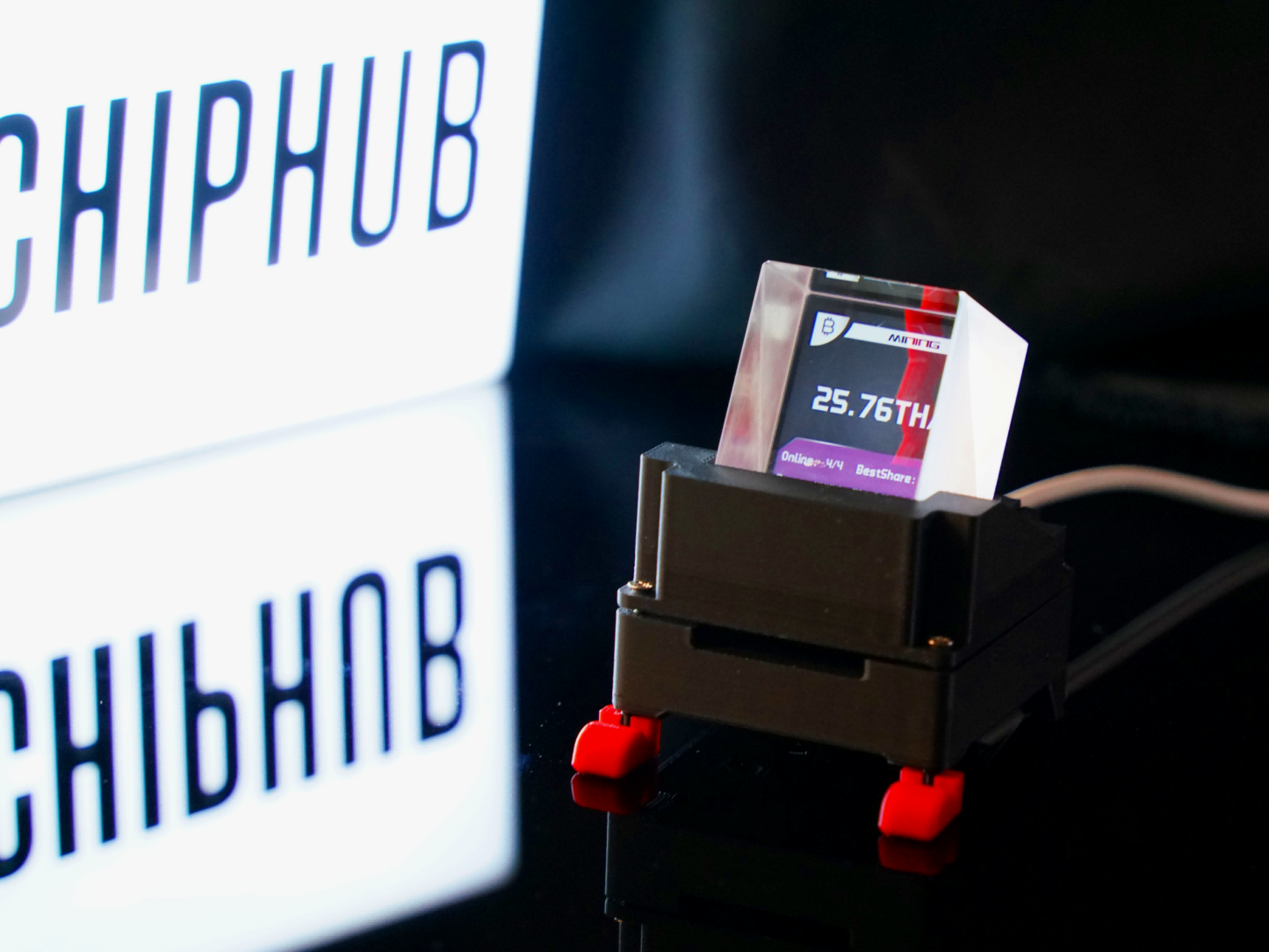
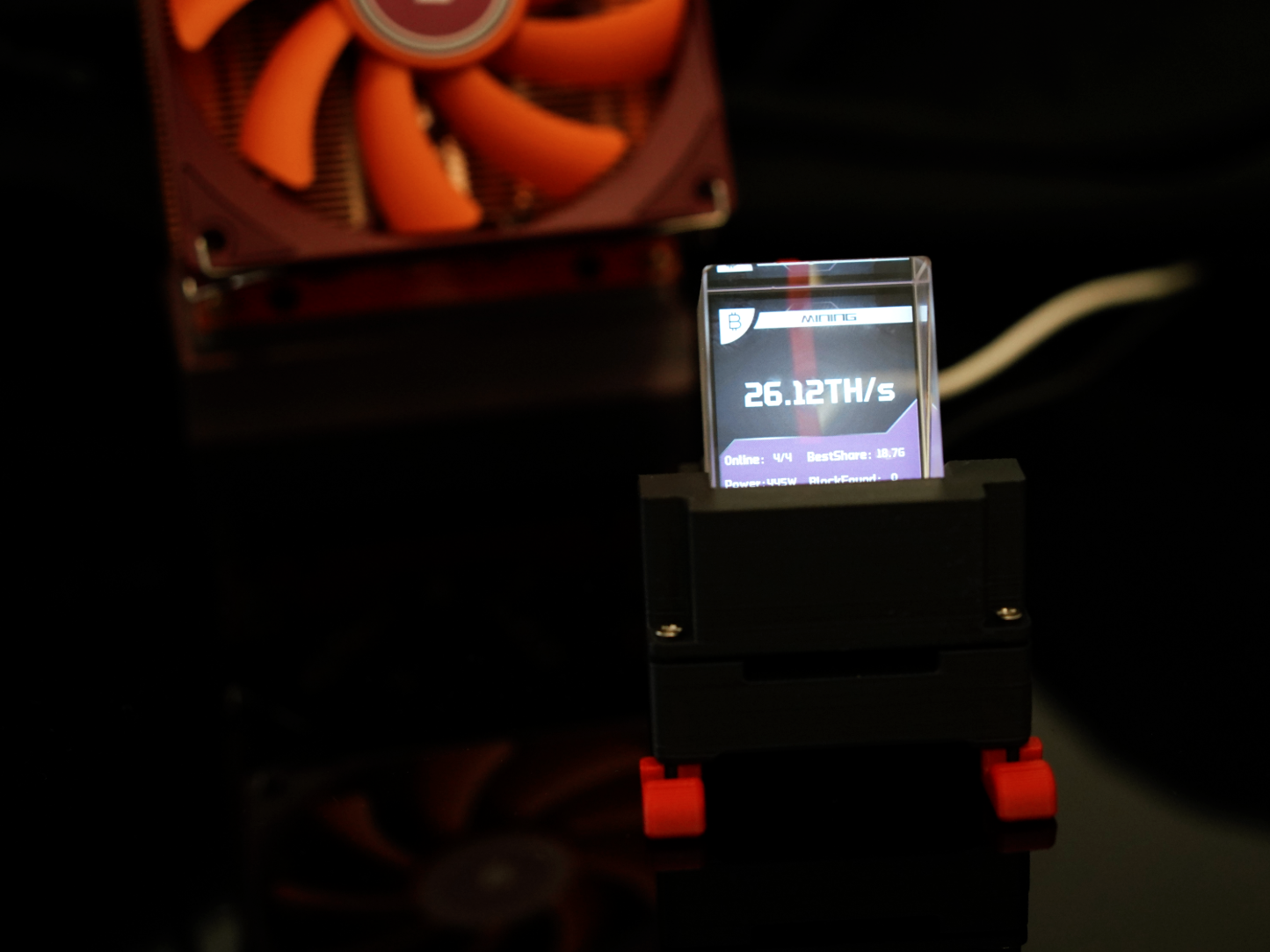
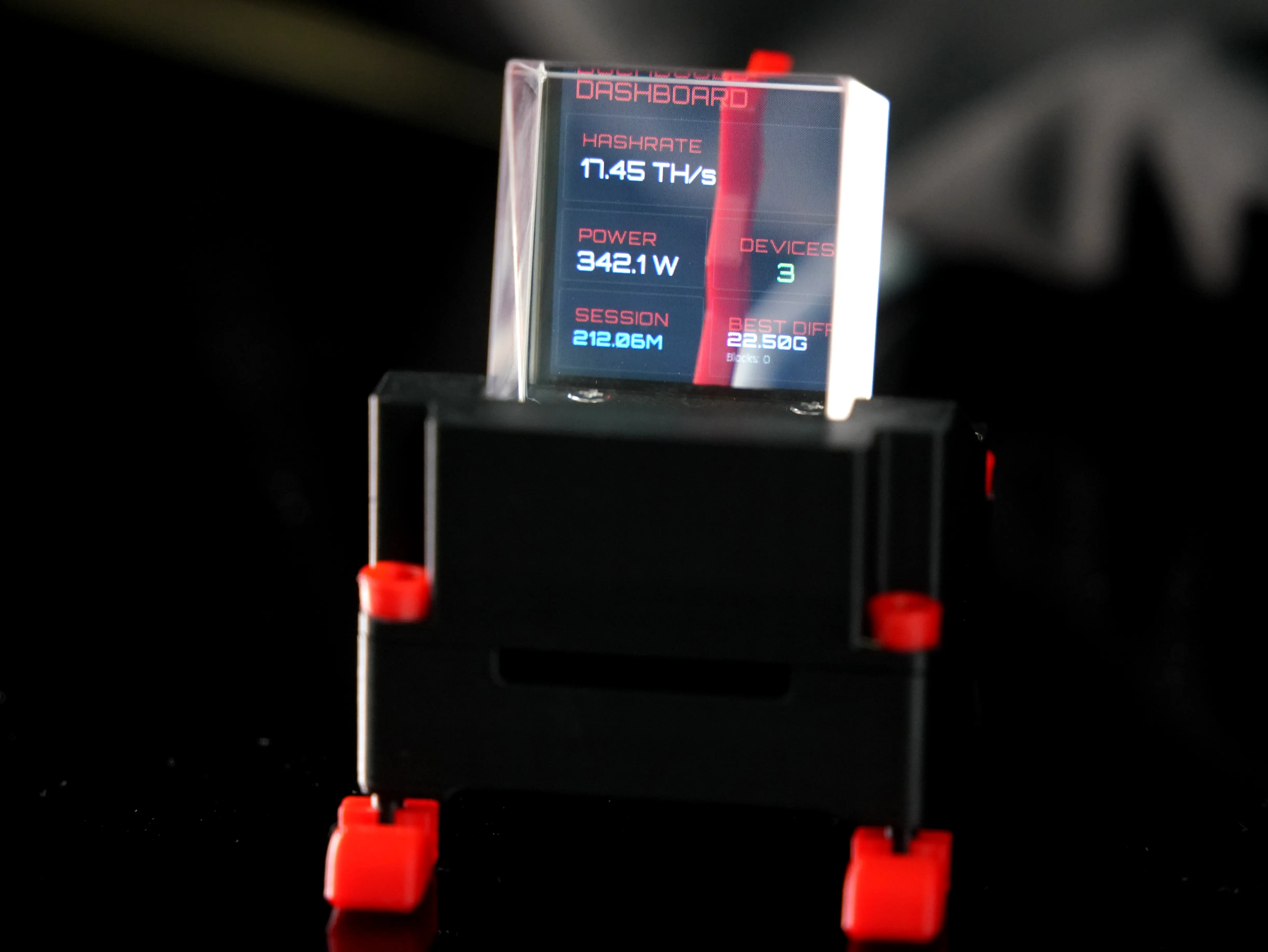
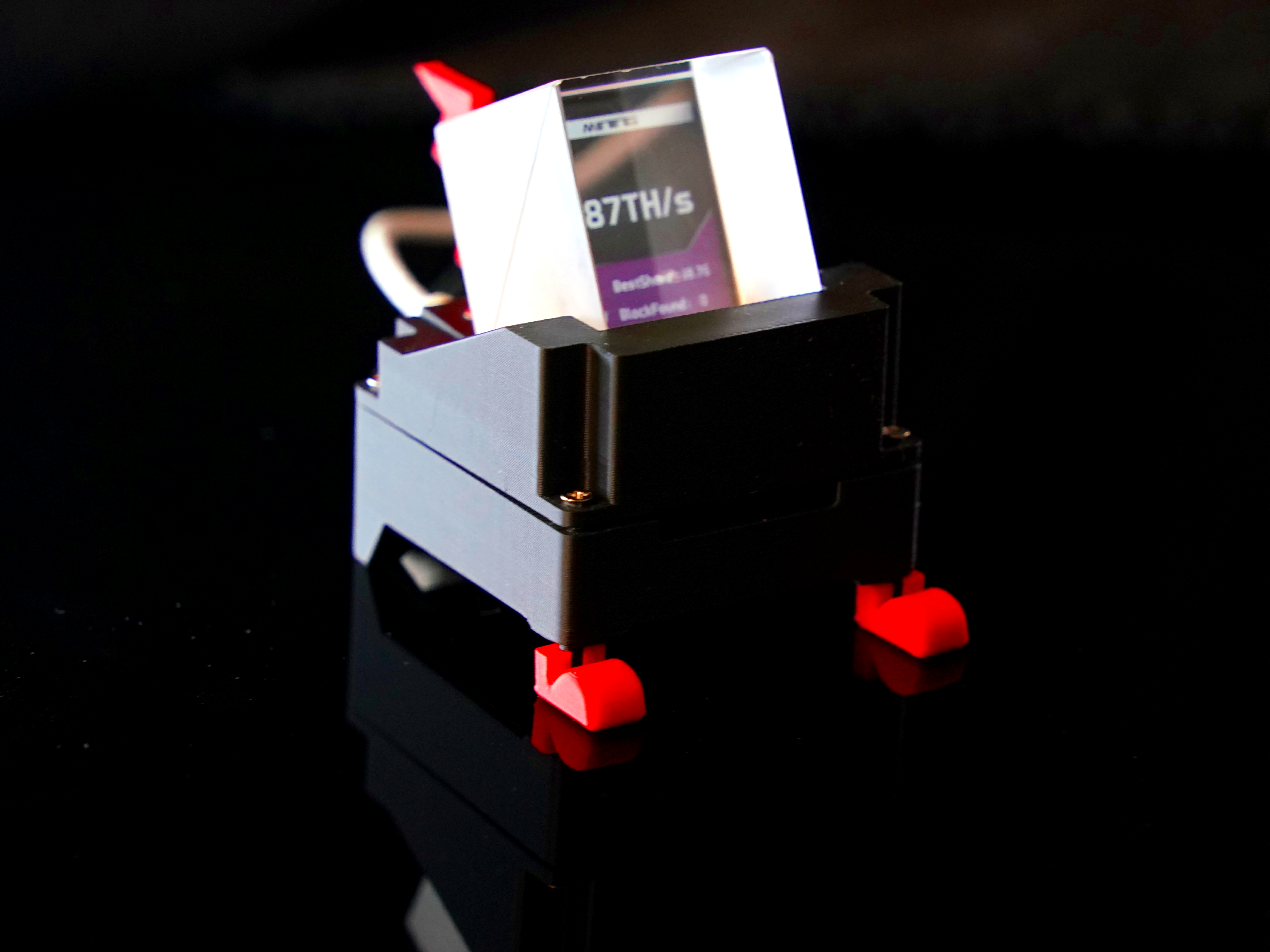
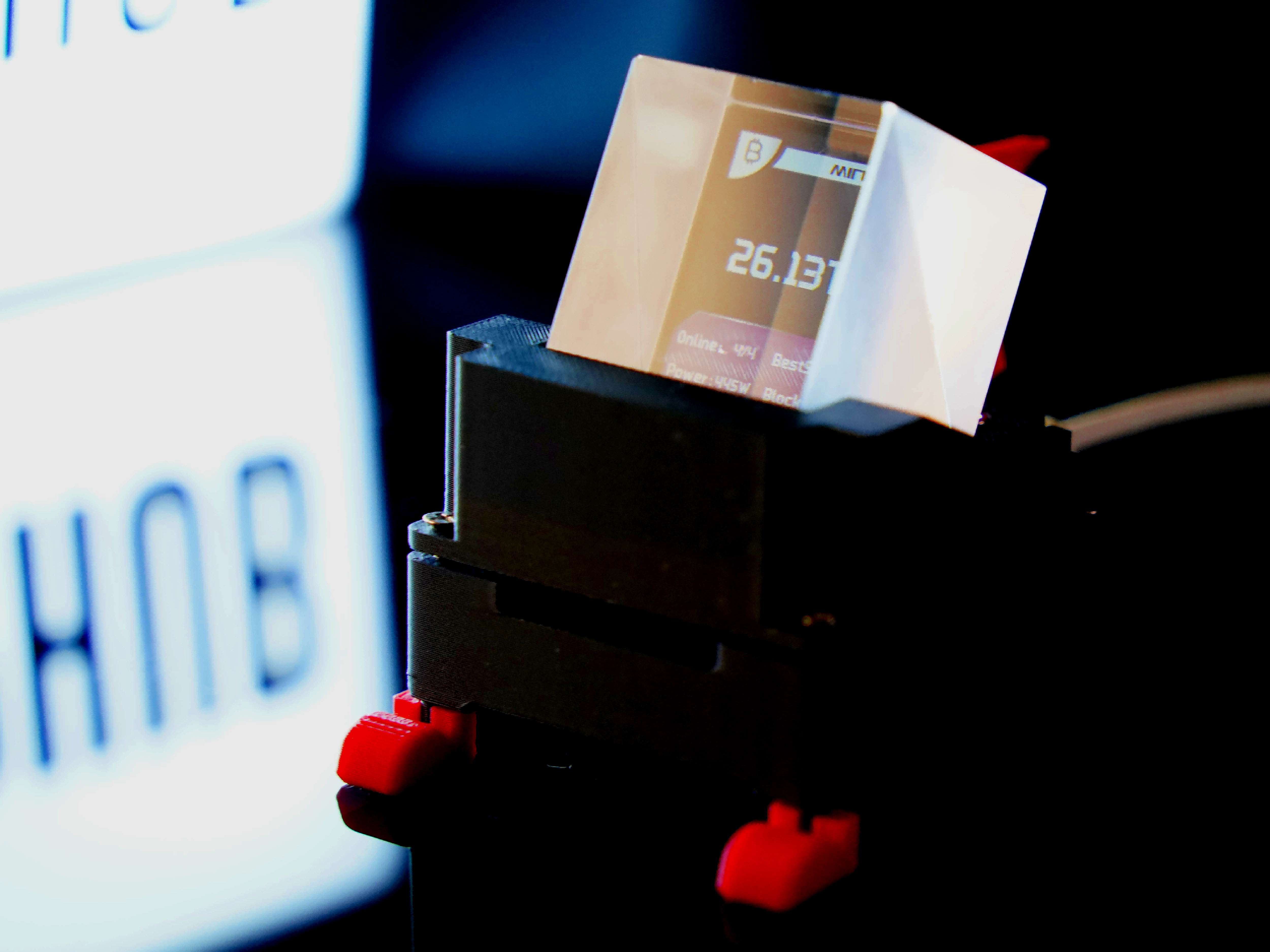
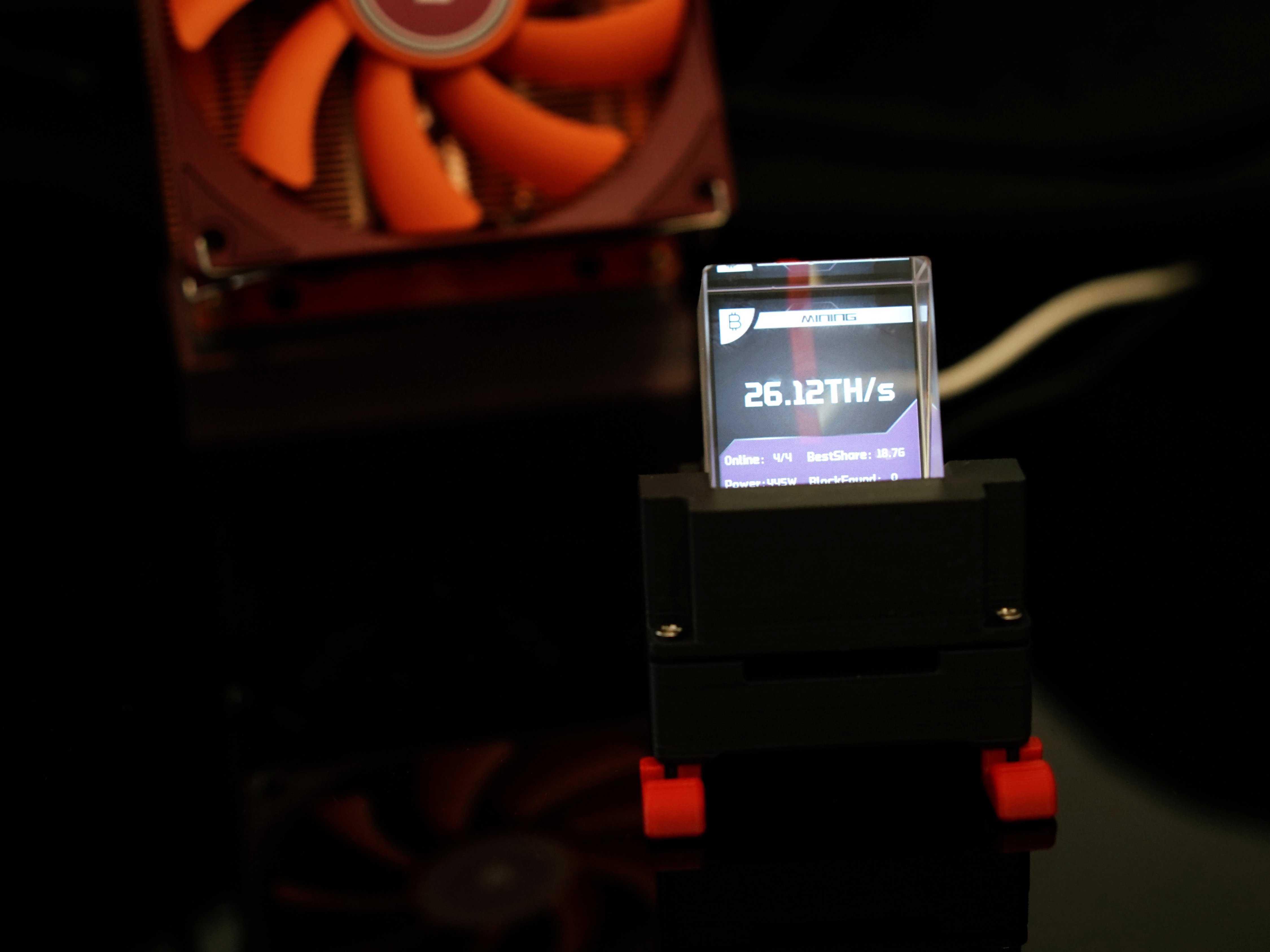
- 🚀 Unified Data Monitoring: WatchDog automatically discovers and identifies all key metrics from systems like Axe, Nerd & Zyber OS (total hashrate, best share, miner count, block found status, etc.), aggregating them on one dedicated screen. Say goodbye to background switching – all information at a glance.
- 📊 ZCube OS Batch Management: Access the ZCube OS backend via the specified IP / custom Hostname. Additionally, the Dashboard page aggregates miner data in real-time, where the Devices card lists all miners with one-click IP redirection; the System page provides an overview of WatchDog information; Batch Setting supports bulk pool management; the Update page offers OTA firmware updates, and more features are coming soon...
- 🛎 Unique Vibration Interaction: Built-in vibration sensor module, no physical buttons needed. One vibration switches pages, two vibrations return to the main screen. Operate by lightly tapping the body or surrounding area.
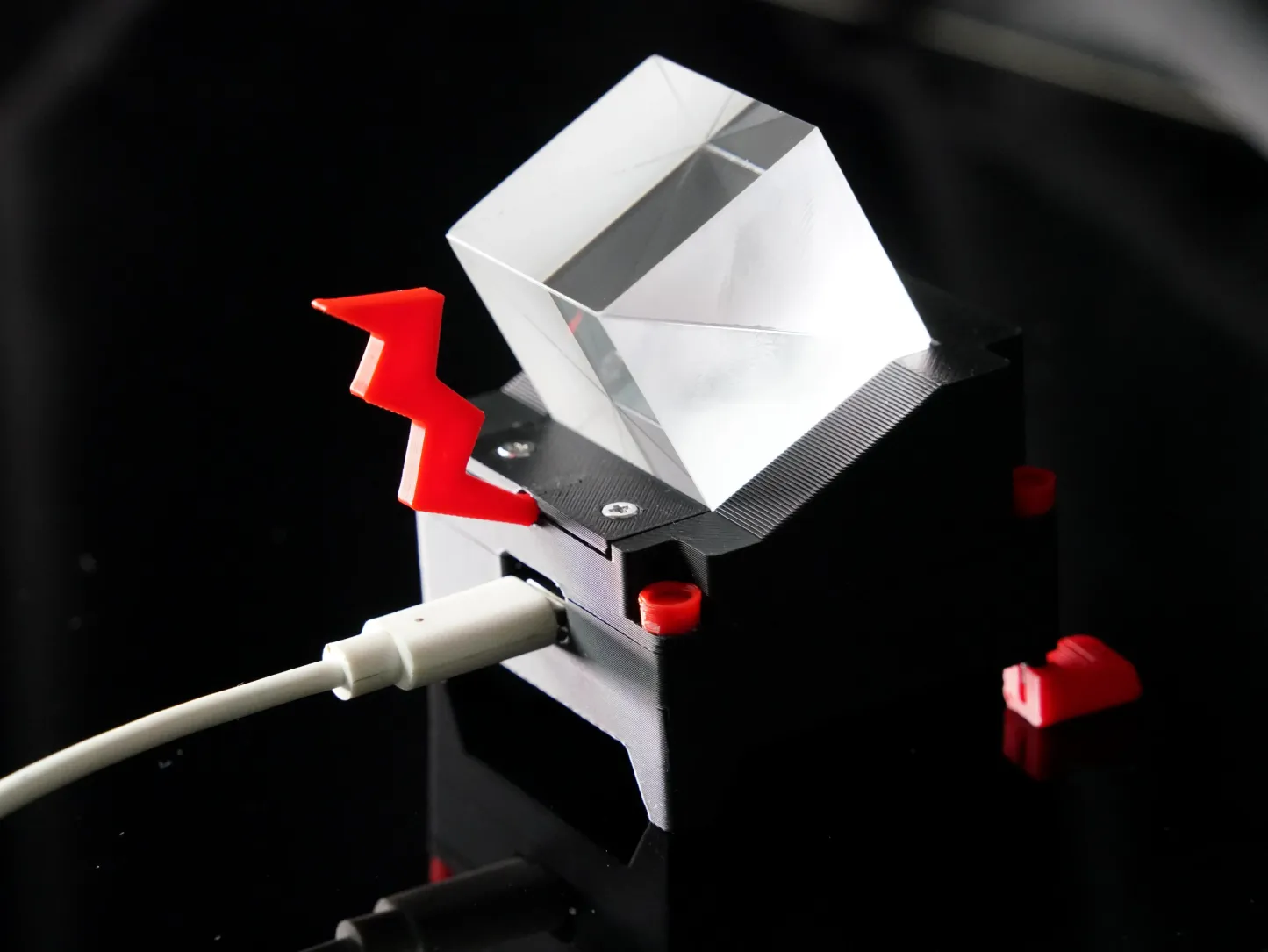
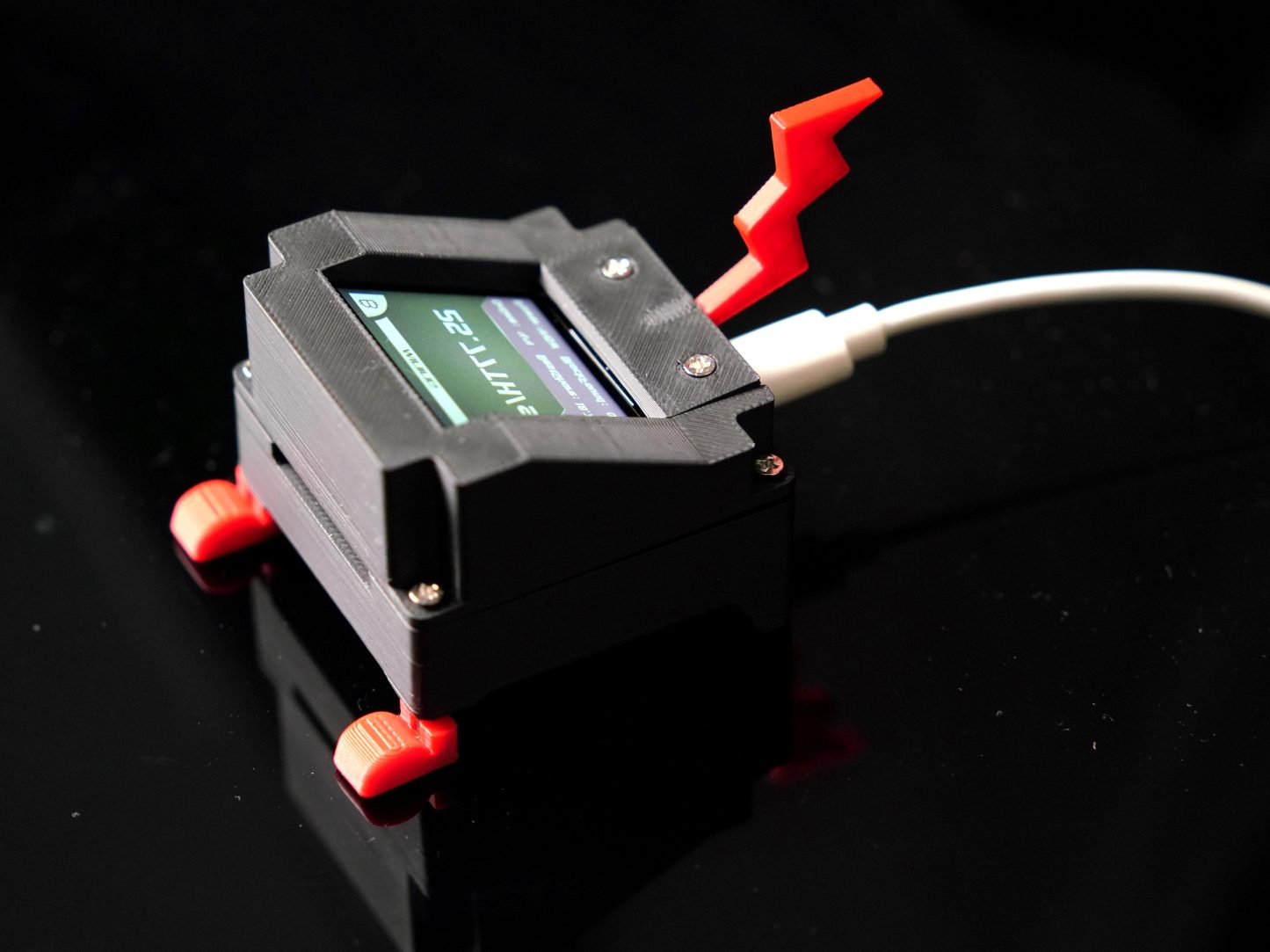
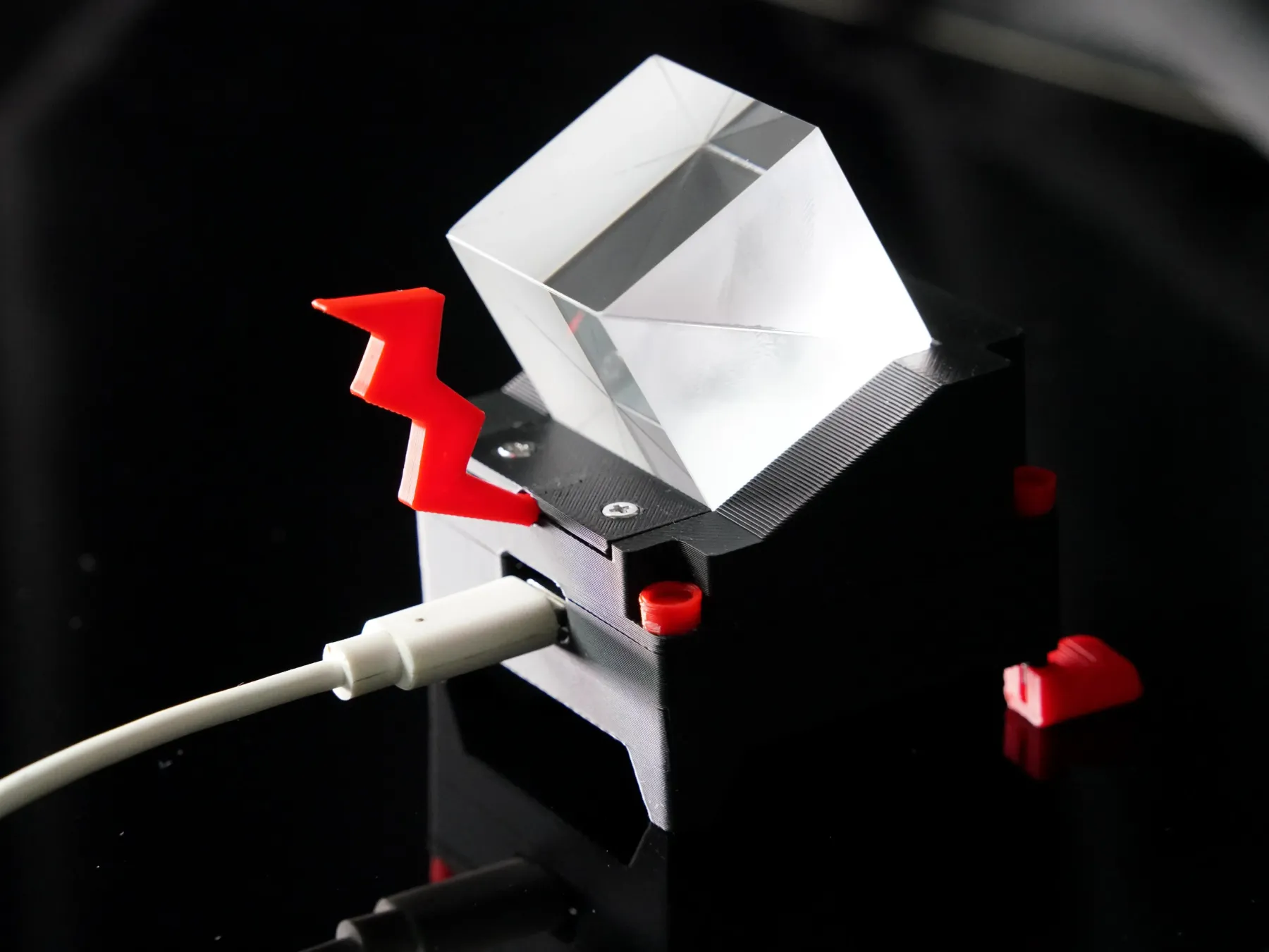
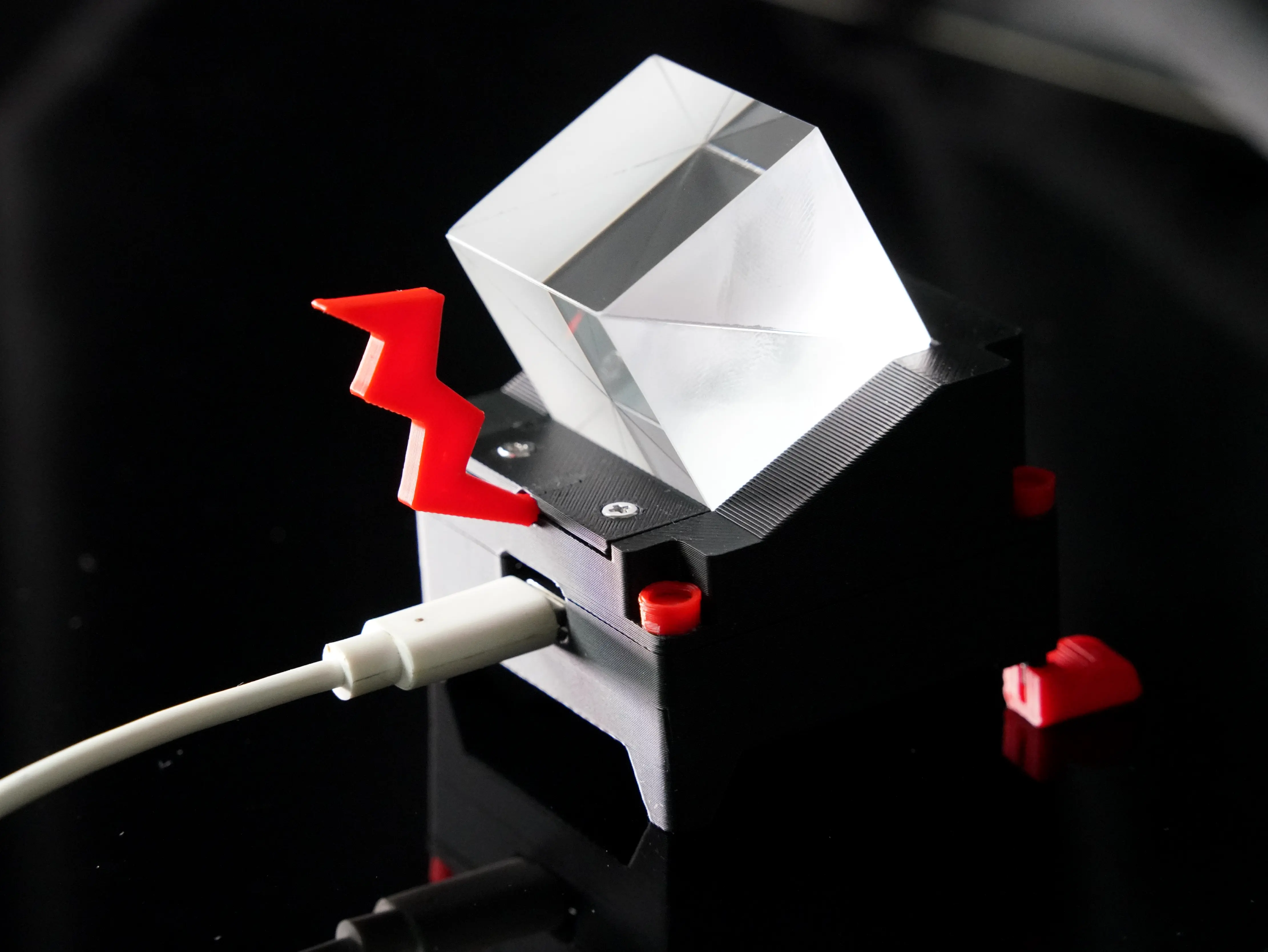
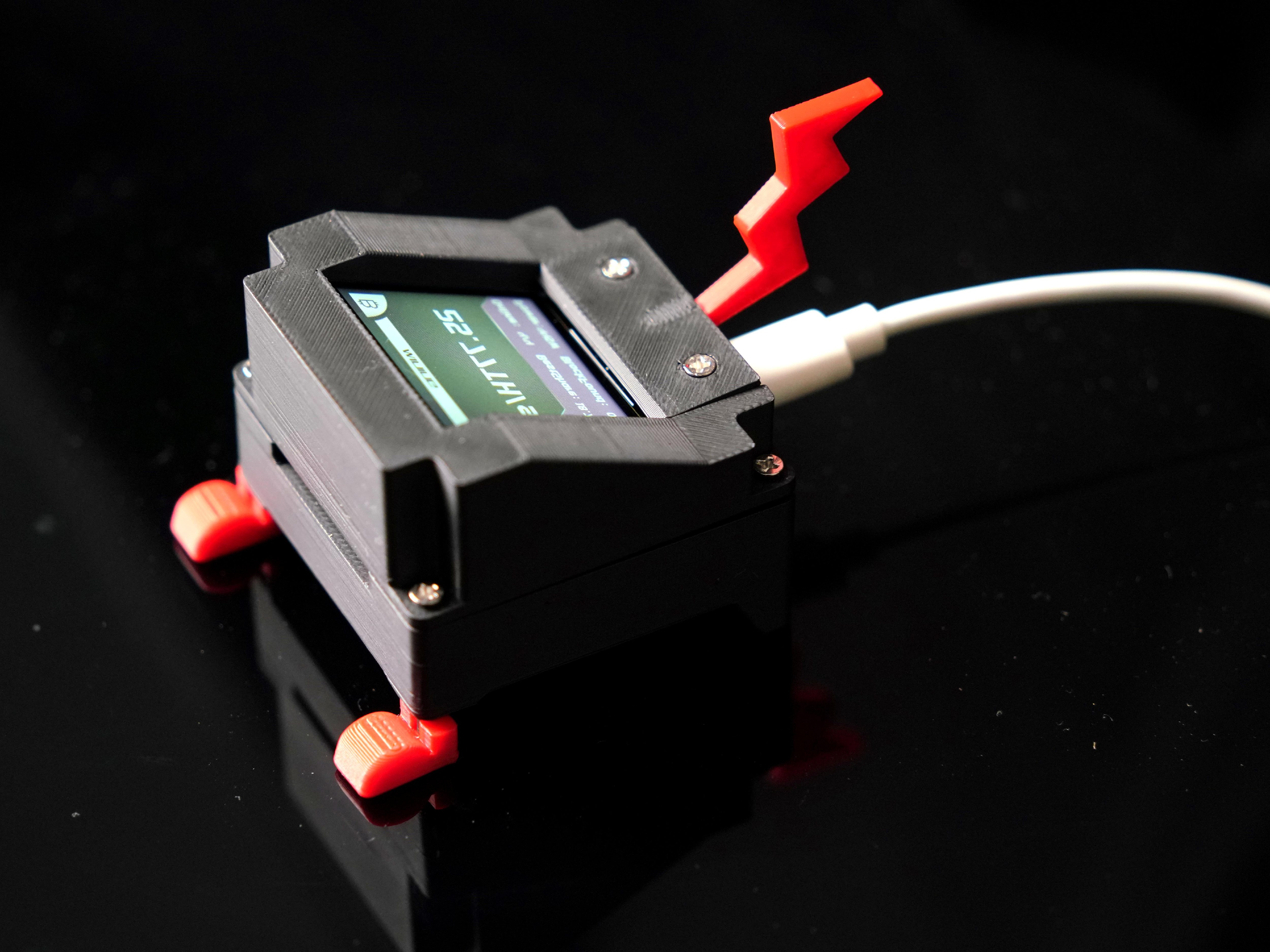
- 🔌 5V USB Power Supply: Connect WatchDog using the included USB cable. Power on for ultra-low power consumption 7x24 operation without needing an additional power adapter.
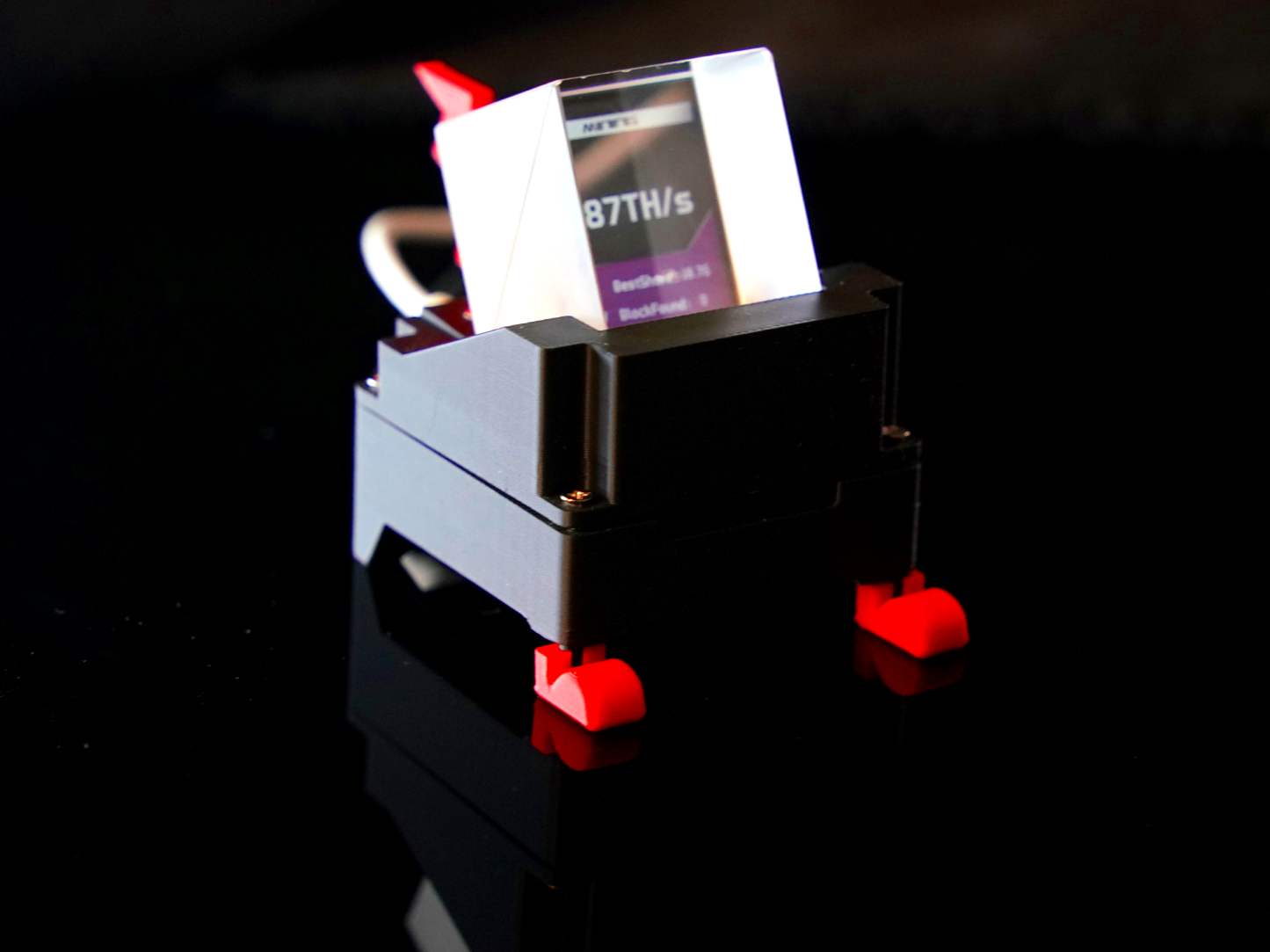
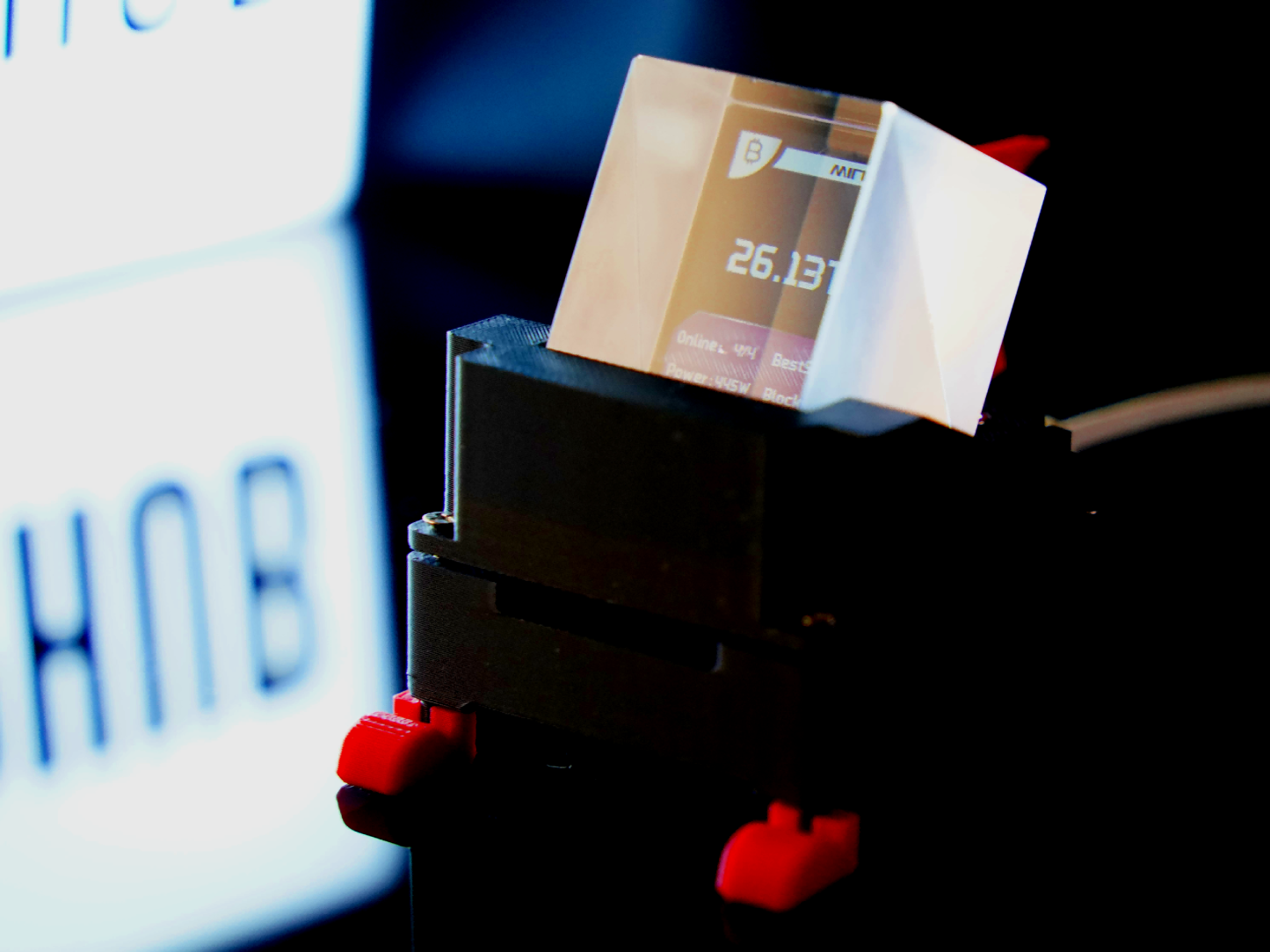
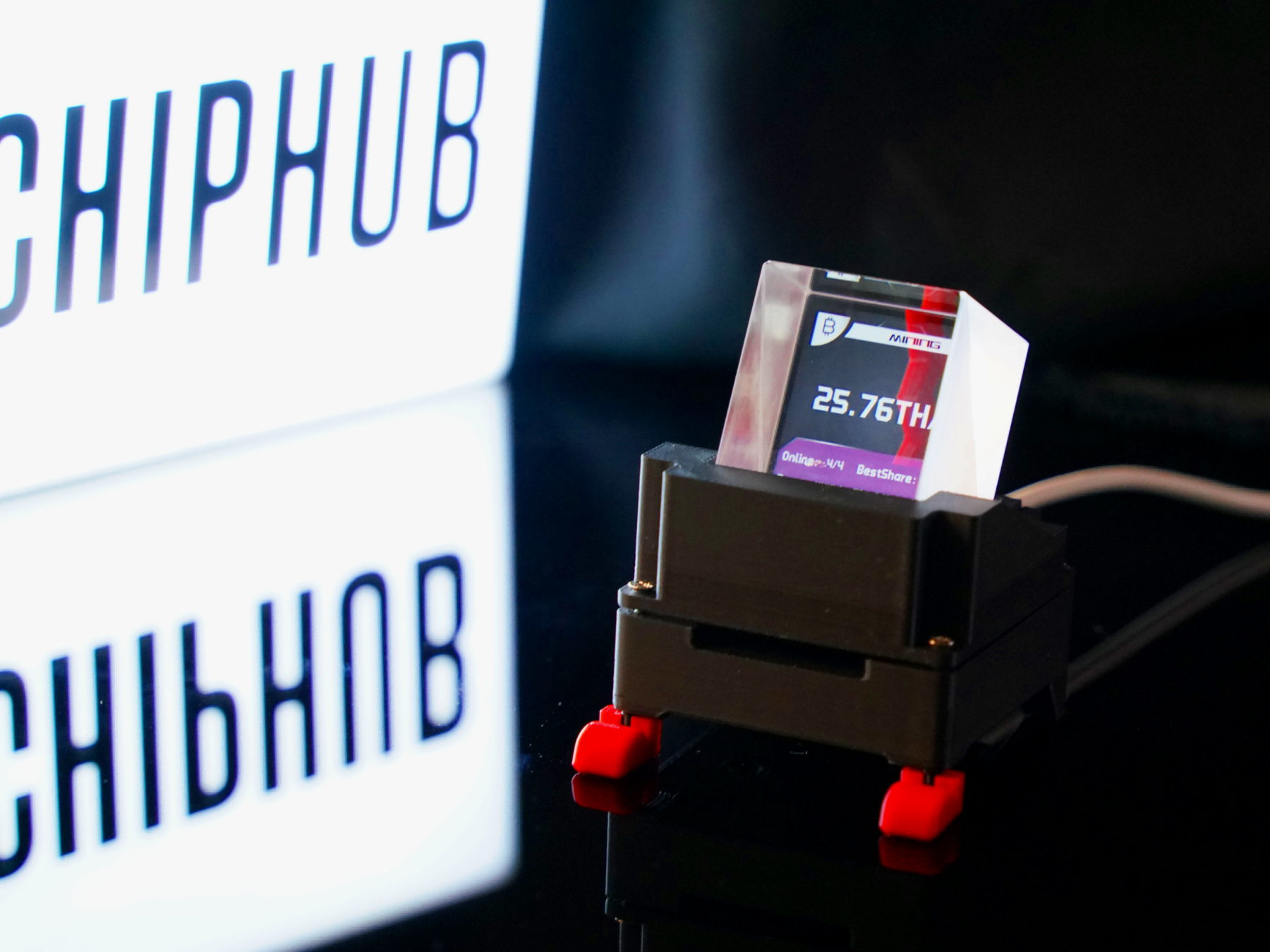
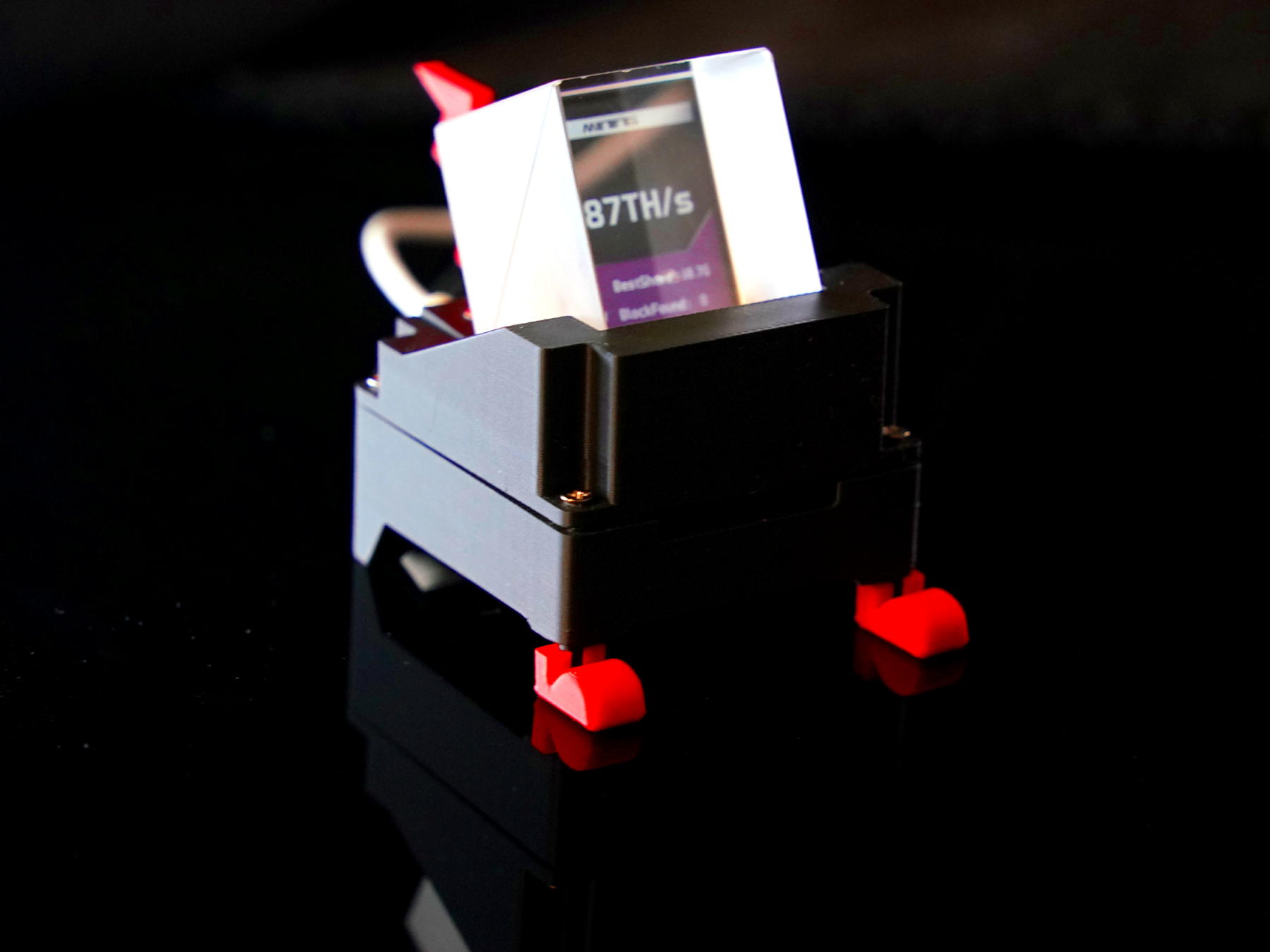
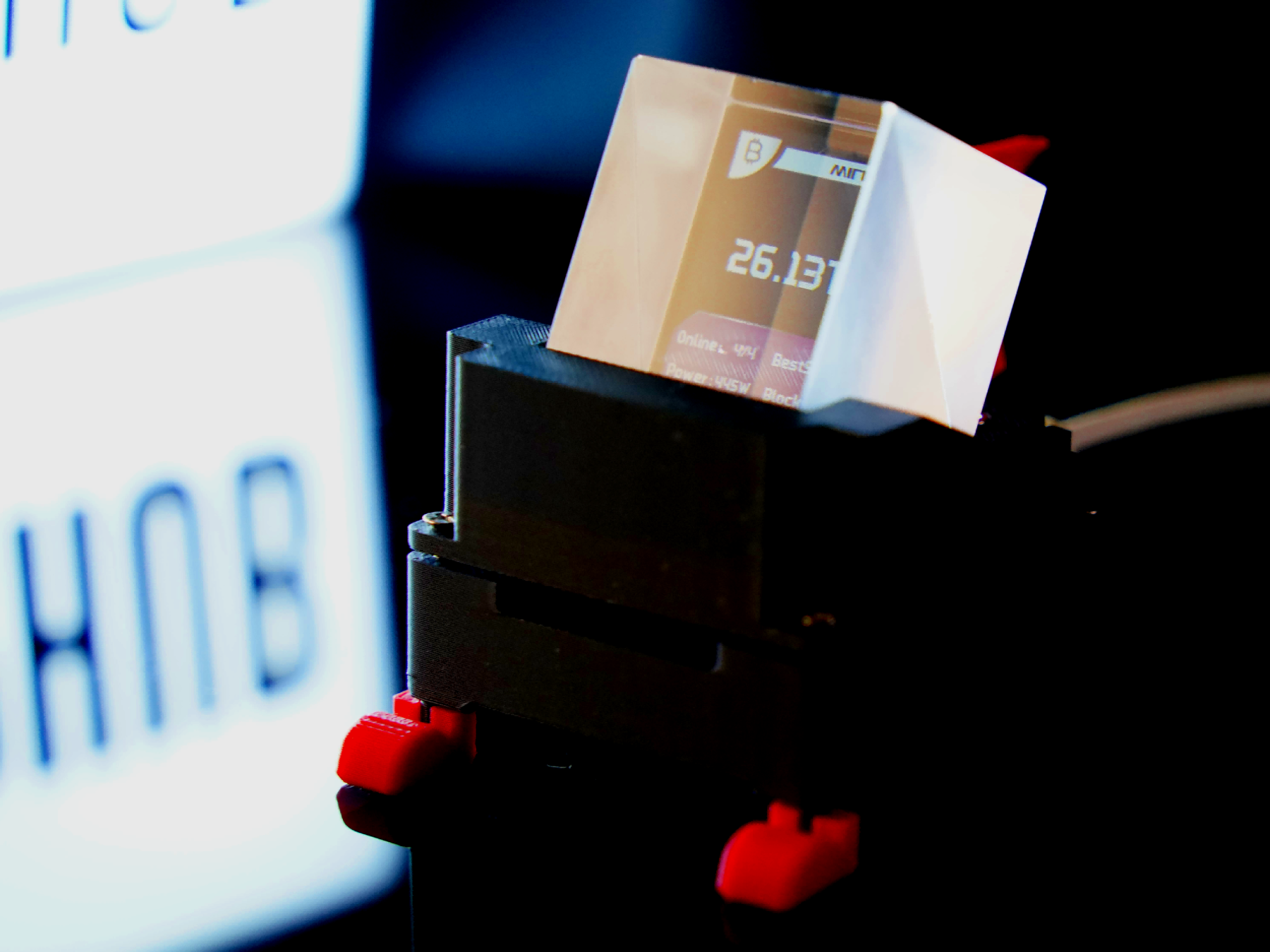
- ✨ Prism Refraction Floating Effect: The prism design utilizes refraction principles to create a "3D floating" technological effect without direct glare, ensuring comfortable long-term viewing.
- 🔄 OTA Firmware Upgrade: Supports flashing the latest firmware via OTA to unlock core features like Dashboard, Batch Setting, etc. Regular updates based on user feedback are provided, continuously adding new features through the TCH feature roadmap.
📦 Package Contents
- 1.5m 5V 6A Type-C USB Charging Cable x 1
- WatchDog Main Base (includes TFT LCD screen, built-in USB interface & vibration sensor module)
- 30x30x30mm Cubic Beam Splitter Prism, made of high-transmittance optical glass to ensure projection clarity.
Network Configuration: Done in 5 Minutes
- On first boot, WatchDog will automatically create a Wi-Fi hotspot named
ZCube_OS(XXXX). Connect your phone or computer to this hotspot. The network configuration page will pop up automatically upon connection.
- On the configuration page, enter a custom hostname, scan for available Wi-Fi names, enter the password, click Save, then click Reboot.
- WatchDog will automatically connect to the Wi-Fi and scan for miners on the same local network (automatic identification within 5 minutes), refreshing the status every 20 seconds thereafter.
💡 Reminder: On the network configuration page, you can access the ZCube OS web backend via WatchDog's IP address (e.g., 192.168.x.x) or the set Hostname (e.g., http://hostname/).
2 Steps to Flash Firmware
Step 1: Get the Firmware File 💪
Go to the official GitHub latest release page:Github.com/TinyChipHub/ZCube-OS-Release/releases
Step 2: Flash Firmware via OTA 🔥
- Enter the ZCube OS Backend, click the "Update" button in the left menu.
- First, try clicking the "Check for Updates" button. It will send a request directly to the GitHub Release and compare version numbers (current version is displayed in the top right corner, e.g.,v1.0.2).
- If an update is found, the system will prompt you to download it, or you can go to GitHub to verify.
- In the OTA Update section, click "Choose File" and upload the downloaded .bin firmware file.
- Click "Upload Firmware" and wait for the progress bar to complete.
- To update the Web UI resources, upload the corresponding file in the "Web Binary" section, then click "Upload WWW".
- Once done, the device will reboot automatically and come back online after about 30 seconds.
*Products sold by TinyChipHub are handmade DIY items. If you are a beginner, please refer to the User Guide and review the return and refund policy before purchasing.