Whether you're troubleshooting a Bitaxe, Zyber, or Nerdqaxe miner—or simply need a factory reset—this step-by-step restoration guide will help. Reflashing the firmware is straightforward but requires precision to avoid hardware damage. Follow these instructions carefully to recover your miner successfully.
Let’s use a Bitaxe factory flash as an example!
What You’ll Need
1. A computer and USB Type-C cable: Compatible with Windows, macOS, or Linux.
2. Correct Firmware: Download the version matching your miner model from the firmware page.
3. ESP Tool: The official online tool for flashing firmware onto the miner's Espressif chip - navigate here
Step 1: Download the Correct Firmware
Before proceeding, it’s crucial to select the correct firmware for your model. Using the wrong firmware can result in hardware damage.
1. Identify your exact Bitaxe model via the model number printed on the hashboard (e.g., Bitaxe Gamma 601)
2. Visit the firmware page navigate to your model’s GitHub repository.
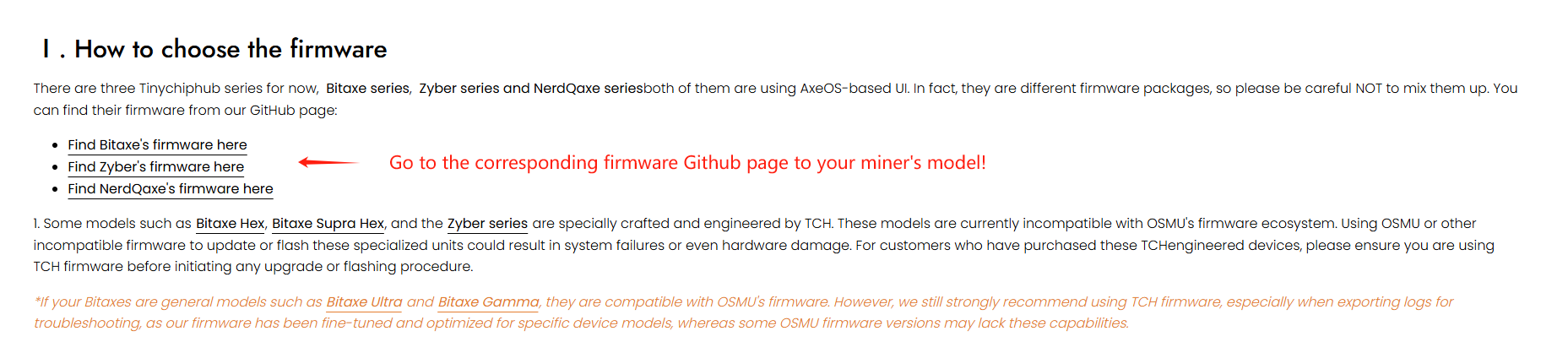
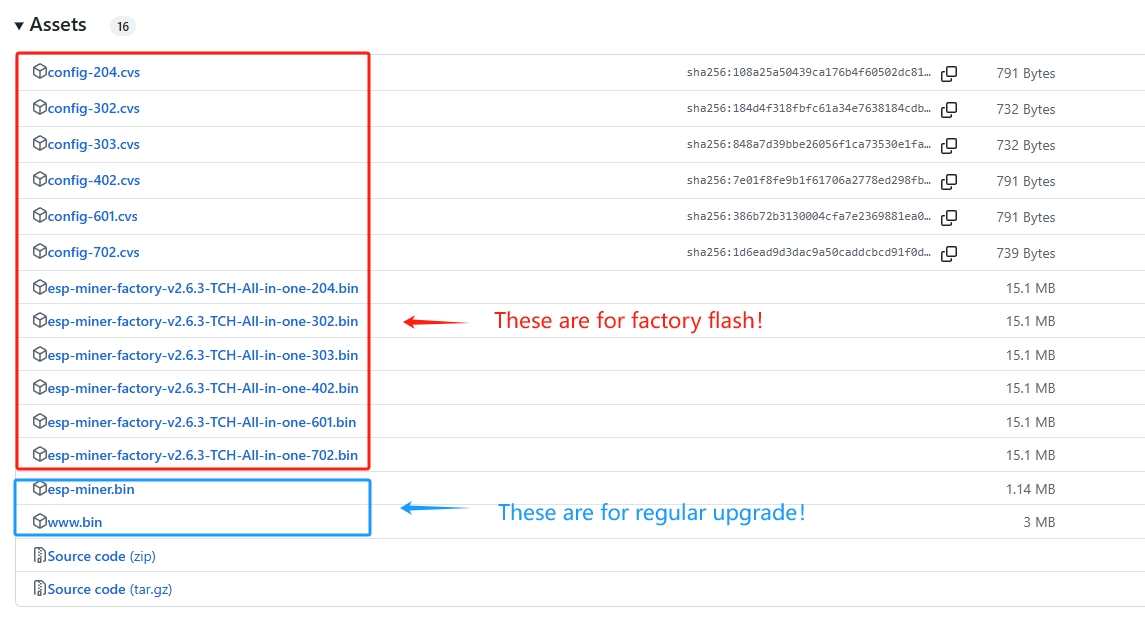
3. Download the .bin file matching your Bitaxe model (e.g., “esp-miner-factory-vx.x.x-TCH-All-in-one-601.bin” for your Bitaxe Gamma 601 )
Step 2: Connect Your Bitaxe
1. Power off your Bitaxe. Connect it to your computer via USB Type-C cable.
2. Power on the miner. Open the ESP Tool - do NOT change the default settings.
3. Click "Connect" and select the correct port. Wait for the "Connected to device" status.

Step 3: Flash the Firmware
1. Enter a “0” (number zero not letter o) in the Flash Address field.
2. Select your downloaded .bin file.

3. Click "Program" and wait patiently - Completion is confirmed ONLY when this line "Hard resetting via RTS pin” appears.

Step 4: Verify the Restoration
1. Click “Disconnect” and reboot the Bitaxe.
2. Confirm boot-up with factory settings. If operational: Congratulations! Your miner is restored.
Critical Notes
-
✅ Firmware Verification: Double-check model compatibility. Wrong firmware = permanent damage.
-
💾 Data Backup: Save important data beforehand—flashing erases all content.
-
🔌 USB Cable Quality: Use a reliable cable to avoid flashing interruptions.
Found this guide helpful? Share it with the Bitaxe community! Happy mining!😊


1 comments