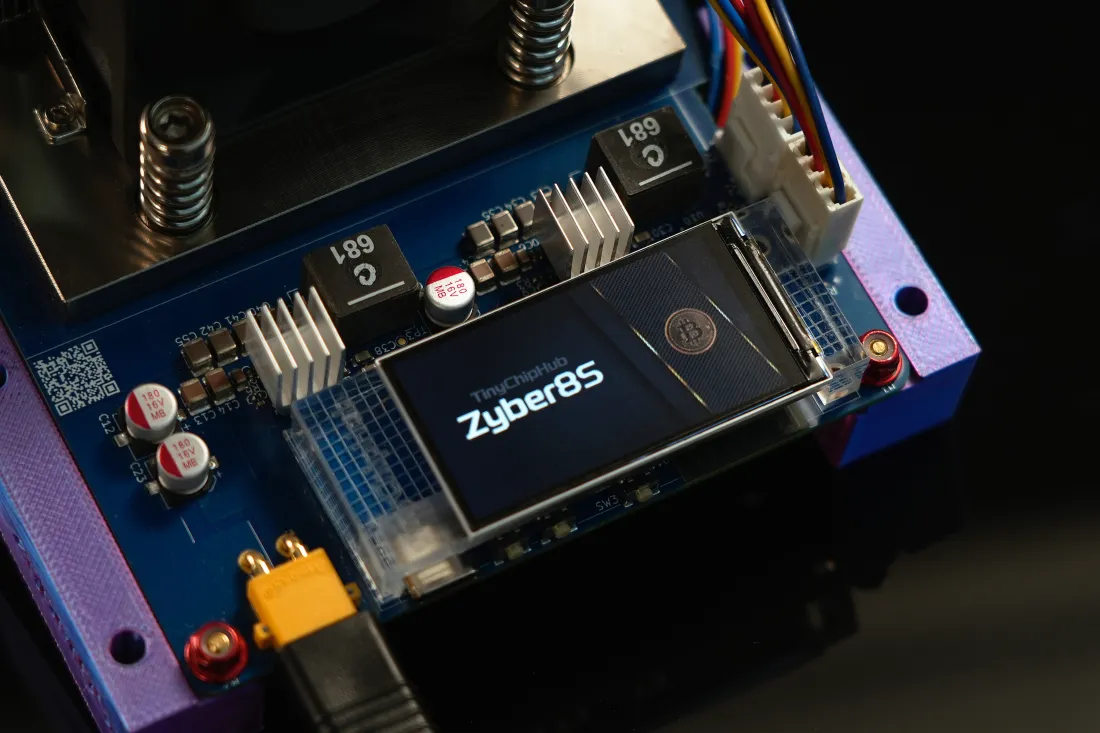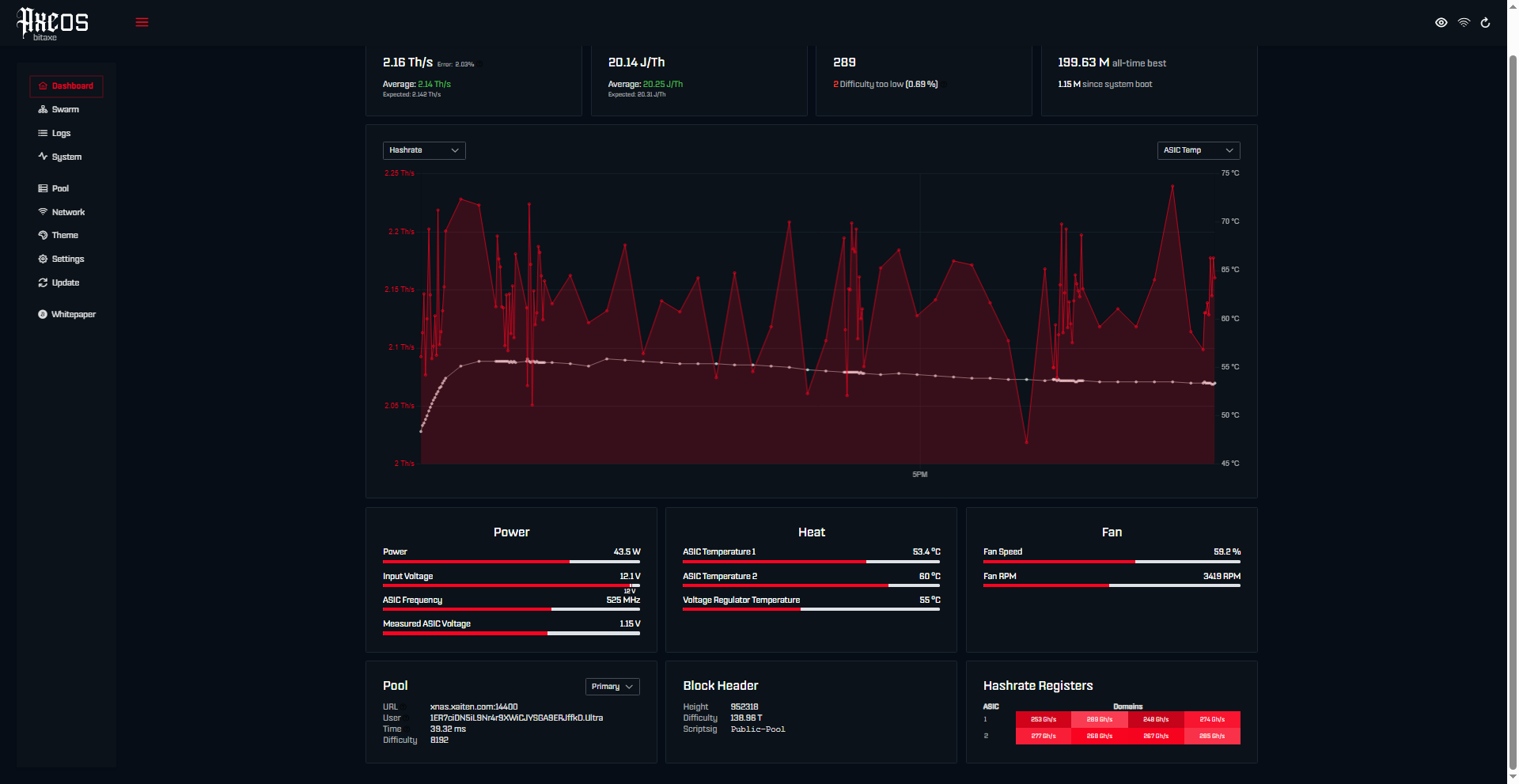
AxeOS is the operating system and web interface built on top of the firmware—the dashboard and control layer you interact with directly in your browser. In day-to-day use, most people simply call the whole system “AxeOS.”
AxeOS is an open-source firmware designed specifically for the Bitaxe family of miners. It runs on the ESP32-S3 chip using the ESP-IDF framework and starts a local web server via its built-in Wi‑Fi so that you can open a browser, go to 192.168.xx.xx, and immediately monitor hashrate, ASIC/chip temperature (typically 50–65°C), and Stratum connection status. AxeOS requires no external PC software, mobile apps, or cloud accounts. Once configured, a Bitaxe miner runs independently—you only need a device on the same network with a web browser.
1、How does it run 🏃
When people see a Bitaxe miner for the first time, a common question is: what’s actually making this little box work? The answer is the AxeOS firmware—the “nervous system” of the unit—responsible for driving the ASIC chips (BM1366 / BM1368 / BM1370 / BM1373) to perform SHA-256 hashing, while also coordinating Wi‑Fi communication, thermal/fan strategies, and pool protocol handshakes.
The underlying codebase is called ESP-Miner and is hosted at github.com/bitaxeorg/ESP-Miner. ESP-Miner is a complete firmware package handling everything from low-level ASIC communication to networking.
Under the hood, after AxeOS boots it roughly follows this sequence:
- 💪 Power-on self-test (POST): checks whether the ASIC responds correctly and reads pool configuration stored in NVS (Non-Volatile Storage).
- ➡️ Wi‑Fi connection: joins the LAN using WPA2 and obtains a DHCP address; if it fails, it falls back to AP mode (hotspot SSID:
bitaxe) so you can configure it for the first time. - 🔥 Stratum handshake: establishes a long-lived TCP connection to the pool and completes
mining.subscribe+mining.authorizeauthentication steps. - ⚠️ Job scheduling: ESP32-S3 forwards jobs/work from the pool to the ASIC, which continuously searches for valid Nonces at rates expressed in GH/s or TH/s.
- ➡️ Result reporting: when a share meeting the target difficulty is found, it is submitted back through the Stratum V1 protocol—usually with round-trip latency well under 30 ms.
The runtime logic is essentially an event-driven + real-time task scheduling architecture. ESP-IDF’s FreeRTOS kernel slices execution across multiple concurrent tasks: temperature sampling (~every 500 ms via NTC thermistor), fan PWM control, the HTTP server task, and the Stratum client task. This keeps the dashboard responsive and live-refreshing even while the miner is running full tilt.
2、AxeOS features ❓
Looking at AxeOS’s feature set, its goal isn’t just “it works”—it tries to push controllability of a solo miner as far as practical. From hashrate tuning and thermal policy to OTA updates, packing all of this into a lightweight embedded system is surprisingly capable. Core functionality can be grouped into three layers:
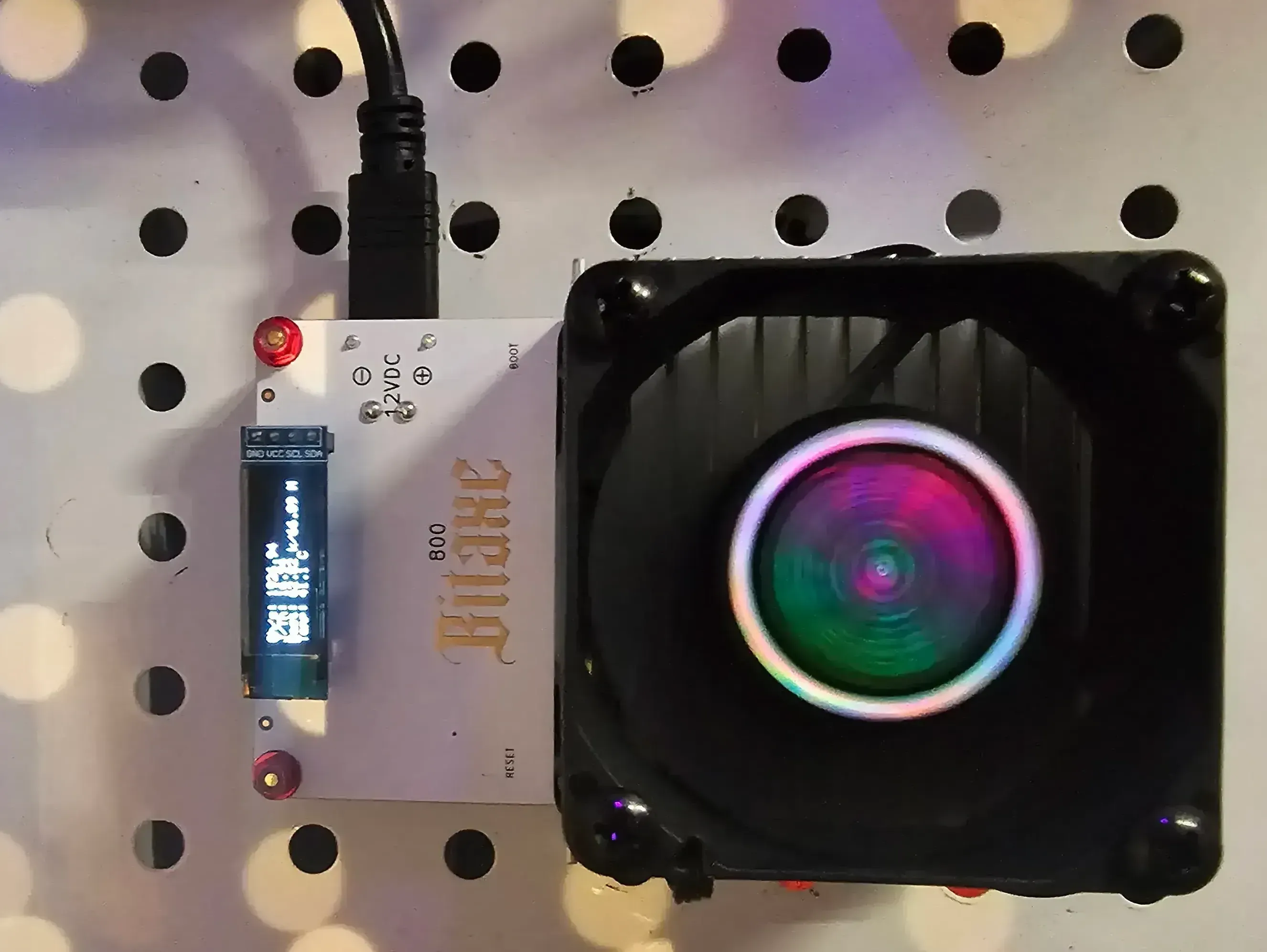
❄️ Performance & power-tuning layer — the part enthusiasts enjoy tweaking the most. Through the Dashboard you can adjust the ASIC’s operating frequency and core voltage (for example, on a Bitaxe GT the range centers around ~525 MHz and VCORE ~1.15 V; dialing these together helps find the sweet spot for stability given your cooling). Official defaults often target ~625 MHz; community reports suggest that, provided the chip stays below ~70°C, pushing a bit beyond can yield noticeable gains—often cited around 8%+ in certain setups (your mileage will vary).
- 🔥 Frequency & voltage adjustable independently: change values from the Web UI and apply without a full reboot cycle (depends on setting).
- 💪 Fan PWM auto control: dynamically scales 0–100% based on chip temperature; you can also lock a manual duty %.
- ➡️ Overtemp protection threshold: configurable ceiling (often default around 60–70°C); triggers protective throttling/behavior when exceeded.
- ❓ Hashrate auto-recovery: if the Stratum link drops, the firmware retries with exponential backoff (commonly starting around 5 s and backing off up to ~60 s) to reconnect automatically.
🏃 OTA (over-the-air) updates are another stress-reliever: you don’t need to crack the case or fiddle with USB/UART. From Settings in the Dashboard you can upload a .bin file, or paste a GitHub Release asset URL and pull it directly. Updates typically take ~30–45 seconds, and the bootloader-based fallback helps avoid “bricking” if something goes wrong. The AxeOS v2.x line (2024) also introduced LVGL graphics support for units with local OLED/LCD (e.g. Bitaxe Supra).
Note: AxeOS REST API endpoints (such as GET /api/system/info, PATCH /api/system) are unencrypted and intended for LAN-only access. If your home network exposes the miner IP outward, apply router-level ACLs or firewall rules to prevent unauthorized tampering.
3、How to access the AxeOS Dashboard 🔥
The most common first hurdle is simply “I can’t find the IP.” Don’t worry—once you know the flow, it’s quick. From powering on to seeing the Dashboard can easily be under 3 minutes once familiar.
Prerequisite: your Bitaxe GT and your computer/phone must be on the same LAN. The firmware advertises itself via mDNS with the default hostname bitaxe.local, which works natively on most macOS/Linux systems. Windows users may need Apple Bonjour services installed, or just look up the IP from the router’s DHCP client list.
- ➡️ First-time config (AP mode): if the miner hasn’t joined Wi‑Fi yet, it creates an open hotspot named bitaxe. Connect to it, browse to
192.168.88.195, enter your home Wi‑Fi SSID/password, save, and reboot. - 🔥 Normal-mode access: after reboot the miner joins your network; locate its leased IP (router admin page or a scanner like Fing on iOS/Android) and open that IP in your browser, e.g.
192.168.x.x. - 💪 mDNS shortcut: on networks where mDNS resolves, just type
http://bitaxe.localin the address bar—no hunting for IP needed. - ❓ If it won’t load: double-check the band—ESP32-S3 on the Bitaxe GT uses 2.4 GHz; it cannot connect to a 5 GHz–only SSID.
The Dashboard’s HTTP server listens on port 80, implemented with the lightweight esp_http_server component, and supports up to several concurrent connections (often cited around ≤4). That means you can have it open on both a phone and a laptop and see live synced data.
⚠️ Important: by default the Dashboard has no login password—any device on the same LAN can view and change settings. On shared networks (office, apartment Wi‑Fi, etc.), the recommended hardening step is to restrict access to the miner’s IP via router firewall/ACL rules.
4、➡️ Dashboard overview
When the AxeOS Dashboard opens, you aren’t hit with chaotic charts or overwhelming telemetry. It’s a clean, single-page real-time panel with key metrics laid out clearly and refreshing roughly every couple of seconds—watching your machine work is oddly satisfying.
The main screen is typically organized into four functional areas:
| Area | Key displays | Typical range |
|---|---|---|
| Hashrate Panel | Live hashrate / 5-min average / trend sparkline | 2400+ GH/s (BM1370 nominal conditions) |
| Temperature Panel | ASIC die temp / ambient temp / fan RPM | ASIC 50–70°C; fan 1500–4500 RPM |
| Pool Status | Pool connection state / accepted shares / rejection rate | Healthy rejection usually <2% |
| System Info | Uptime / firmware version / IP / MAC | Can run 720 h (30 days)+ without needing a restart |
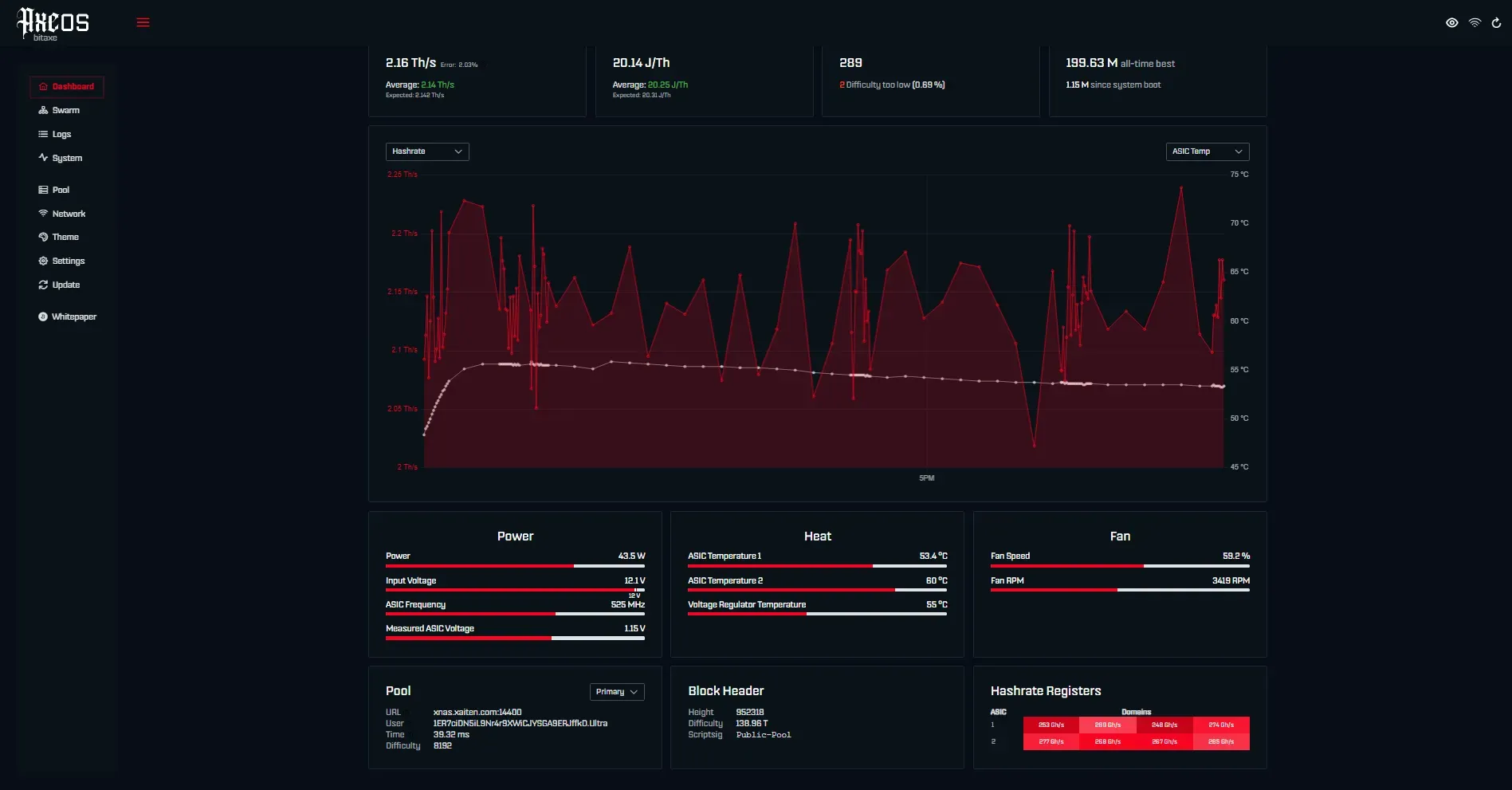
After you land on the AxeOS control panel, here’s what the main metrics mean:
- Hashrate: current mining performance, usually shown in TH/s (trillions of hashes per second).
- Efficiency (J/TH): energy efficiency—how many joules are consumed per terahash of work.
- Error % (or variance): deviation between observed hashrate and expected nominal hashrate, expressed as a percentage.
- Temp (Chip): measured temperature of the ASIC chip in °C.
- VR Temp: temperature on/around the voltage regulator(s).
- Power (W): total electrical power draw in watts.
- Input Voltage (mV): supply voltage delivered to the board.
- Core Voltage / VCORE (mV): voltage actually supplied to the ASIC core.
- Fan Speed (RPM / %): current fan speed as RPM and/or duty cycle %.
- Accepted Shares: number of valid share submissions confirmed by the pool.
- Rejected Shares / Rejected Jobs: submissions rejected by the pool (stale, invalid, or difficulty mismatch).
- Best Difficulty / Best Share: highest-difficulty share found so far this session—the number people love to screenshot.
- Block Height: latest Bitcoin block height reported by the pool.
- Pool Difficulty: target difficulty currently assigned by the pool to your worker.
- Response Time / Latency: round-trip time for share submission to the pool, in milliseconds.
- Uptime: how long the Bitaxe has been running since last reboot.
- Hashrate Chart: dual-axis-style history showing recent performance (commonly up to ~1 hour of samples; intervals/granularity depend on version, often a rolling window updated every few seconds).
The Settings page is where the actionable knobs live: pool endpoint (Stratum+TCP or Stratum+SSL), frequency, VCORE, fan mode (Auto/Manual), and the OTA update entry point. After changes, click Save & Restart—the miner typically reboots and resumes mining within about 8 seconds, so hashrate downtime is short.
The hashrate chart commonly defaults to the last 10 minutes of data (sample interval around 10 seconds). Events like a Stratum reconnect often show up as a brief zero/drop that’s easy to spot visually. Also note the Best Share field: it tracks the highest difficulty share found so far this session—bigger numbers mean you “hit harder” nonces, and it’s one of the most-shared stats in the community.
Architecturally, the Dashboard frontend is plain HTML + JavaScript, with static assets packed into a SPIFFS partition (~200 KB ballpark). Live data is fetched via REST polling rather than persistent WebSocket, which keeps memory pressure low—ESP32-S3 available SRAM is roughly 512 KB, and AxeOS heap usage under load often sits around 60–80 KB, leaving headroom for stability.